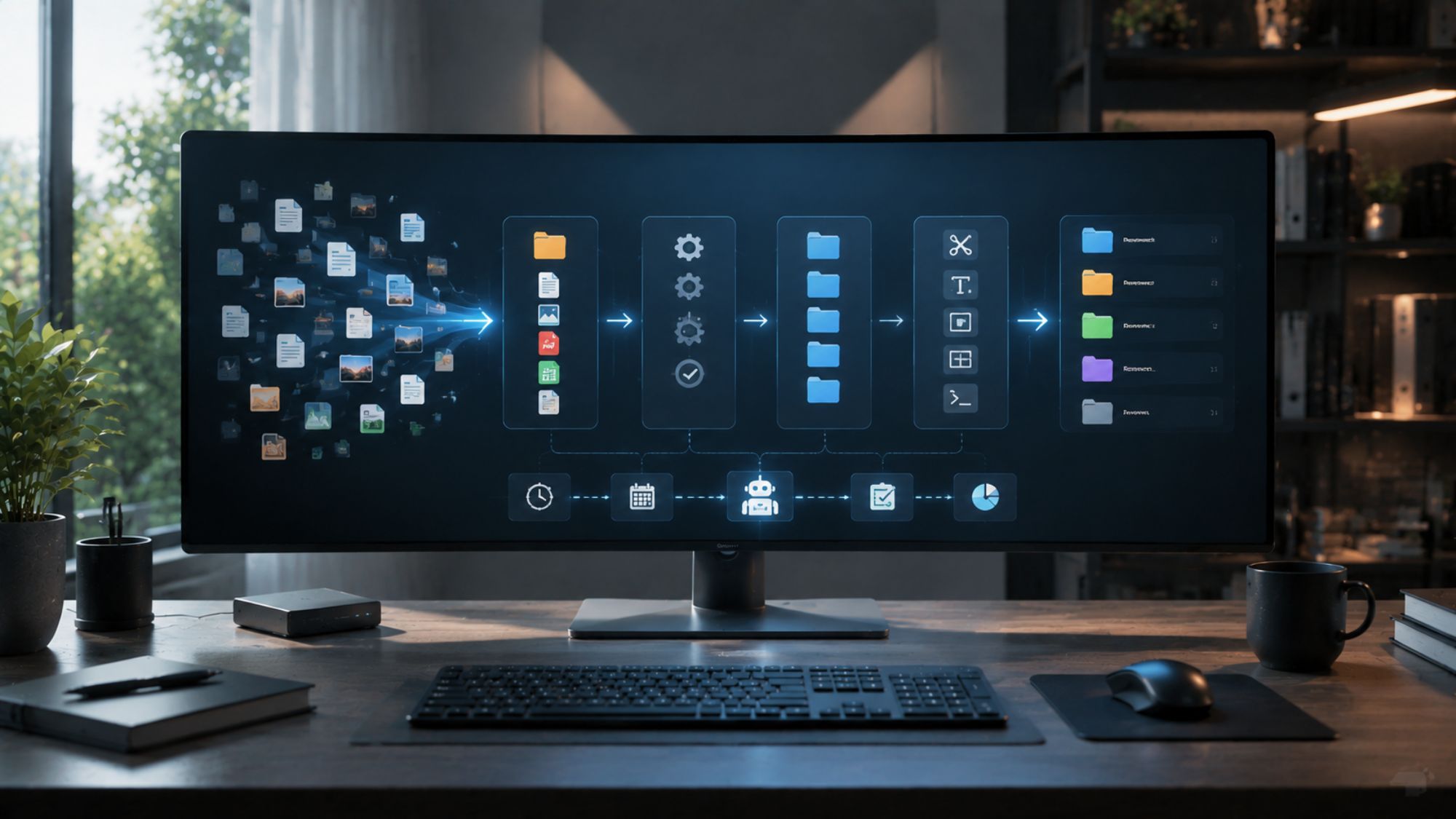
For many computer users, the command line can feel unfamiliar compared with traditional graphical interfaces. Modern operating systems have made visual tools such as file managers, menus, and application windows easier to use, but some repetitive tasks can still become inefficient when handled entirely through clicks.
Command-line tools provide another way to interact with computers. Tasks involving bulk file management, text searching, system inspection, and repetitive operations can often be simplified through text-based commands. Learning basic terminal habits does not require becoming a programmer or abandoning graphical applications. Instead, it adds another layer of control for users who want more flexible workflows.
Modern shells such as PowerShell on Windows, Zsh on macOS, and Bash on Linux provide practical tools for everyday computer tasks. With a small set of foundational skills, users can improve how they organize files, search information, and automate repeated actions.
The main advantage of the command line is precision. Instead of manually navigating through multiple folders or selecting files one by one, users can define specific rules and apply them to groups of items.
For example, moving a large collection of files with similar names or formats may require several steps in a graphical file manager. A terminal command can perform the same operation by targeting specific patterns or locations.
Command-line environments also support features such as command history, auto-completion, and pipelines. These features reduce repeated typing and allow users to combine multiple actions into a single workflow.
However, graphical interfaces remain useful for many activities. The terminal is best considered a complementary tool rather than a replacement for all computer interactions.
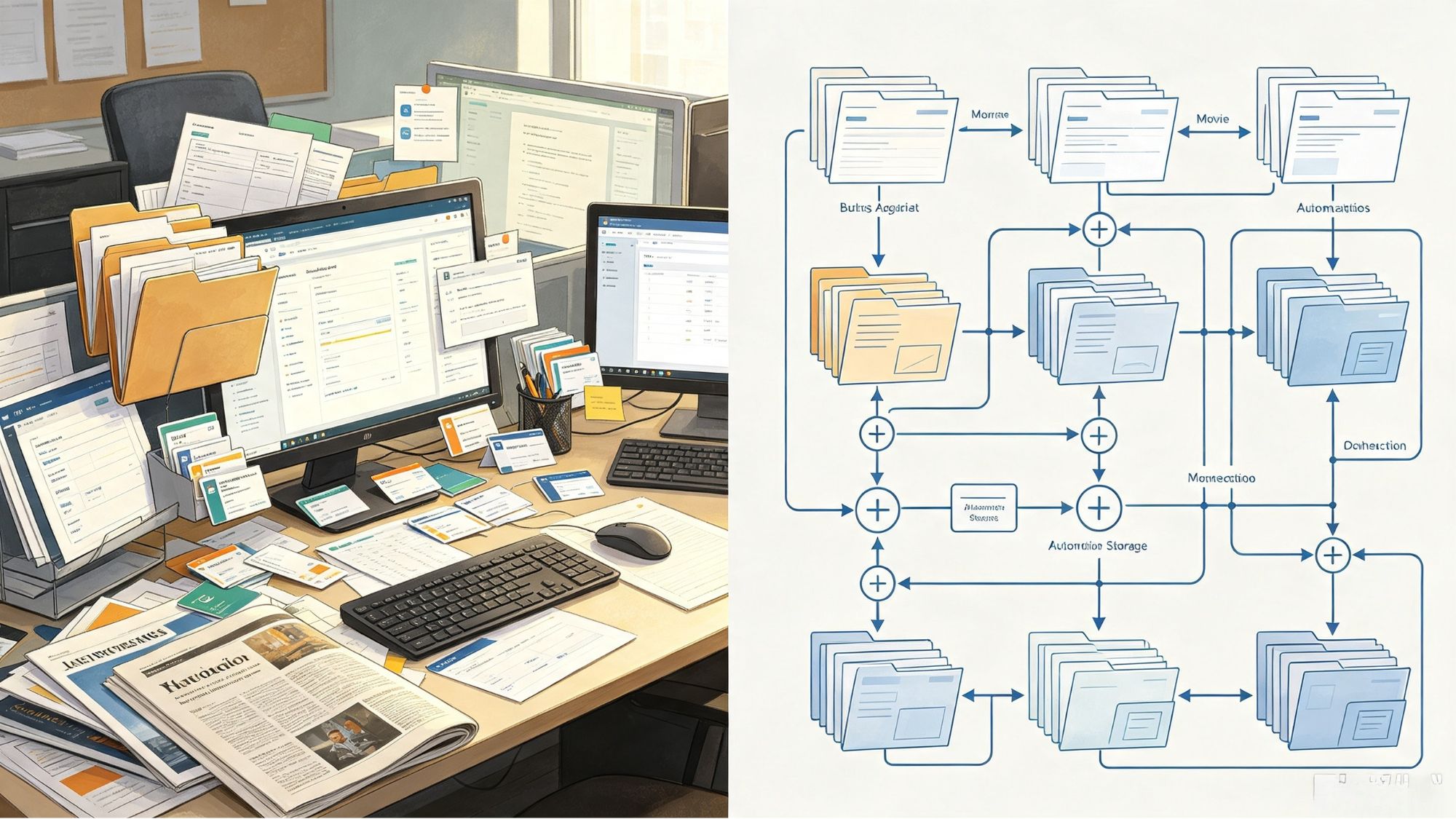
Efficient navigation is one of the first skills new terminal users should develop.
Tab completion helps users complete file and folder names automatically while reducing typing mistakes. When multiple matches exist, the shell can display available options for selection.
Commands such as:
cd -
allow users to quickly return to a previous directory, which is helpful when switching between frequently used locations.
For viewing folder contents, the traditional ls command provides basic information. Users who want additional details can explore tools such as eza, which can display information like file permissions and modification dates in a more readable format.
File management is one area where terminal tools can be especially useful.
Wildcards allow users to select files based on patterns. For example:
*.csv
can identify all CSV files in a folder without manually selecting each one.
This approach can help with tasks such as:
Organizing downloaded files
Moving project documents
Renaming groups of files
Sorting data by file type
However, file deletion commands require caution. Before removing files through the terminal, users should review commands carefully, test them on sample files, and consider recovery-focused tools when available. Small mistakes can affect multiple files at once.
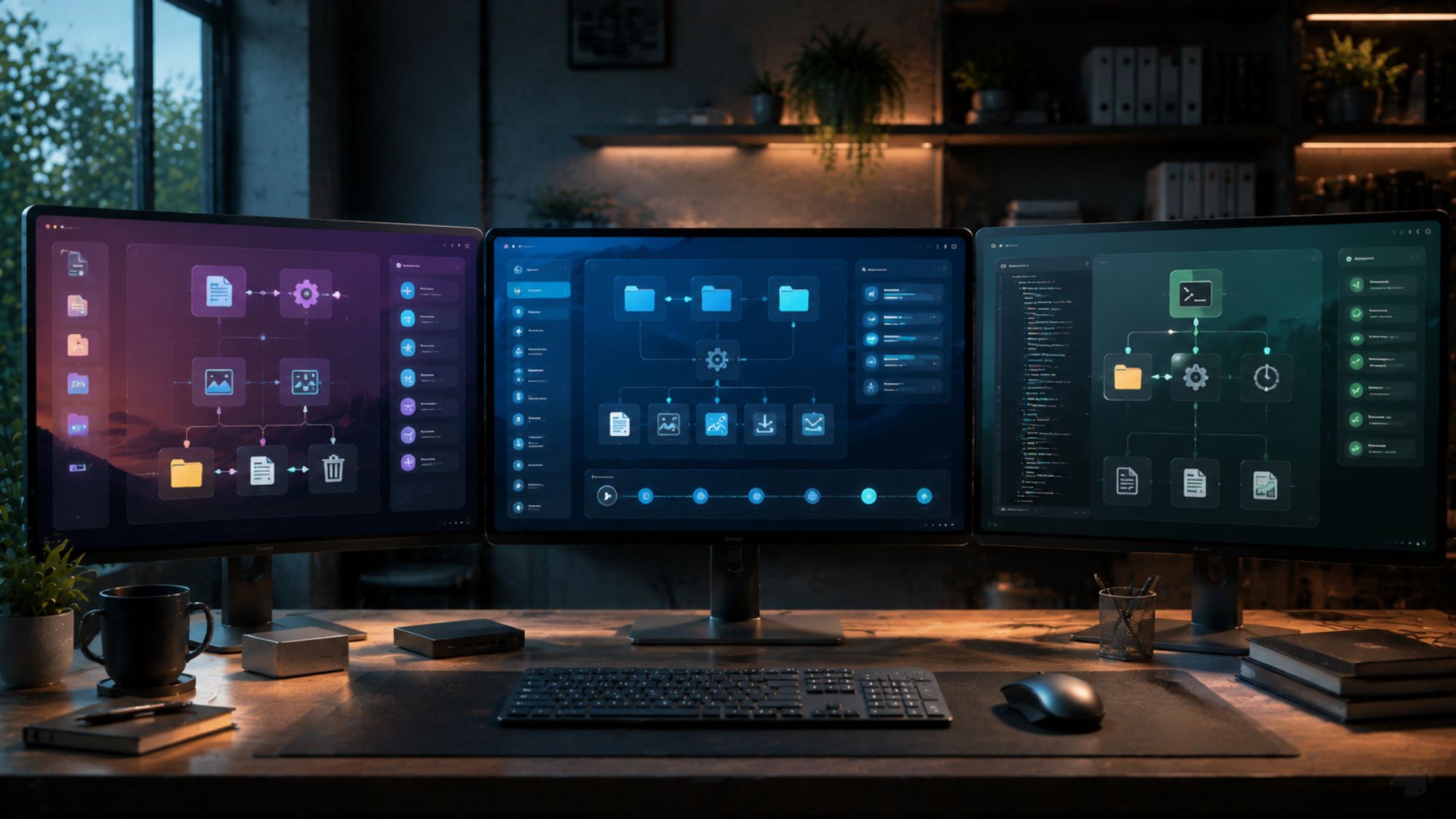
Finding information inside many documents can be difficult through manual searching.
Command-line tools such as grep and ripgrep (rg) allow users to search the contents of large collections of text-based files. They are commonly used for:
Searching documents
Reviewing logs
Finding configuration settings
Locating specific text across folders
Filtering options allow users to narrow results and focus only on relevant information.
One of the most powerful concepts in command-line workflows is the pipe operator (|).
Piping allows the output of one command to become the input of another. This makes it possible to combine smaller tools into customized workflows.
For example, users can collect information from a system command, filter the results, and save the output into a separate file. The exact possibilities depend on the operating system, installed tools, and available permissions.
This approach allows users to create lightweight solutions without needing a separate application for every small task.
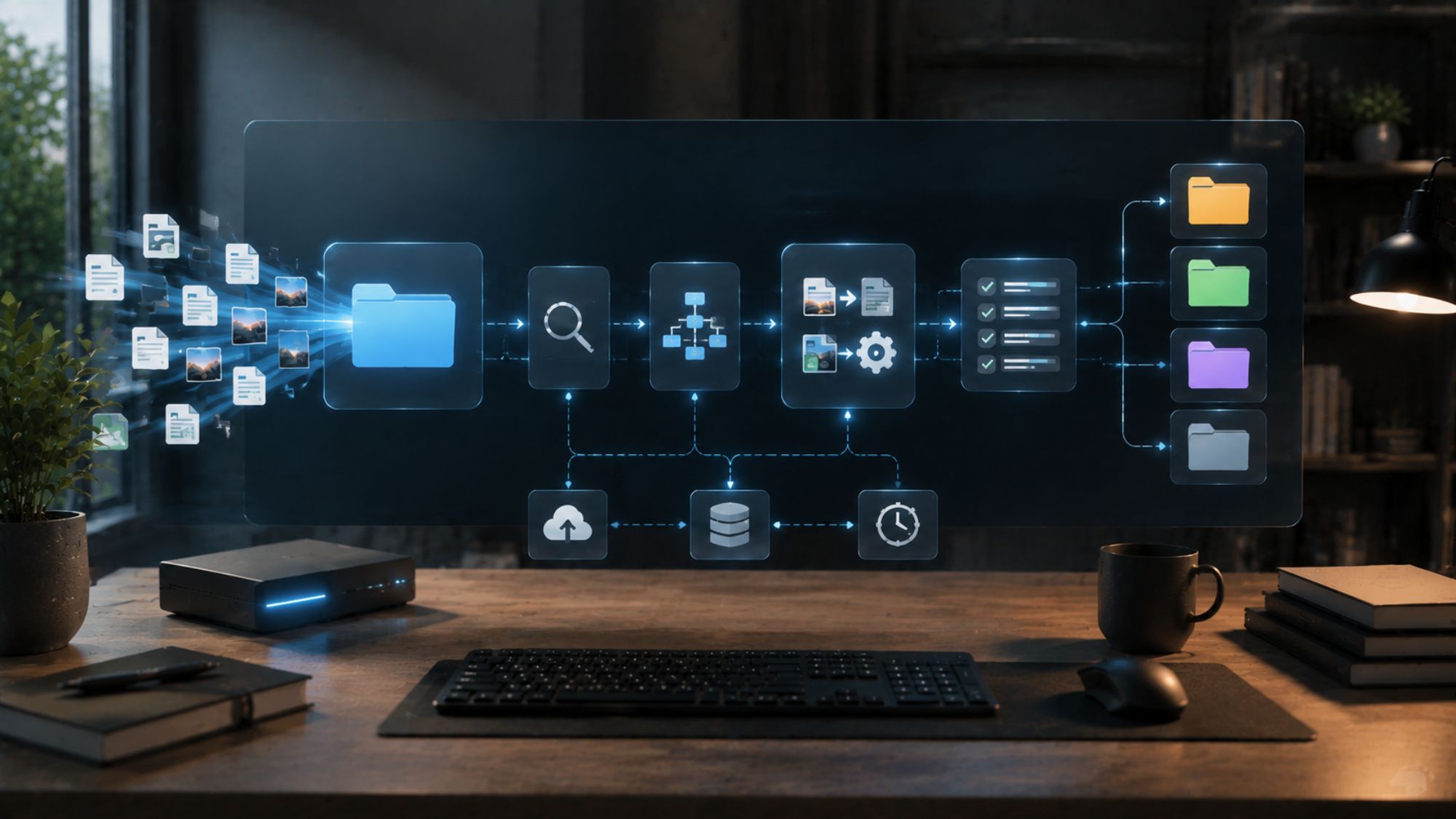
Although terminal tools are useful, they require careful use.
Command syntax varies between operating systems. A Bash command designed for Linux may not work the same way in Windows PowerShell.
Before running commands, users should confirm which shell environment they are using.
Some tasks remain easier with graphical applications, including:
Photo editing
Visual design
Complex document formatting
File previews
The terminal is most effective when used for tasks where precision and repeatability matter.
Copying commands from online sources without understanding them can create unexpected results.
Before executing unfamiliar commands:
Check what each part of the command does
Use reliable sources
Avoid commands that modify important files unless the purpose is clear
A careful approach helps users gain the benefits of terminal tools while reducing unnecessary risks.
The best way to learn command-line workflows is to start with repeated problems rather than trying to memorize hundreds of commands.
Useful first steps include:
Learning basic navigation commands
Practicing file searches
Understanding simple file operations
Exploring shortcuts and command history
As users become more comfortable, they can gradually introduce advanced tools and automation techniques.
The command line is no longer limited to programmers and system administrators. Modern terminal environments provide practical tools that can help everyday users manage files, search information, and organize repetitive tasks.
By learning basic navigation, pattern-based file operations, and search tools such as grep and ripgrep, users can gain more control over their digital workflows.
The most effective approach is to use the terminal alongside graphical applications. When applied carefully, command-line habits can make many everyday computer tasks more organized, flexible, and efficient.
