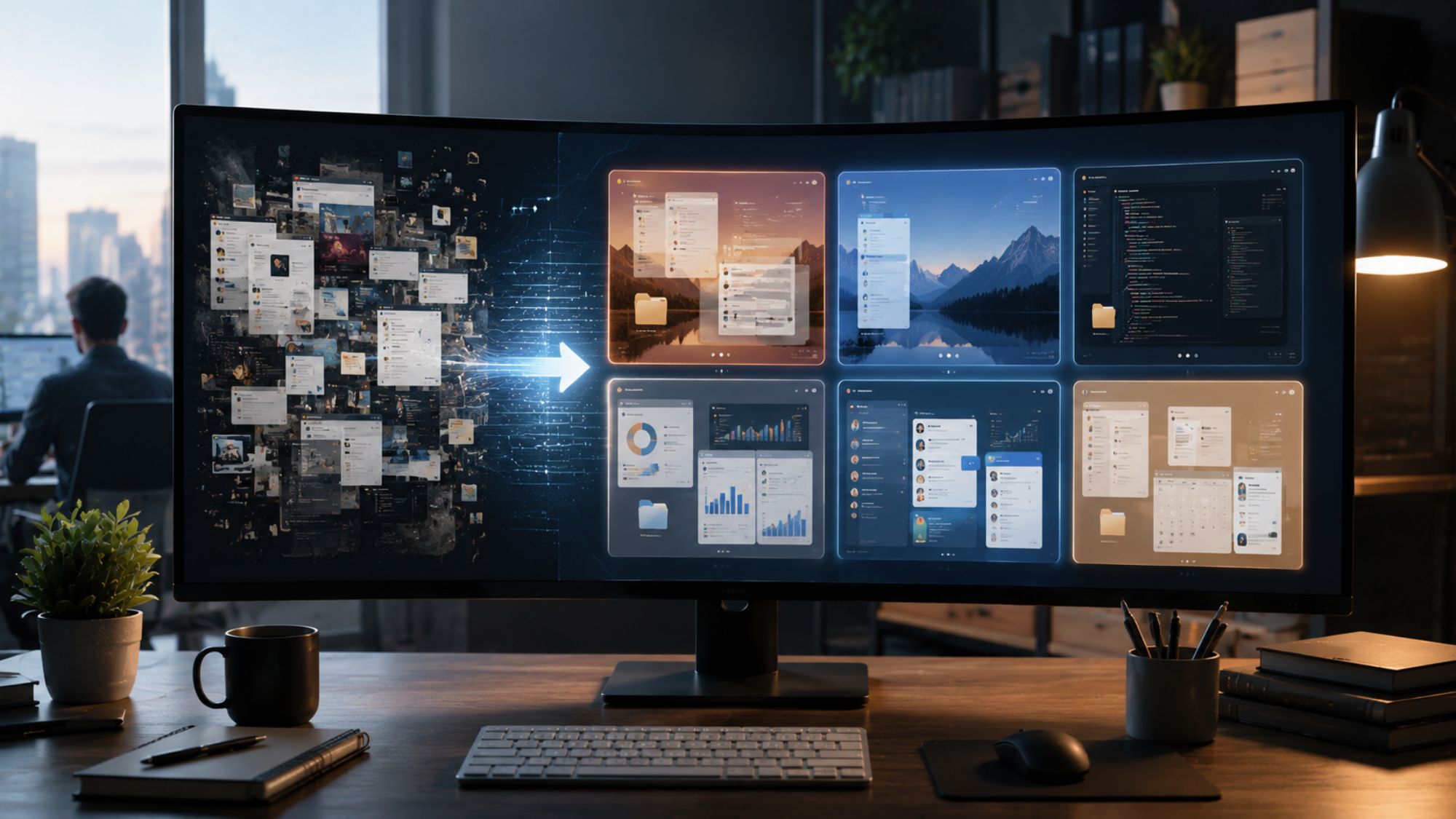
When a computer screen fills with overlapping documents, browser tabs, and communication tools, the digital workspace can quickly become difficult to navigate. Professionals managing multiple clients, research projects, or administrative responsibilities may spend unnecessary time locating applications and switching between unrelated tasks.
Virtual desktops offer a practical way to organize this complexity. Instead of keeping every application on one desktop, users can divide their digital workspace into separate environments based on projects, activities, or workflow stages. This approach does not require additional physical monitors and can make different work contexts easier to manage.
On a traditional desktop, every open window shares the same visual space. Users can switch between applications with tools such as Alt + Tab or Command + Tab, but unrelated windows remain part of the same environment.
Virtual desktops provide another layer of organization by grouping windows into separate desktop environments. When users move to another desktop, the windows associated with the previous workspace are no longer visible.
This can be useful when different tasks require different application groups. For example, a user working on a client proposal can keep the document editor, research browser, and project files together while keeping email and unrelated communication tools on another desktop.
The separation is primarily organizational rather than a complete technical isolation of applications. Files, notifications, and system functions can still remain accessible across the operating system.
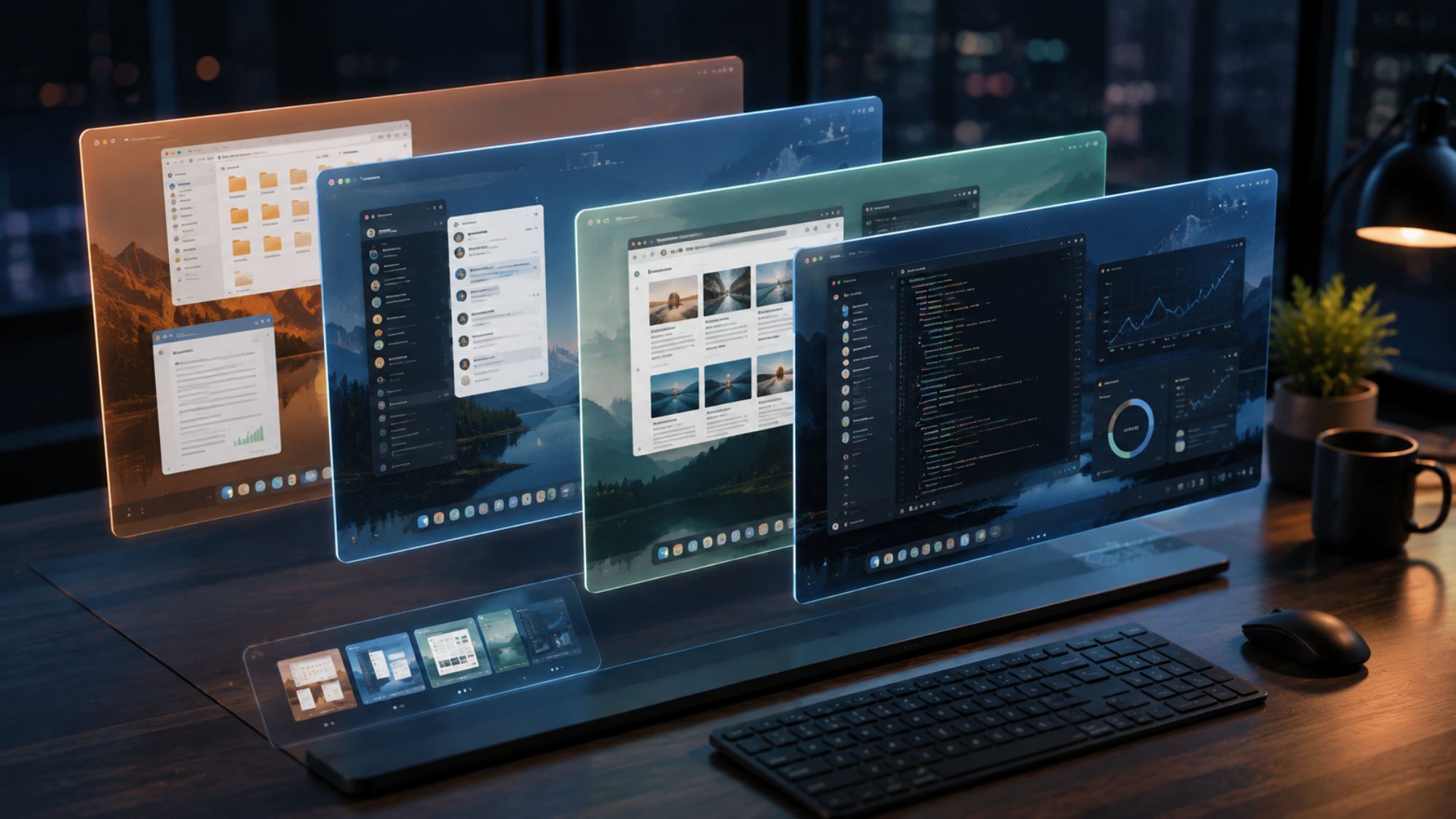
Major desktop operating systems provide built-in tools for creating and switching between virtual workspaces.
macOS provides virtual desktops through Mission Control and Spaces. Users can create additional Spaces and move between them to organize different activities.
For example, one Space could be dedicated to communication and scheduling, while another contains writing, research, or design applications. Keyboard and trackpad controls make it possible to switch between Spaces without repeatedly minimizing individual windows.
The system is particularly useful when a user wants to separate unrelated activities while continuing to work from the same physical display.
Windows provides virtual desktops through Task View. Users can create multiple desktops, rename them, move applications between them, and switch between workspaces.
Keyboard shortcuts can make the process faster. For example, Windows key + Ctrl + Left Arrow and Windows key + Ctrl + Right Arrow can move between virtual desktops.
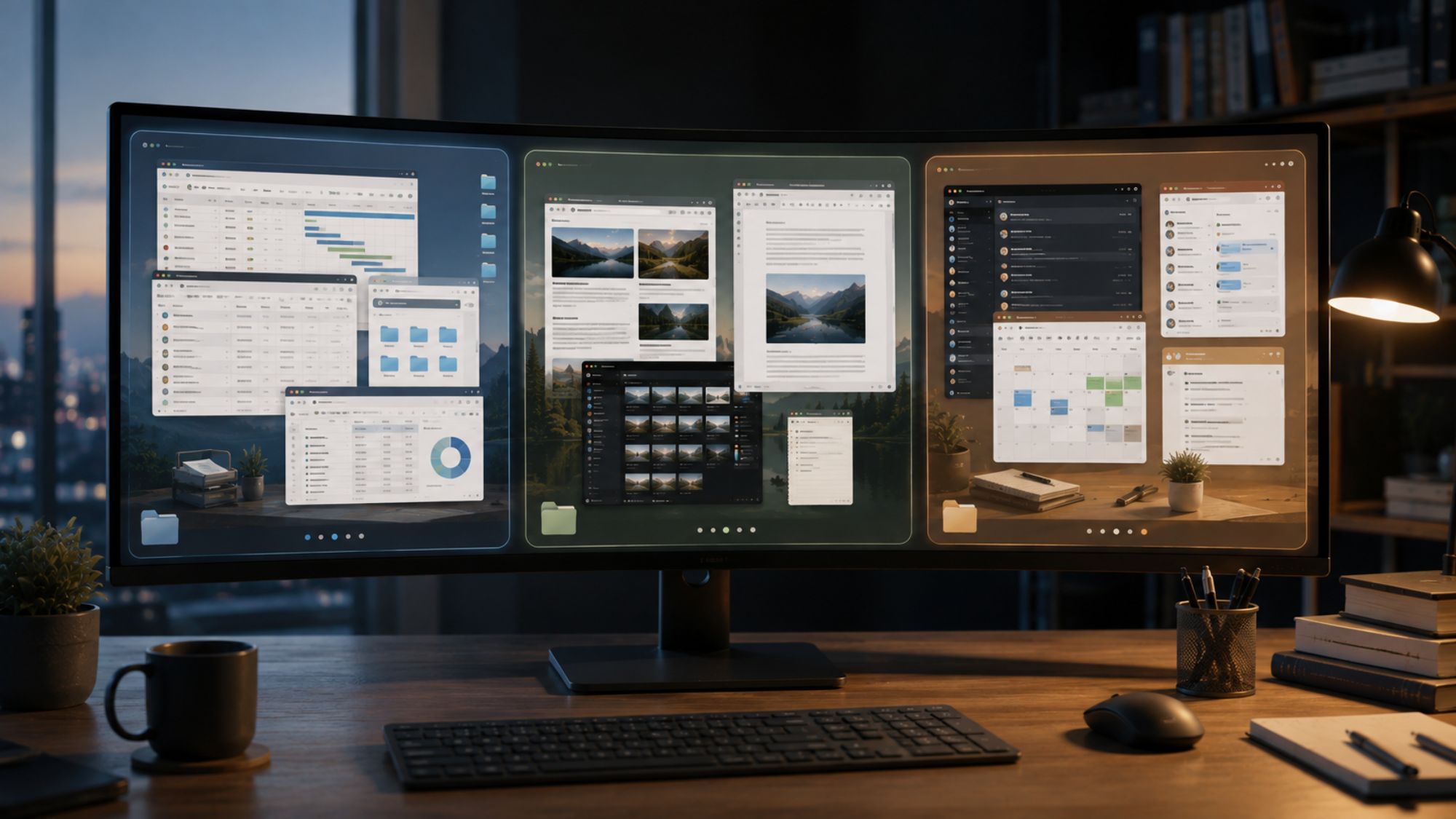
A simple setup might use one desktop for communication, another for active production, and a third for research. Keeping each desktop focused on a clear purpose makes the system easier to remember.
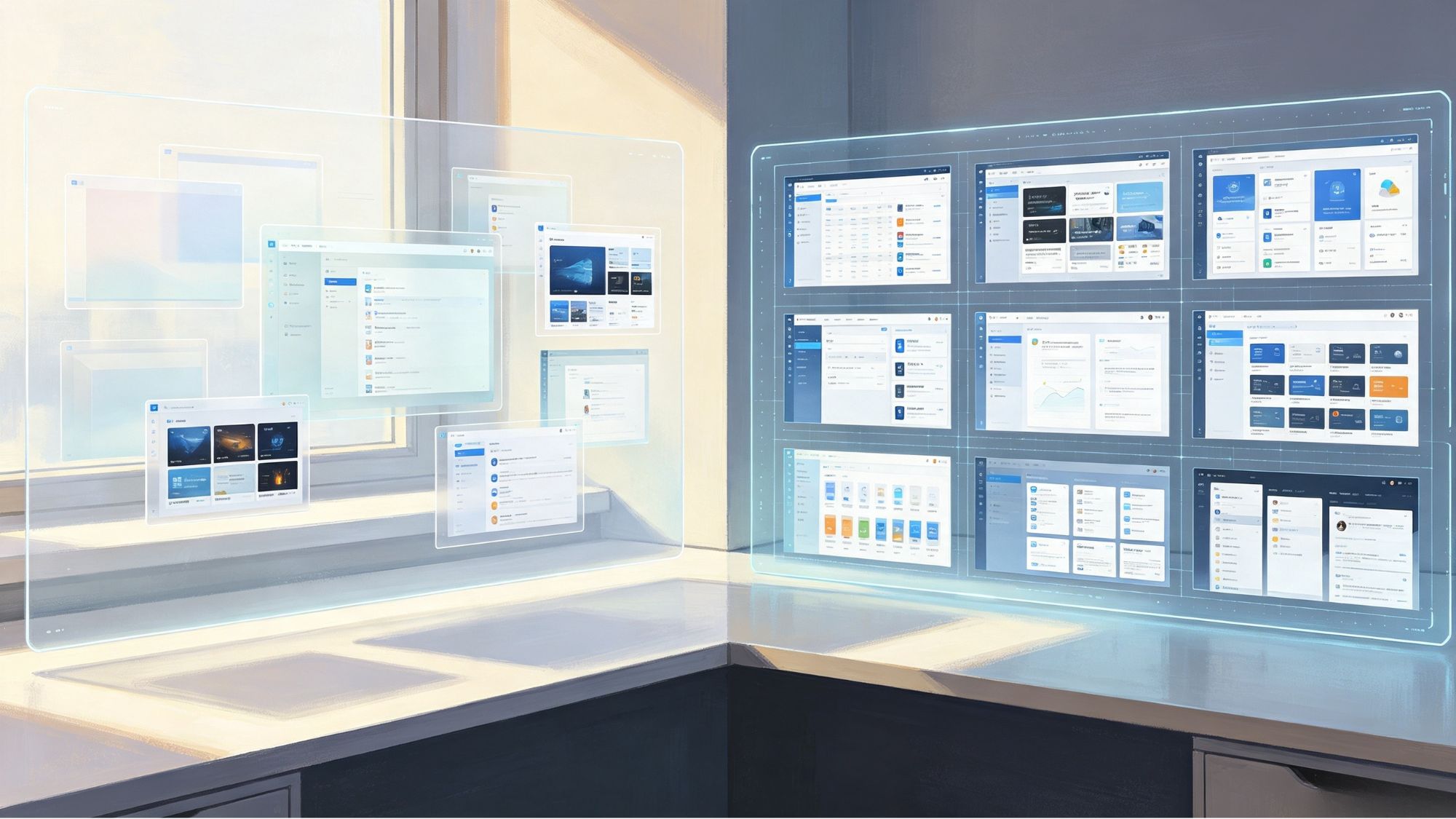
Creating multiple desktops without a clear structure can simply replace one type of clutter with another. The most useful approach is to establish a consistent rule for what belongs in each workspace.
Freelancers, consultants, and other professionals who manage separate projects may benefit from assigning a workspace to each major project.
For example:
Workspace 1: Client A
Browser research, project documents, spreadsheets, and relevant communication tools.
Workspace 2: Client B
Project management software, design files, reference documents, and client-specific resources.
Workspace 3: Administration
Email, invoicing, scheduling, and general business tasks.
This arrangement keeps related applications together and reduces the need to repeatedly reorganize the same windows.
Another approach is to organize workspaces according to the type of activity rather than the project.
A simple structure might be:
Workspace 1 — Communication: Email, messaging, calendars, and meeting tools.
Workspace 2 — Production: Writing software, design applications, spreadsheets, or development environments.
Workspace 3 — Research: Browsers, documentation, reference materials, and data-gathering tools.
This structure can be useful when the same applications are used across multiple projects.
There is no need to create a separate desktop for every task. Starting with two or three clearly defined workspaces is often easier to manage than immediately creating a large collection.
If switching desktops becomes harder than finding an application through the taskbar or application switcher, the workspace system may have become unnecessarily complicated.
The right number depends on the user's workflow, screen setup, and the number of distinct activities performed during the day.
A simple setup can be created without installing additional software.
Open Task View from the taskbar or use the appropriate keyboard shortcut.
Create a new desktop.
Rename each desktop according to its purpose if desired.
Move related applications into the appropriate desktop.
Use Windows key + Ctrl + Left/Right Arrow to switch between desktops.
Open Mission Control.
Create an additional Space.
Move the windows associated with a particular activity into that Space.
Use the available keyboard, trackpad, or Mission Control controls to switch between Spaces.
The exact options and shortcuts can vary with operating system versions and personal settings, so users should check their current system configuration when necessary.
Virtual desktops are useful, but they do not solve every organizational problem.
Creating numerous desktops for minor tasks can make navigation harder. Workspaces should represent meaningful contexts rather than every individual application.
Virtual desktop behavior can vary when several physical displays are connected. Depending on the operating system and display configuration, switching desktops may affect more than one screen.
Before building a complex multi-monitor workflow, it is worth testing how the chosen configuration behaves during normal use.
Virtual desktops do not automatically prevent notifications from appearing. Users who need stronger separation between work contexts may also want to configure Focus, Do Not Disturb, or application-specific notification settings.
Virtual desktops organize the visual workspace, but they do not replace a sensible file-management system. A well-structured desktop can still become confusing if project folders, documents, and downloads are poorly organized.
For this reason, virtual desktops work best as one part of a broader digital organization system.
Consider a professional managing two client projects while handling regular administrative responsibilities.
Instead of keeping everything on one desktop, the user could create three workspaces:
Client Projects: documents, browsers, spreadsheets, and project management tools.
Research and Production: writing, design, development, or analysis applications used across both projects.
Administration: email, calendar, invoicing, meetings, and general communication.
During focused project work, the user can move to the relevant workspace without first closing unrelated windows. When administrative tasks need attention, switching to the dedicated administration desktop provides a different working context.
This system does not eliminate multitasking, but it makes the relationship between applications more predictable.
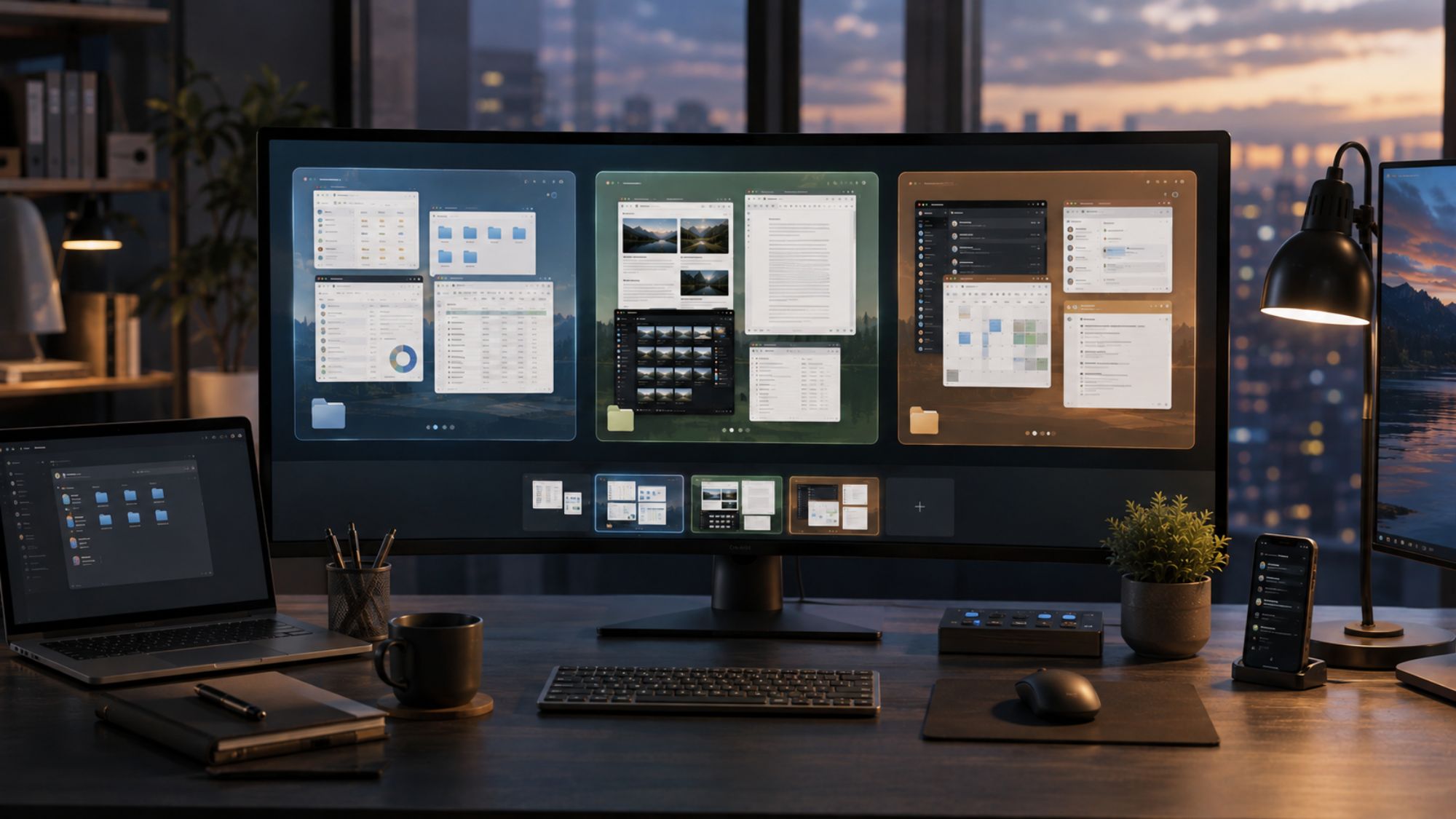
Virtual desktops provide a practical way to organize complex digital workflows without adding physical screen space. Users can arrange workspaces by project, client, workflow stage, or another structure that matches their daily responsibilities.
The most effective setup is usually simple. Start with a small number of clearly defined workspaces, keep related applications together, and use keyboard shortcuts or system controls to switch between them. Combine virtual desktops with sensible file organization and notification settings, and the computer can become easier to navigate even when several projects are active at the same time.
