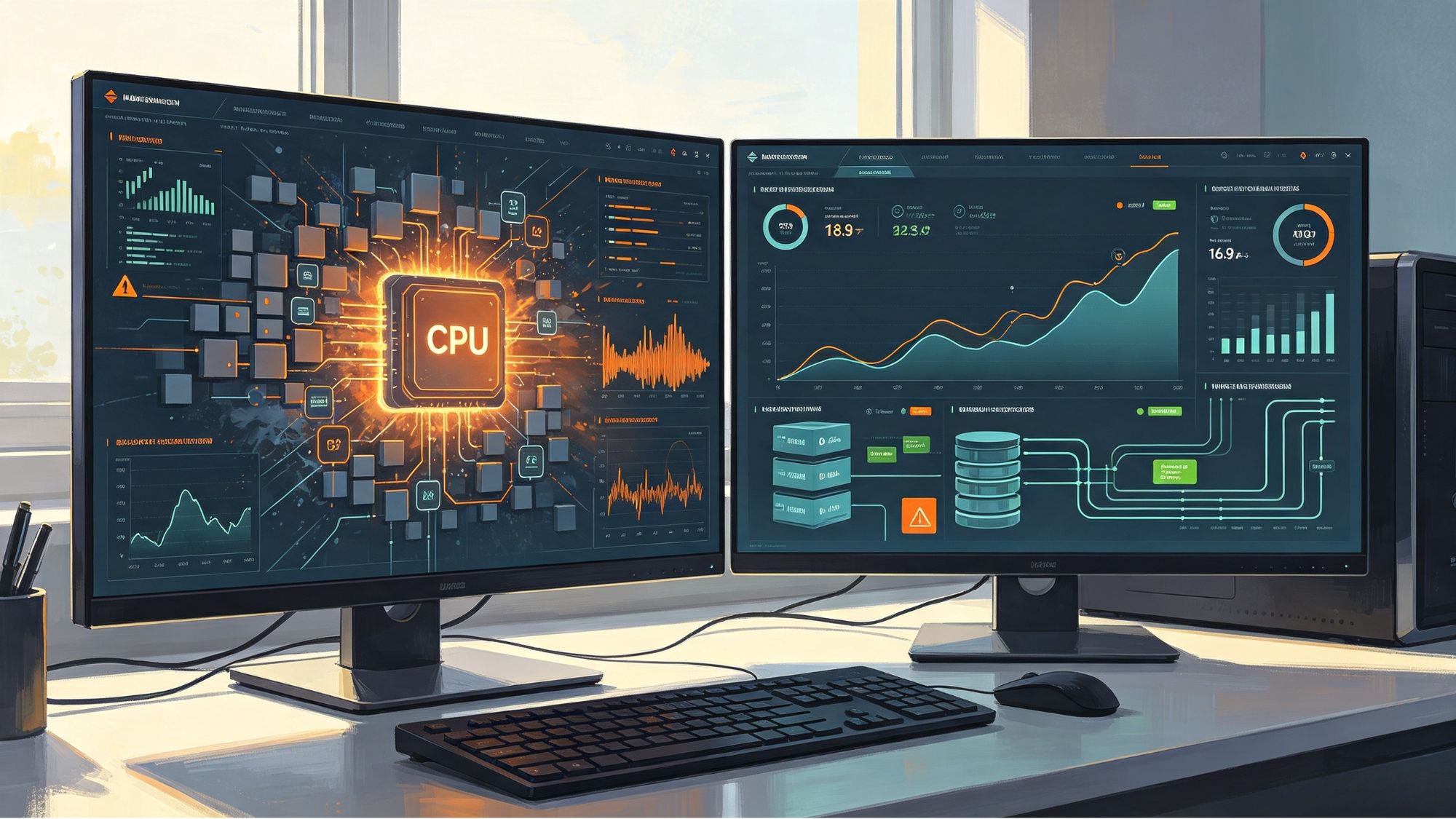
When a computer begins to slow down, stutter during everyday tasks, or occasionally freeze, it can quickly become frustrating. Applications may take longer to open, cursor movements may feel delayed, and system fans may become noticeably louder during normal workloads.
For many users, the first instinct is to perform a complete operating system reinstall. While a clean installation can solve certain problems, it also requires significant time for backing up files, reinstalling applications, restoring settings, and reconfiguring personal preferences.
In many cases, slow performance is caused by a specific issue rather than a failing operating system. Common examples include excessive background processes, limited available memory, storage capacity problems, overheating, or software conflicts. By identifying the actual bottleneck first, users can often improve system responsiveness without immediately rebuilding their entire computer environment.
Before changing settings or removing applications, it is important to determine which component or process is creating the slowdown.
Most computer performance issues involve four key areas:
Processor usage (CPU)
Available memory (RAM)
Storage performance
Thermal management
Each area creates different symptoms, making diagnosis more effective than applying random optimization steps.
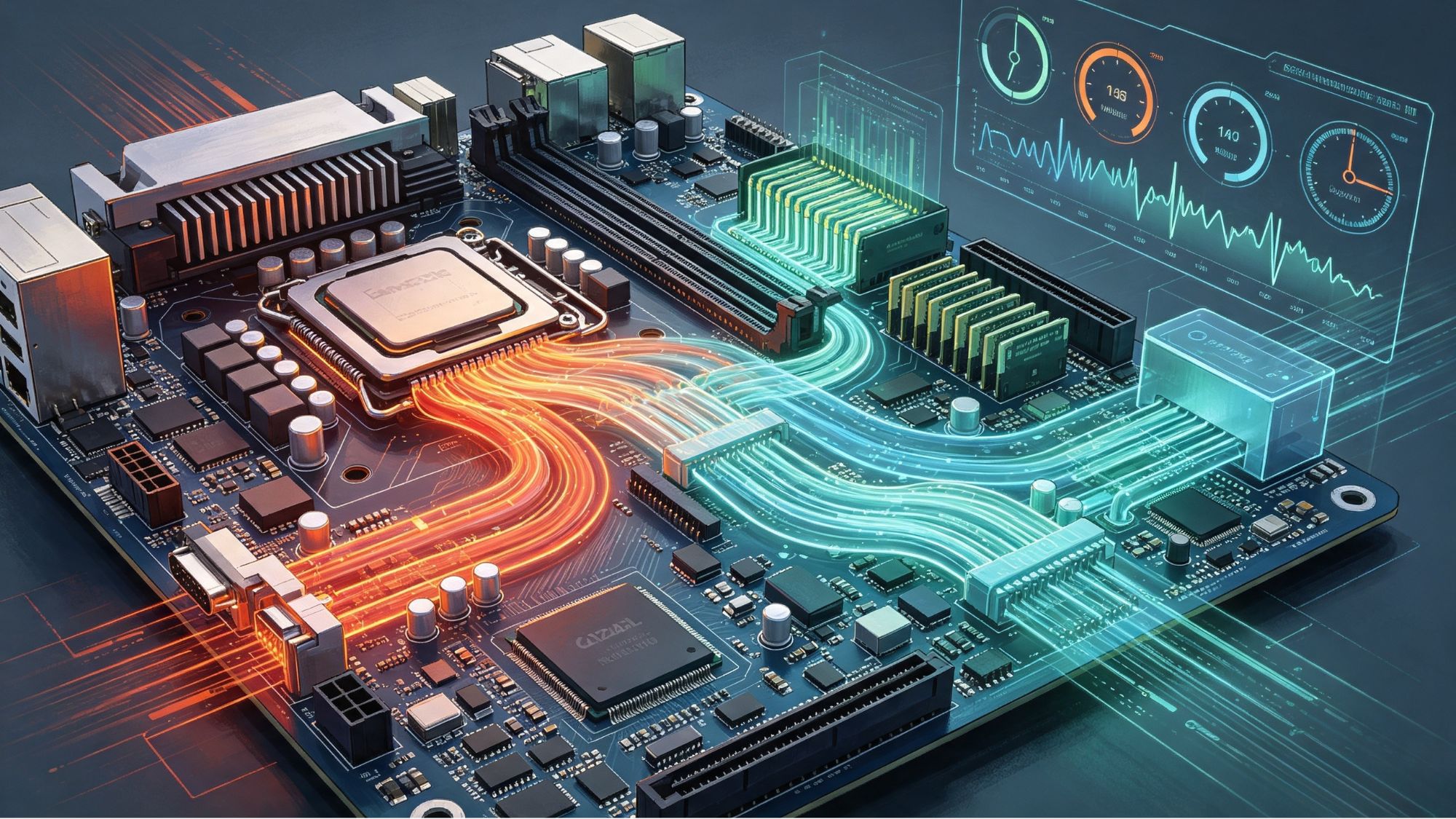
The built-in system monitoring tools provided by modern operating systems are useful starting points.
Windows users can check Task Manager, while macOS users can use Activity Monitor. These tools display active applications, CPU usage, memory consumption, and background processes.
A common misunderstanding is that high memory usage always indicates a problem. Modern operating systems often use available RAM to cache frequently accessed applications and improve responsiveness.
However, if memory usage remains close to maximum capacity and the system frequently transfers data between RAM and storage, performance may decrease because storage is much slower than physical memory.
Similarly, a background application continuously consuming a large amount of CPU resources while the computer is otherwise idle may indicate a software issue, an update process, or an application that requires investigation.
Storage has a major influence on how responsive a computer feels during everyday use.
Traditional hard disk drives (HDDs) may become slower over time due to factors such as fragmentation, aging hardware, or increased workloads. Solid-state drives (SSDs) generally provide faster performance, but they can also experience reduced responsiveness when available storage space becomes very limited.
SSDs rely on background maintenance processes to manage data efficiently. When a drive is nearly full, the operating system and storage controller may have fewer available resources for these operations, which can affect performance on some systems.
Checking available storage space is therefore an important part of troubleshooting. Removing unnecessary files, moving older data to external storage, or reviewing large applications can help maintain healthier storage conditions.
Sometimes a slow computer is not suffering from hardware limitations but from too many applications running simultaneously.
Over time, installed programs may add themselves to startup processes, automatically checking for updates, synchronizing files, or running background services.
Windows users can review startup programs through Task Manager, while macOS users can check Login Items in System Settings.
Disabling applications that are not needed immediately after startup can reduce unnecessary background activity.
Examples may include:
Rarely used update managers
Unnecessary accessory utilities
Applications that do not need to launch automatically
The goal is not to disable everything, but to keep startup activity aligned with actual usage needs.
Modern browsers are powerful applications that often run multiple processes for security and stability.
However, keeping a large number of active tabs open can consume significant memory, especially when websites contain complex scripts, video content, or interactive features.
Closing unused tabs, using built-in tab management features, or organizing browser sessions can help reduce unnecessary resource usage.

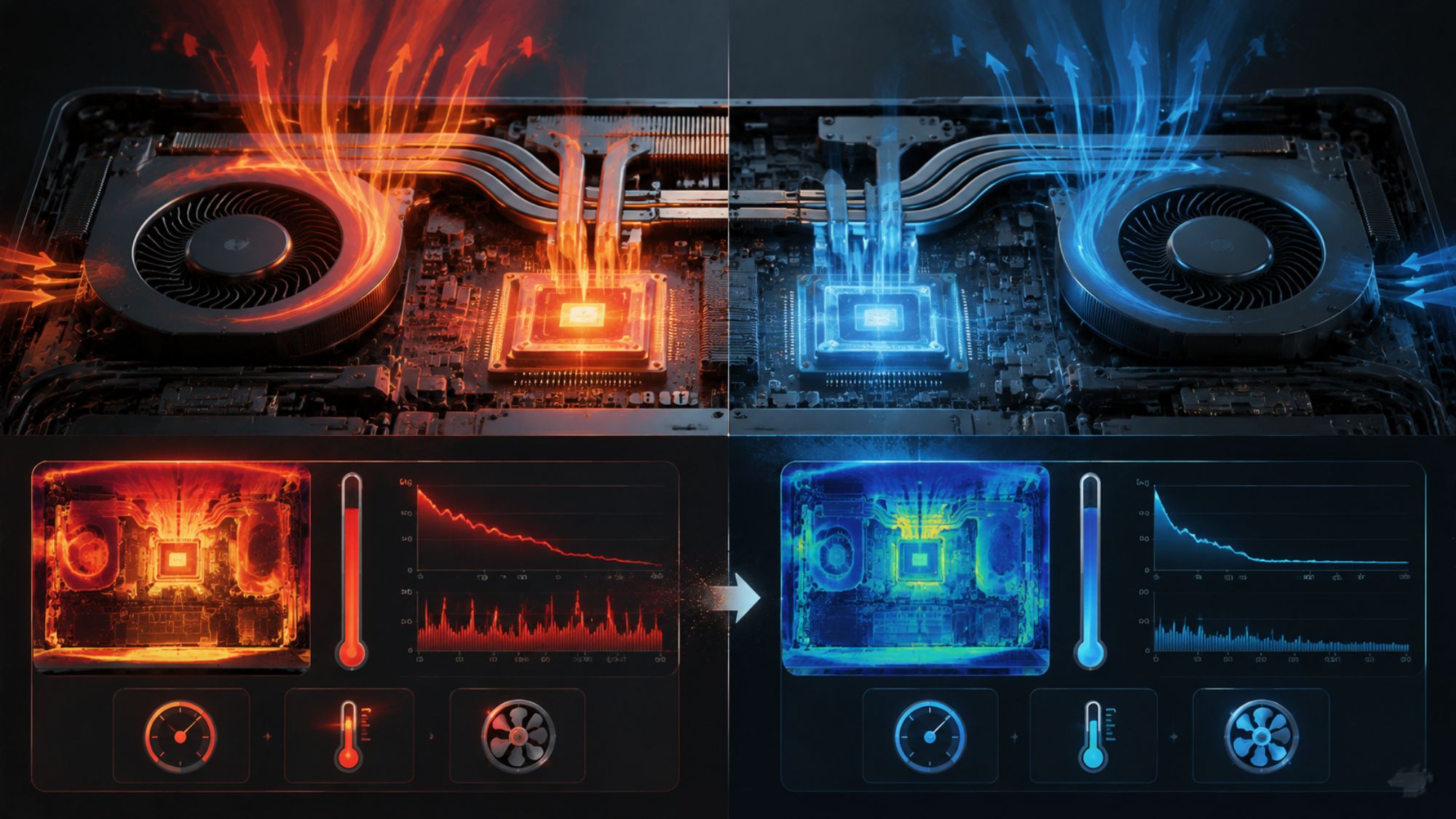
Another common cause of performance slowdowns is thermal throttling.
Modern processors automatically reduce their operating speed when temperatures become too high. This protection mechanism helps prevent overheating but may cause noticeable performance reductions during demanding tasks.
If a computer becomes slower during gaming, video editing, long working sessions, or other intensive activities, temperature management may be worth checking.
Dust accumulation around vents and cooling components can restrict airflow over time.
Cleaning external vents and maintaining clear airflow paths can help improve cooling efficiency.
For laptops, placing the device on soft surfaces such as beds or cushions may block ventilation openings.
Using a hard, flat surface allows better airflow and can reduce the possibility of heat-related slowdowns.
Software problems can also affect system performance. Outdated drivers, compatibility issues, or damaged system files may contribute to slowdowns, crashes, or unusual behavior.
Graphics drivers, chipset drivers, and hardware-related software receive regular updates that improve compatibility and fix known issues.
Keeping these components updated can help resolve some performance problems related to software conflicts or outdated configurations.
Operating systems include built-in tools for checking certain types of file corruption.
For example:
Windows provides System File Checker (SFC).
macOS includes repair functions through Disk Utility.
These tools can identify and repair some system file issues without requiring a complete operating system reinstall.
A slow computer does not always require a complete reset. By identifying performance bottlenecks, checking system resources, reviewing startup applications, managing storage space, and addressing possible overheating issues, users can often improve their computer’s responsiveness through targeted troubleshooting.
A structured approach helps replace guesswork with practical diagnosis. Instead of immediately rebuilding the entire system, understanding the source of the slowdown allows users to make informed adjustments and maintain a more reliable digital workspace.
