A home workstation can get expensive surprisingly quickly. One monitor becomes two. A basic laptop turns into a desktop upgrade, then comes the mechanical keyboard, USB hub, docking station, microphone, speakers, desk lighting, and a collection of accessories that seemed useful at the time. Before long, the workspace looks impressive—but it may not actually make everyday work easier.
A better approach is to start with the work itself. What applications are used most? Where does the computer slow down? Is the desk uncomfortable after several hours? Does a second screen genuinely save time, or would a better-organized desktop accomplish the same thing? Building a balanced workstation means answering those questions before spending money. The goal is not to create the most elaborate setup possible. It is to remove the obstacles that actually get in the way of work.
The easiest way to overspend on a home office is to buy for an imaginary workload. A computer marketed toward gamers, content creators, or professional developers may have far more processing power than necessary for email, spreadsheets, web research, document editing, and video meetings.
Consider a typical office workload. A large desktop tower with a powerful processor and dedicated graphics card may look future-proof, but much of that capacity can remain unused during ordinary work. The same applies to high-refresh gaming displays, elaborate storage arrays, and specialized peripherals. They are useful in the right environment, but their value depends on the work they support.
Overbuilding also creates less obvious costs. More equipment means more cables, additional software utilities, more devices to maintain, and more components that can eventually fail. A workstation with fewer moving parts is often easier to troubleshoot and easier to keep organized.
The useful question is simple: What problem does this piece of equipment solve? If there is no clear answer, the purchase probably deserves another look.
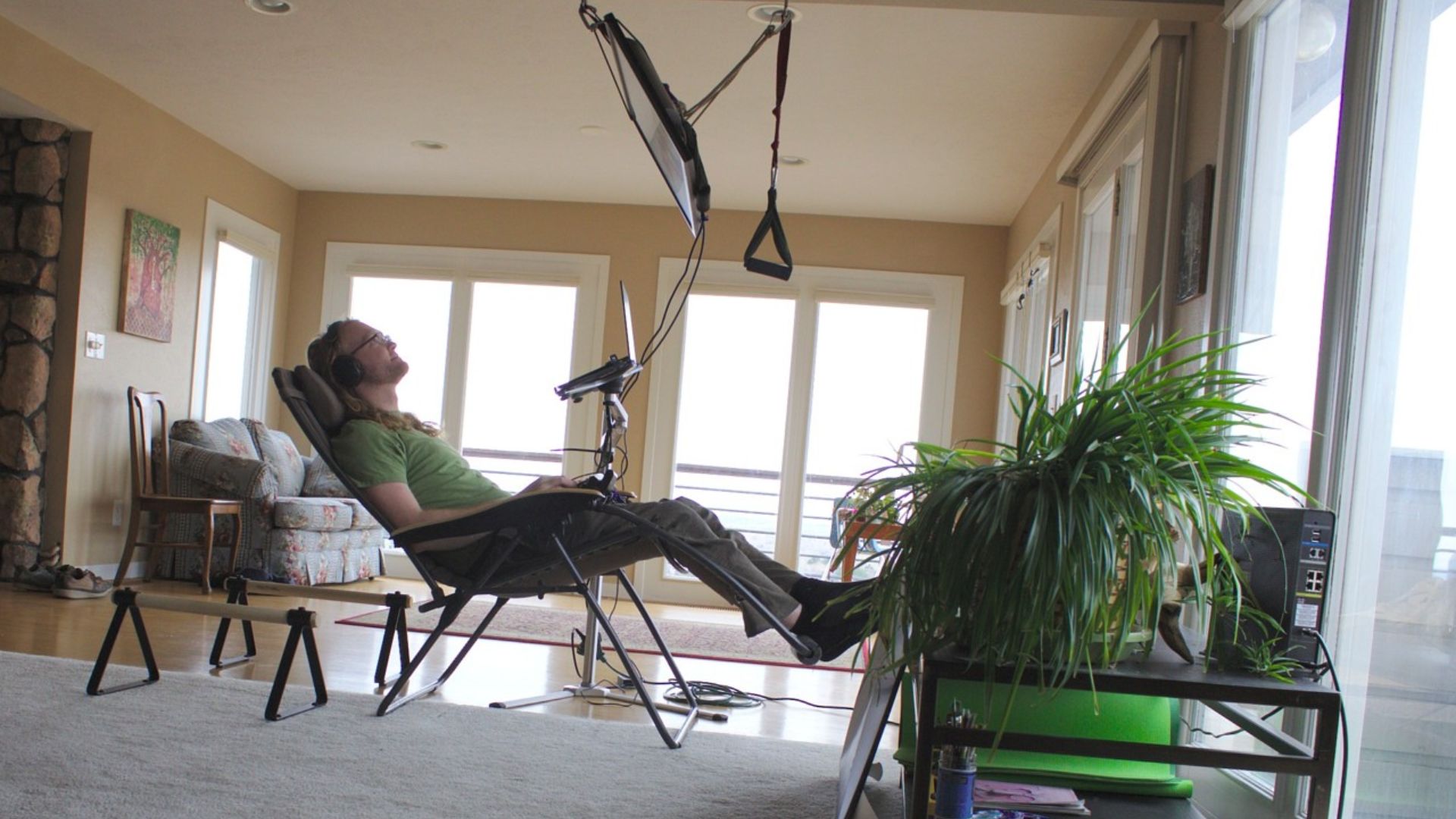
Before buying a faster computer or another peripheral, spend some time identifying the actual points of friction in the current setup.
A computer that takes too long to open applications may have a storage or memory limitation rather than a processor problem. A system that becomes sluggish with dozens of browser tabs and several office applications running at once may benefit from additional RAM. On the other hand, someone who regularly exports video, works with large 3D scenes, or compiles substantial software projects may genuinely benefit from more processing or graphics performance.
This distinction matters because hardware upgrades work best when they address a known bottleneck.
A useful way to evaluate an upgrade is to ask three questions:
What task feels slow or inconvenient?
What component is most likely responsible?
Will the upgrade noticeably improve that task?
That approach is more reliable than buying the newest specification simply because it is available.
It also leaves room for future upgrades. Technology changes quickly, so there is little advantage in paying for capabilities that may never be used. A system that comfortably handles today's workload can be upgraded later when the workload actually changes.
A sensible workstation budget does not need to be distributed evenly across every component. Three areas usually deserve the most attention: the computing system, the display, and the physical workspace.
The right balance depends on the type of work being performed. Someone who writes reports all day has different priorities from a video editor, software developer, or data analyst.
Additional screen space can be genuinely useful, but more screens are not automatically better.
A single 27-inch 1440p IPS display is a practical middle ground for many office workloads. It provides more workspace than a typical 1080p office monitor without requiring the desk space or graphics capability associated with a large multi-monitor setup.
A second display becomes more compelling when the work regularly involves comparing information. For example, a researcher might keep source material on one screen while writing on another. A spreadsheet-heavy workflow may benefit from keeping a report, data set, and reference material visible at the same time.
An ultrawide monitor can provide a similar advantage without placing two separate displays side by side. It can be particularly convenient for timelines, wide spreadsheets, and applications with multiple panels.
But there is a point where additional screen space becomes decoration rather than productivity. If a second monitor spends most of its day displaying an unused chat window or email inbox, it may not justify the extra cost and desk space. Virtual desktops, window management tools, and better application layouts can sometimes solve the same problem.
The computing core should be selected according to the most demanding tasks that occur regularly—not the most demanding task that might happen once a year.
For light office work, modern processors with four or more cores and around 16GB of RAM are generally a reasonable starting point. That combination can handle everyday browser use, document editing, spreadsheets, meetings, and ordinary multitasking for many users.
Moving from 16GB to 32GB does not automatically make an ordinary office workload twice as fast. The benefit becomes more noticeable when memory usage regularly approaches the available capacity—for example, with unusually large browser sessions, virtual machines, large creative projects, or several demanding applications running simultaneously.
More demanding workflows are different. Video editing, 3D rendering, software development, engineering applications, and other production workloads may justify additional CPU cores, faster NVMe storage, more RAM, or a dedicated GPU. The exact configuration depends heavily on the software being used.
The important distinction is between having more hardware and having the right hardware.
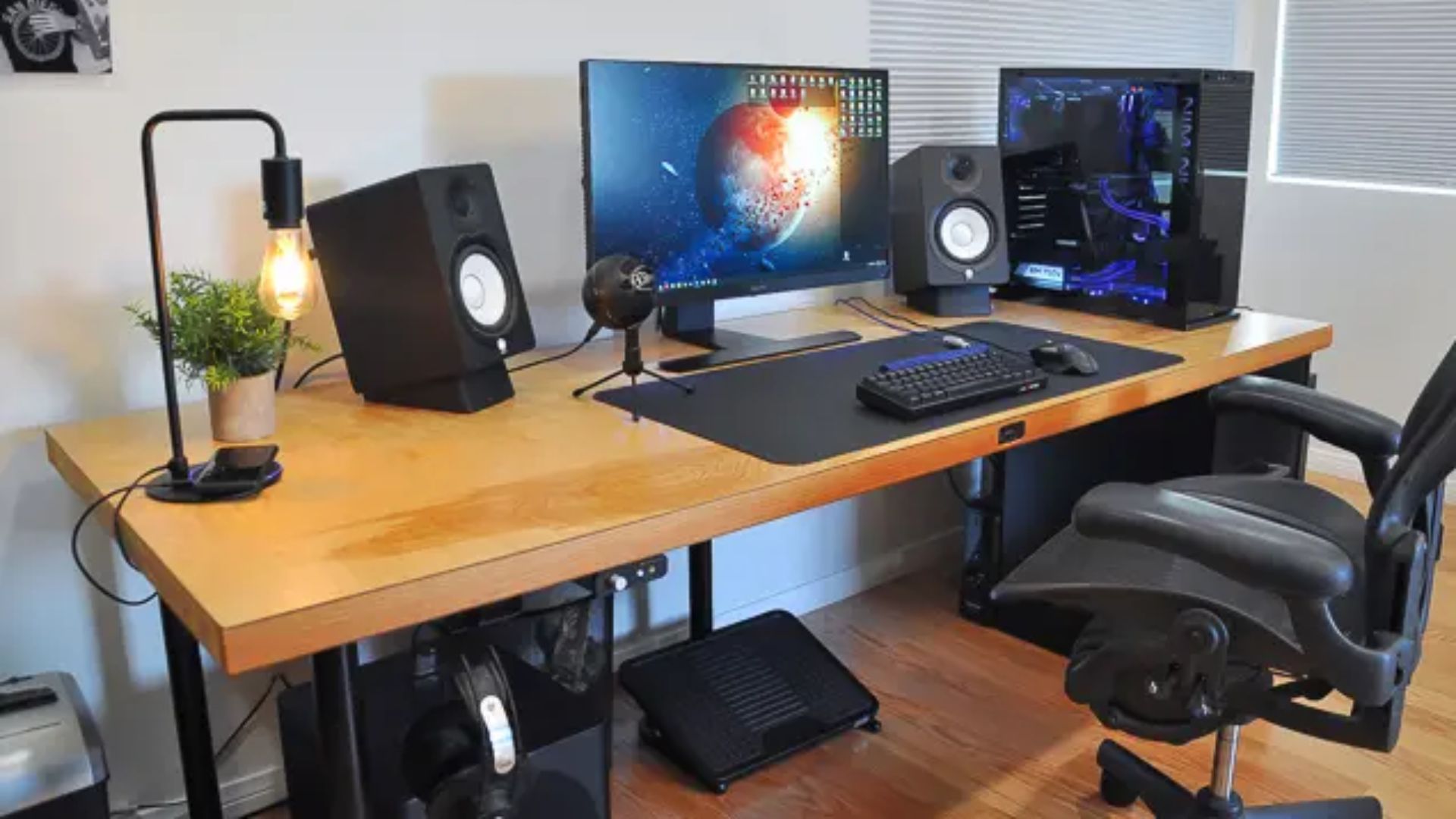
A powerful computer cannot compensate for a workspace that is uncomfortable to use.
Chair height, desk height, monitor position, keyboard placement, and available legroom all influence how practical a workstation feels over a long working session. A comfortable adjustable chair and sensible monitor positioning can be more noticeable in everyday use than a minor processor upgrade.
This is one area where a relatively simple setup can outperform an expensive-looking one. A sturdy desk, supportive chair, properly positioned display, and comfortable keyboard do not need elaborate styling to work well.
Money can often be saved on purely cosmetic accessories. Custom desk mats, extensive RGB lighting, decorative accessories, and premium branding may improve the appearance of a workspace, but they do not necessarily improve the underlying workflow.
The best workstation is not necessarily the one that photographs well. It is the one that remains comfortable and practical after several hours of ordinary work.
Feature creep often starts innocently.
A laptop has limited ports, so a USB hub is added. The hub creates cable clutter, so a cable-management tray appears. A separate microphone is added for occasional meetings, followed by a microphone arm and another audio interface. Each purchase solves a small problem, but the overall setup becomes more complicated than the original problem required.
Before adding a peripheral, consider how often it will actually be used.
A programmable macro pad may be valuable for someone performing repetitive editing or production tasks every day. For occasional document formatting, however, keyboard shortcuts may be sufficient. A high-end studio microphone can make sense for recording or broadcasting, while a good USB headset may be perfectly adequate for ordinary workplace meetings.
The same principle applies to docking stations, webcams, speakers, external storage, and other accessories. A peripheral should earn its place by solving a recurring problem.
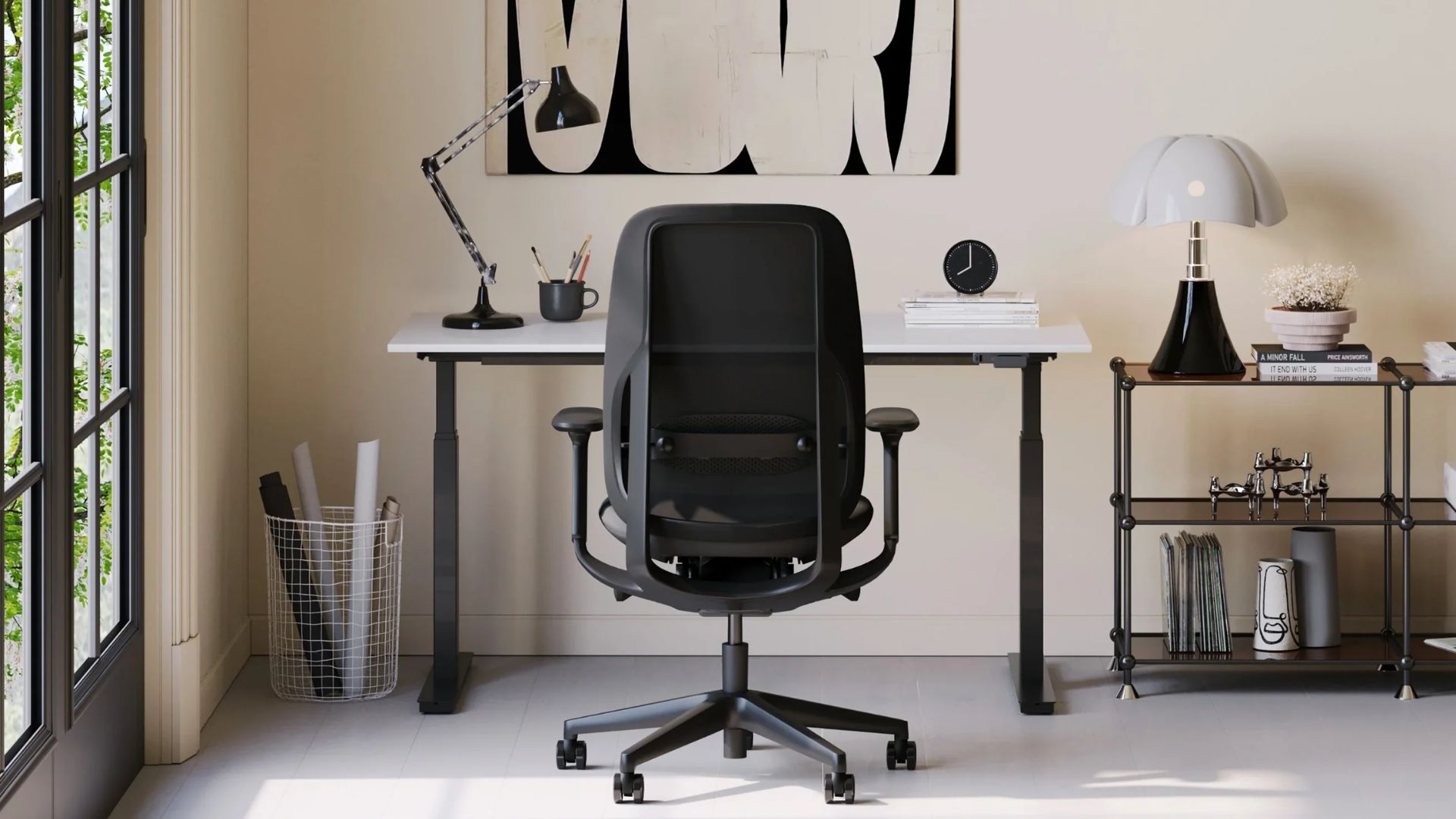
There is no need to buy everything at once.
Starting with a capable computer, a comfortable chair, a suitable desk, and one good display creates a functional foundation. After using that setup for several weeks, the remaining weaknesses usually become much easier to identify.
Perhaps the computer runs out of storage. That points toward an external SSD or internal storage upgrade. Maybe comparing documents becomes tedious. That is a stronger case for a second display. Perhaps long typing sessions become uncomfortable, making a better keyboard a more relevant upgrade.
This staged approach has another advantage: it separates genuine needs from temporary enthusiasm.
A new workstation can look incomplete on the first day because there are empty spaces on the desk. After a month, however, those empty spaces may still be empty for a good reason. Not every available accessory needs to be filled.
When considering a new component, it helps to classify the problem before choosing the solution.
If applications take too long to open: investigate storage performance and system startup behavior before replacing the entire computer.
If many applications become sluggish at the same time: check memory usage and background processes before assuming the CPU is the problem.
If video exports or other compute-heavy workloads take too long: investigate whether the specific application relies more heavily on CPU performance, GPU acceleration, or both.
If documents and reference material are difficult to compare: consider additional screen space before buying a substantially more powerful computer.
If the workstation becomes uncomfortable during long sessions: prioritize chair, desk, monitor, and keyboard positioning rather than another performance upgrade.
If cables and accessories are becoming difficult to manage: simplify the setup before buying another device designed to manage the complexity.
This framework keeps the purchase connected to a real problem. That is usually where the best value comes from.
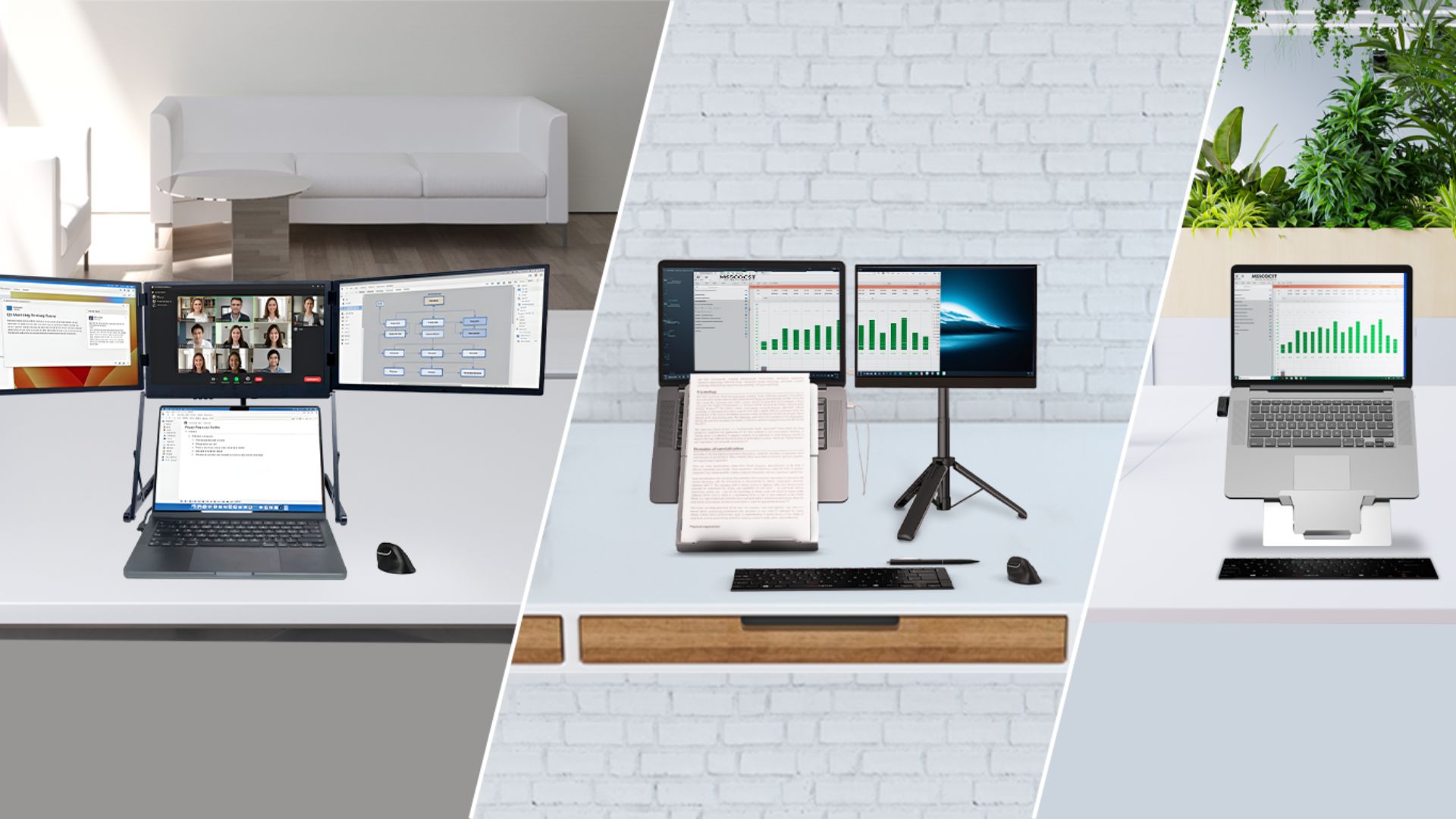
A balanced home workstation is less about maximizing specifications and more about making deliberate choices. A powerful processor does not help much if the real problem is poor storage performance. Three monitors may not improve productivity if one already provides enough workspace. An expensive keyboard cannot fix an uncomfortable desk.
The most effective setup is usually the one built around actual working habits. Start with the core equipment, identify genuine bottlenecks, spend more where comfort or performance noticeably improves, and add peripherals only when a recurring problem justifies them.
A workstation does not need to be packed with technology to be effective. It simply needs to make the work easier, without creating a new collection of problems along the way.
