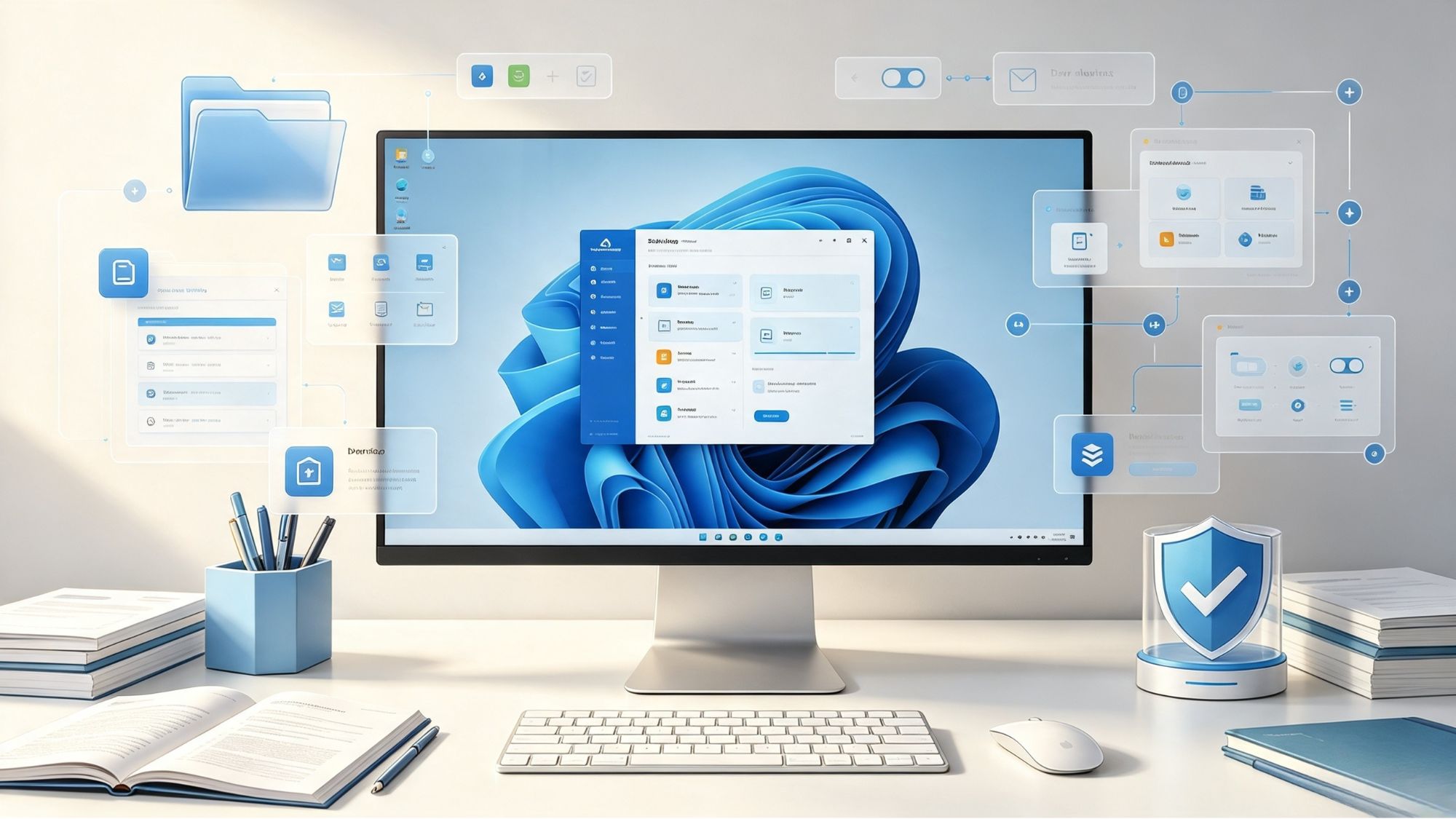
Unboxing a new computer often feels like starting with a clean slate. The hardware is fresh, the operating system has not accumulated years of personal files, and the desktop is free from previous clutter.
However, a new machine may still require some personalization before it fully matches a user’s preferred workflow. Default applications, notification settings, cloud synchronization options, and system preferences are designed for general audiences rather than individual productivity needs.
Taking time to establish a practical setup routine can help create a more organized and focused digital workspace. By removing unnecessary software, adjusting notifications, organizing files, and preparing security settings, users can build a computer environment that better supports long-term tasks.
One of the first steps when setting up a new computer is reviewing the software that comes installed by default. Some systems include trial applications, promotional software, or utilities that users may never need.
Unused applications may occupy storage space, create background processes, or add unnecessary update notifications. A quick review of installed programs helps ensure that the system contains only tools that support the user’s actual workflow.
Review the application list in system settings and remove software that is not needed. Keeping only regularly used programs can make the system easier to manage.
Some applications configure themselves to launch automatically when the computer starts. Reviewing startup settings through Task Manager on Windows or Login Items on macOS allows users to control which applications run in the background.
Reducing unnecessary startup activity can help the system focus resources on the applications being actively used.
A productive setup also includes visual organization. Removing unused taskbar icons, dock shortcuts, and desktop clutter can make frequently used applications easier to access.
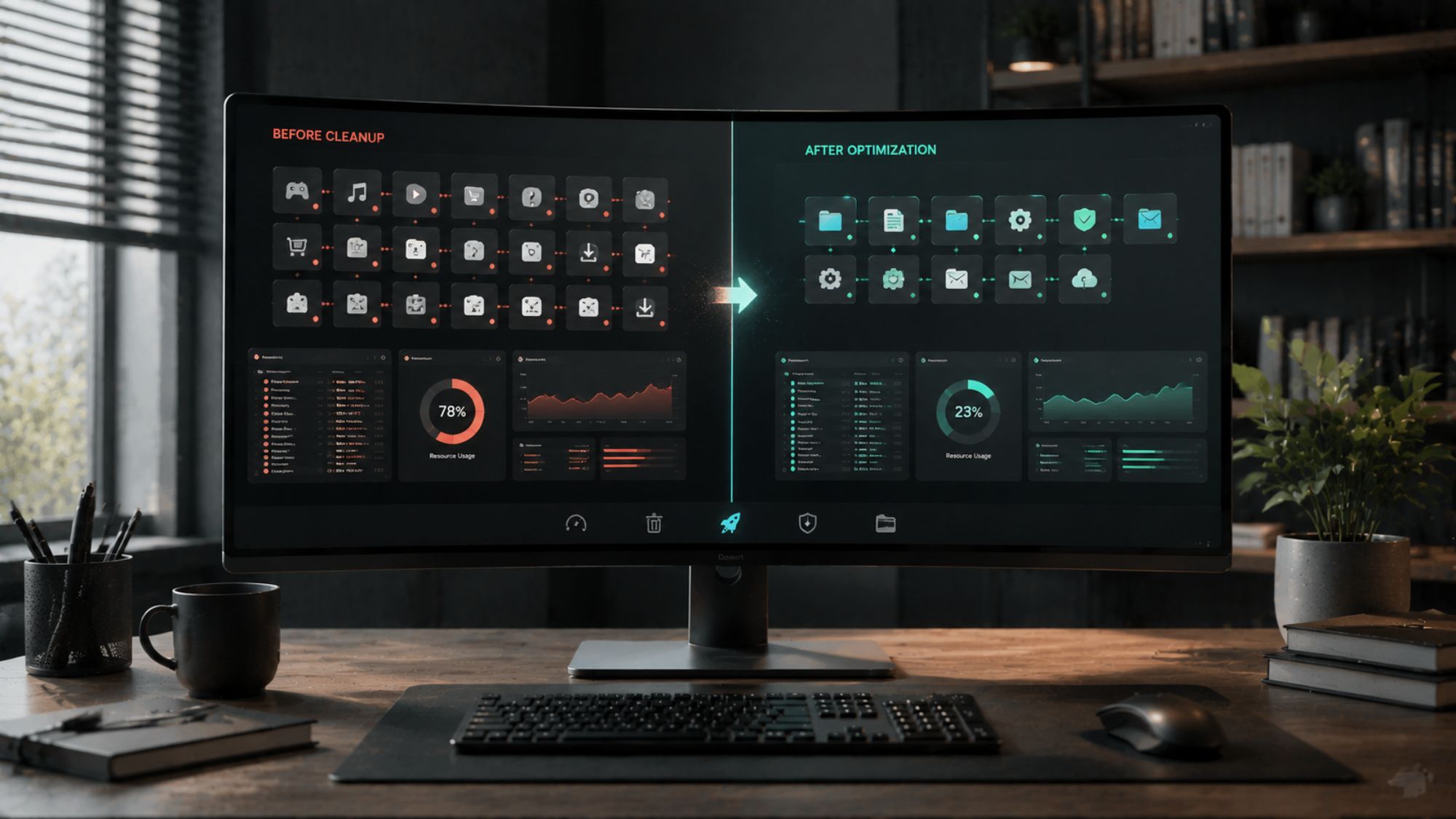
Modern applications often use notifications to provide updates, reminders, and communication alerts. While useful in many situations, excessive notifications can interrupt concentration and make it harder to maintain a consistent workflow.
Before beginning important projects, users can review notification preferences and decide which applications truly require immediate attention.
Applications such as shopping tools, entertainment services, and promotional software often do not require real-time notifications. Disabling unnecessary alerts helps create a quieter working environment.
Messages from essential communication tools may still be useful. Instead of disabling all notifications, users can customize settings so that important contacts or applications remain accessible.
Both Windows and macOS provide tools designed to reduce interruptions:
Windows Focus features can limit unnecessary notifications during selected periods.
macOS Focus modes allow users to create customized notification rules.
These settings help users create clearer boundaries between focused work and general computer activity.
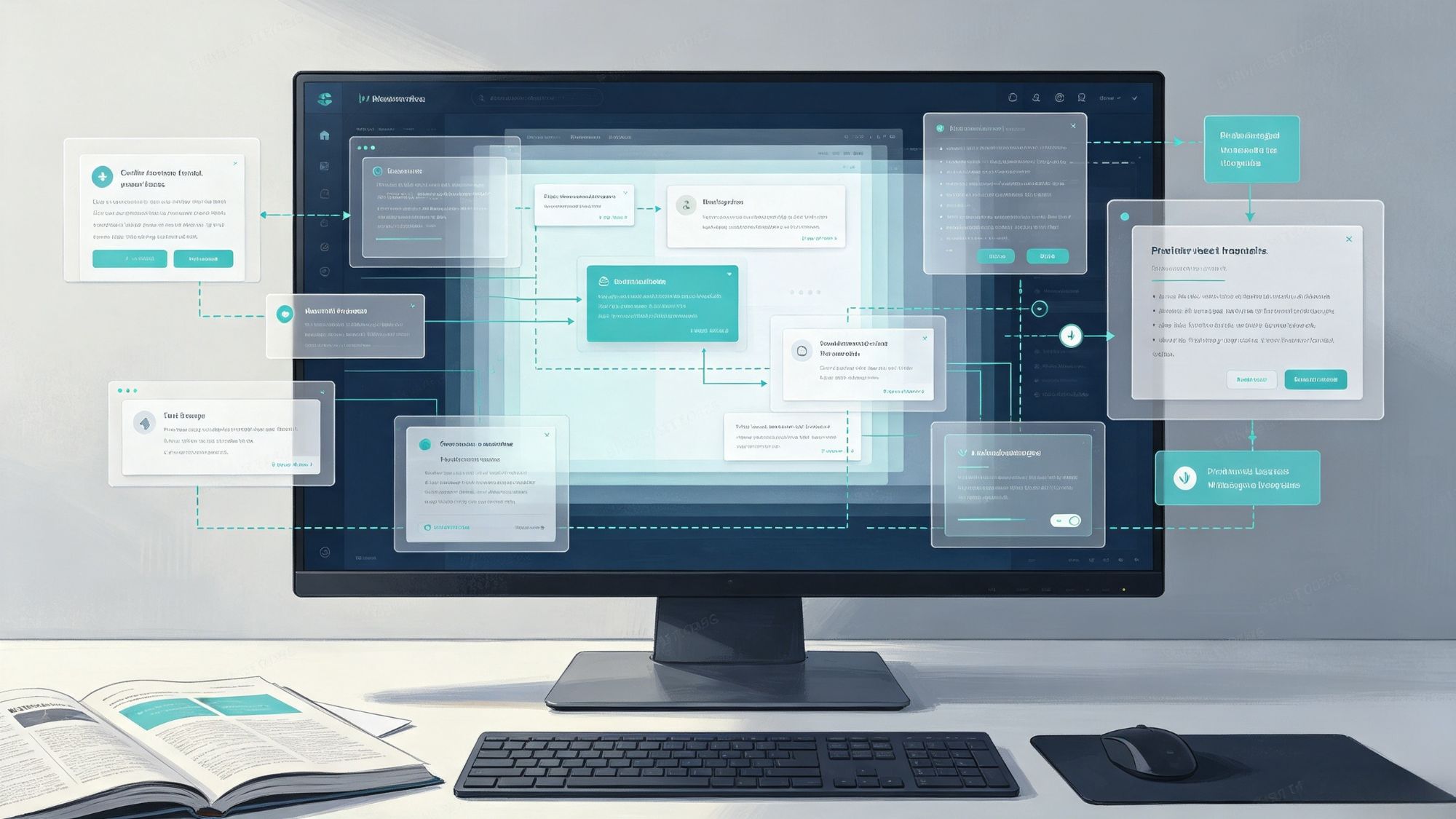
A new computer provides an opportunity to create better file management habits from the beginning. Without a clear structure, files often become scattered across Desktop, Downloads, and multiple storage locations.
A simple and consistent organization system makes files easier to locate, maintain, and back up.
Instead of storing important documents randomly across the computer, create clear folders for categories such as:
Work projects
Personal documents
Photos and media
Archives
Reference materials
Keeping files organized separately from system locations can simplify backups and future migrations.
Clear file names improve long-term organization. Including details such as dates, project names, or document types makes searching easier.
For example:
Instead of:
Document_Final2
consider:
2026_Project_Report_Final
A predictable naming system reduces confusion when managing large collections of files.
Modern operating systems often integrate cloud storage services such as OneDrive or iCloud. These services can help synchronize files across devices, but users should review settings before enabling automatic synchronization.
Checking sync locations helps avoid unexpected storage usage, duplicate files, or syncing folders that do not need to be available across devices.
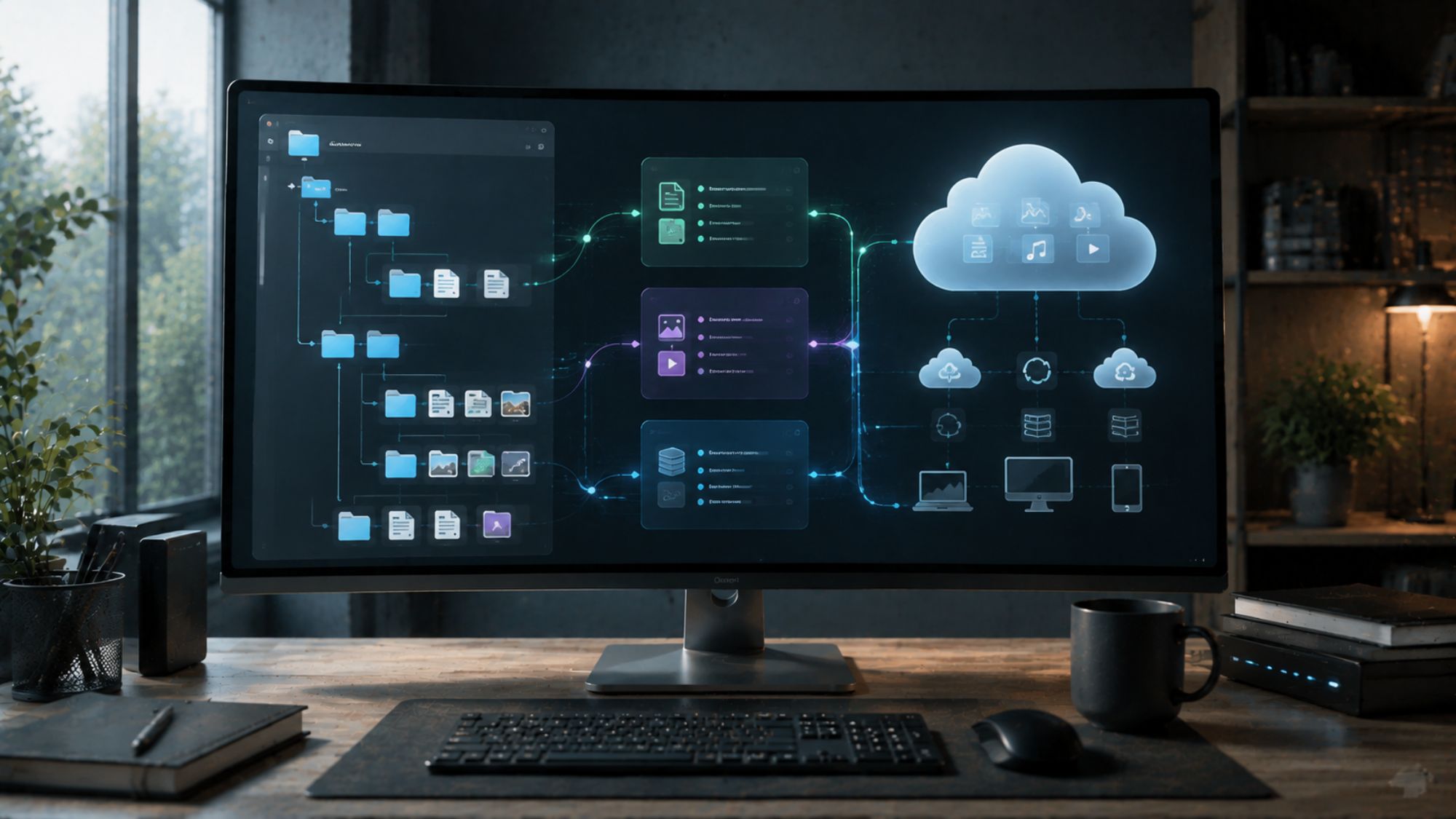
A productivity setup is incomplete without basic security and recovery planning. Regular updates, reliable backups, and secure account management help protect important files and maintain system stability.
New computers may not always include the latest operating system updates or hardware drivers.
Running available updates after initial setup helps ensure that the machine receives current improvements, compatibility fixes, and security patches.
Important files should have a backup strategy before they become difficult to replace.
Users can explore options such as:
macOS Time Machine
Windows backup tools
External storage solutions
Cloud backup services
A regular backup routine provides additional protection against hardware problems, accidental deletion, or unexpected system issues.
Using unique passwords for different accounts improves account security. Password managers can help users store and organize credentials more easily instead of relying on repeated passwords or unsecured notes.
Setting up a computer is not only about the first day of use. Maintaining good habits over time keeps the system organized and easier to manage.
Useful practices include:
Regularly reviewing installed applications
Cleaning unnecessary files
Updating software
Checking backup status
Adjusting notification settings as workflows change
Small maintenance routines can prevent digital clutter from building up again.

Setting up a new computer is an opportunity to create a more organized and efficient digital environment. Instead of relying on default settings, users can personalize their systems by reviewing applications, managing notifications, organizing files, and establishing reliable backup practices.
A thoughtful setup does not require complicated tools or advanced technical knowledge. By creating clear habits from the beginning, a new computer can become a stable workspace that supports productivity, focus, and long-term digital organization.
