Shopping for a computer monitor can get confusing fast. One search brings up a wall of panel types, numbers, acronyms, and technical specifications, all competing for attention. But once the marketing language is stripped away, choosing a monitor is really about one practical question: how well does the screen fit the space it sits in and the way it will actually be used?
Screen size, resolution, refresh rate, and viewing distance are closely connected. Change one, and the others can feel different. A larger display may need a higher resolution. A higher resolution can put more demands on the graphics hardware. And a monitor that looks perfect on paper may feel awkward if it sits too close to the eyes. Understanding these relationships makes it much easier to build a setup that works for spreadsheets, creative projects, gaming, or everyday browsing.
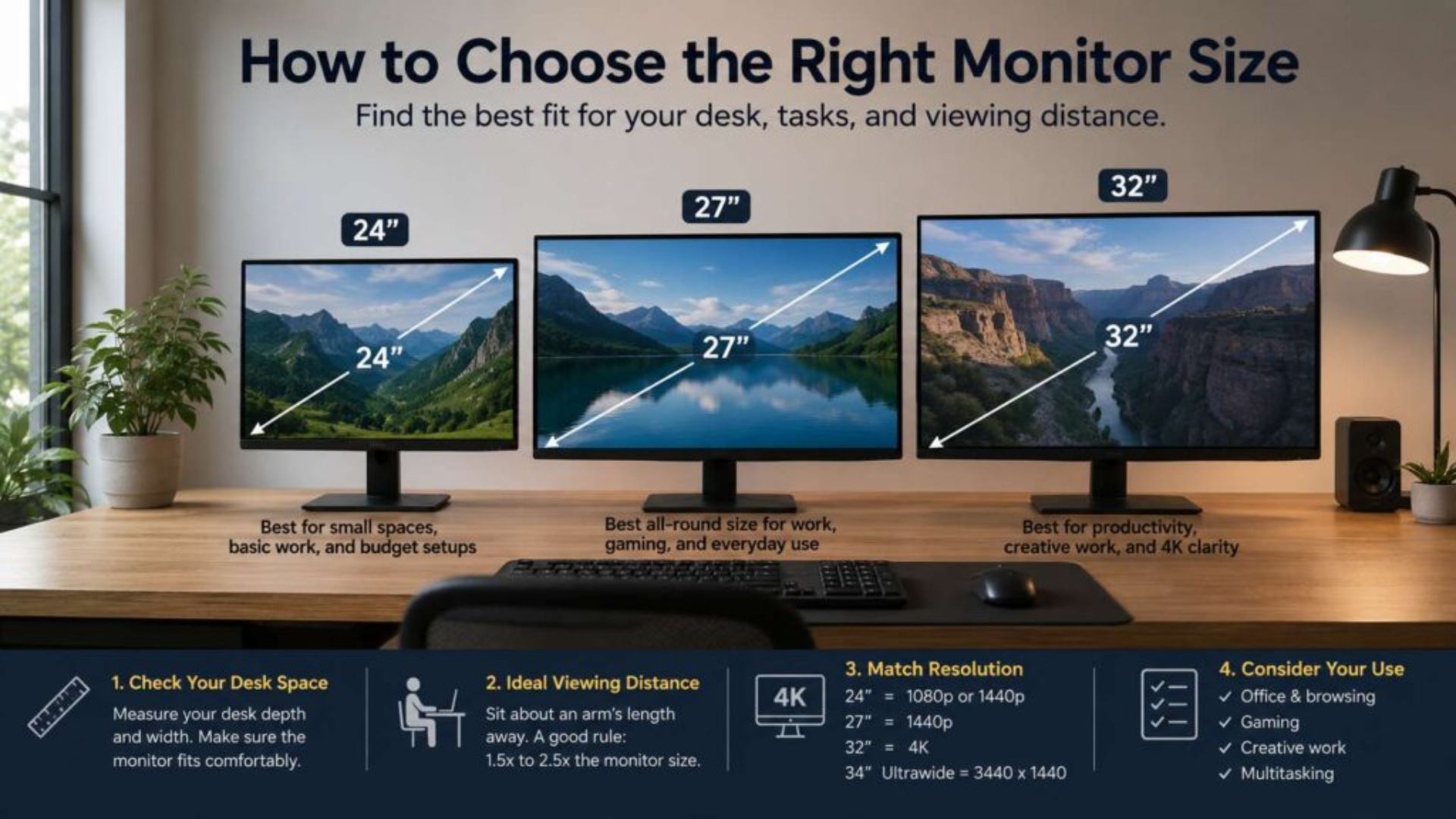
Before comparing monitors, it helps to understand what these four specifications actually control and why they matter.
Monitor size is measured diagonally across the display, in inches. For desktop setups, 24-inch and 27-inch models are common, while 32-inch and larger displays are popular with people who want more room for multitasking. Ultrawide monitors can stretch even farther across the desk.
Size determines how much physical space the monitor takes up and, to some extent, how large content appears. But bigger does not automatically mean sharper. A large screen with a low resolution can actually look less detailed than a smaller display with the same resolution.
Resolution describes how many pixels make up the image, arranged across the screen horizontally and vertically. Some of the most familiar options are Full HD (1920×1080), QHD or 1440p (2560×1440), and 4K UHD (3840×2160).
The important part is that resolution makes more sense when considered alongside screen size. That relationship is called pixel density, measured in pixels per inch, or PPI. A 1080p image can look quite sharp on a 24-inch monitor because the pixels are packed relatively tightly. Put those same pixels across a 32-inch screen, though, and the lower density becomes much easier to notice, particularly around text and fine lines. Go in the opposite direction and put 4K on a smaller screen, and the image can look exceptionally crisp—but interface elements may become so small that operating-system scaling becomes necessary.
Refresh rate, measured in Hertz (Hz), tells you how many times per second a monitor can update the image. A 60Hz monitor refreshes up to 60 times per second, while gaming displays commonly reach 120Hz, 144Hz, 240Hz, or beyond.
The difference is most obvious when something is moving. Scrolling, dragging windows, moving the cursor, and playing fast-paced games can all feel smoother at higher refresh rates. For tasks that involve rapid movement, that extra fluidity can be far more noticeable than another jump in resolution.
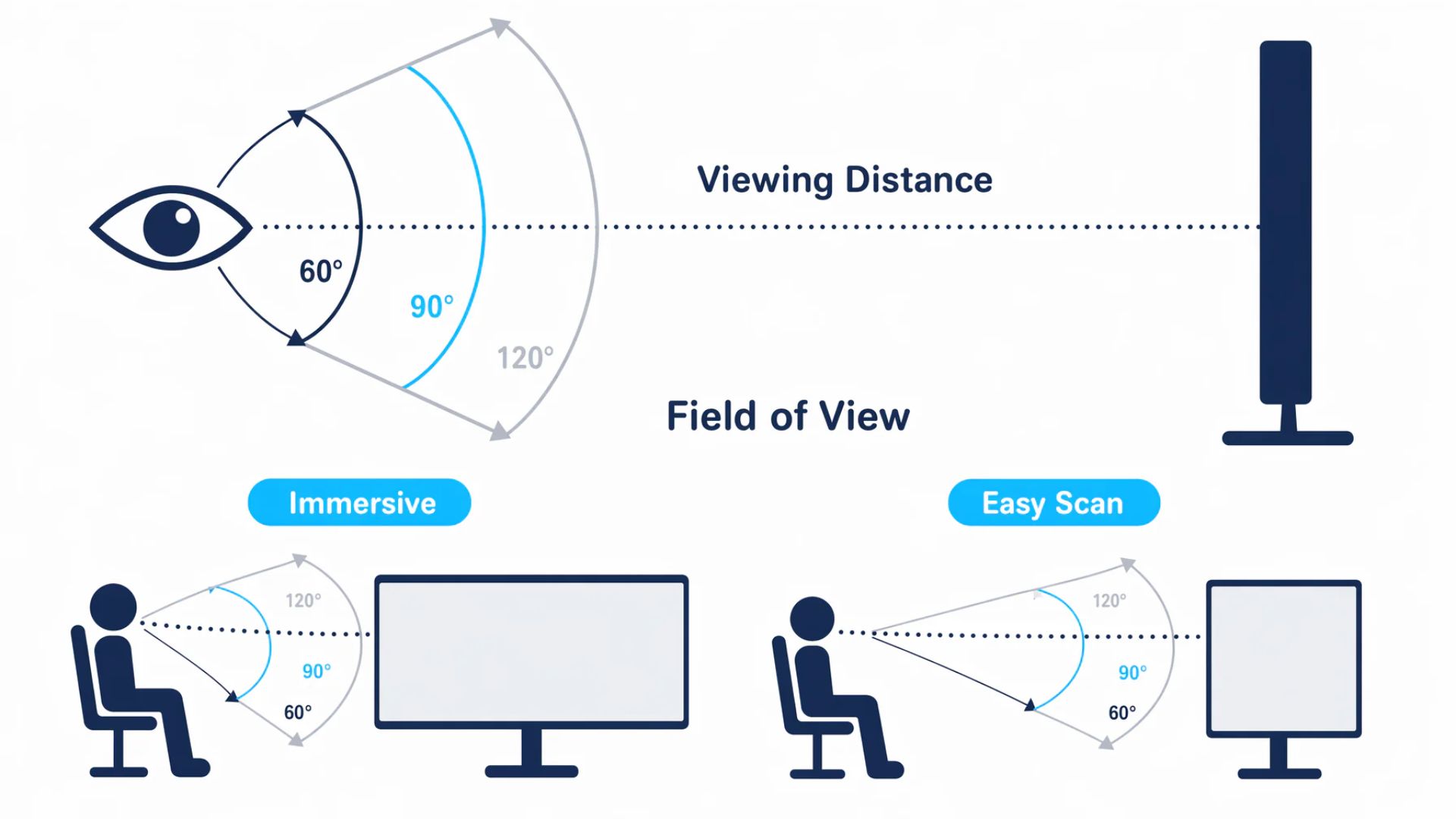
Viewing distance is simply the space between your eyes and the screen. It is easy to overlook, especially when buying a monitor online, but it changes how the display looks and feels.
The human eye has limits when it comes to resolving fine detail. Sit far enough away from a high-resolution display and the extra pixels may no longer be visible. Move closer, however, and differences in pixel density become much easier to appreciate. Distance also affects how much of a large display can be viewed comfortably without repeatedly moving the eyes or head.
The eye perceives screen detail according to visual angle, which is why size, resolution, and viewing distance cannot really be considered separately. Move a screen farther away and its apparent size decreases. Increase the physical size while keeping the same resolution, and pixel density falls.
That is why there is no single resolution that is perfect for every monitor.
It is tempting to assume that 4K must always be better than 1440p or 1080p. It is certainly more detailed, but whether that extra detail matters depends on the screen size and how far away it sits.
At a typical desk distance of around 24 to 30 inches, a 27-inch or 32-inch 4K monitor can produce exceptionally crisp text and fine details. On a smaller 24-inch display, however, 4K packs pixels together so tightly that interface elements may need substantial software scaling. That can reduce some of the practical benefit of having such a high native resolution.
The opposite problem appears when a large monitor uses a relatively low resolution. A 32-inch 1080p display has a pixel density of only about 69 PPI. At a normal desktop viewing distance, text and diagonal lines can look noticeably less refined. For a 32-inch monitor, QHD or 4K is generally a more sensible choice when sharp typography and detailed images matter.
24-Inch Displays: Full HD (1920×1080) remains a practical baseline. The resolution works well with the screen size and does not place heavy demands on graphics hardware.
27-Inch Displays: QHD (2560×1440) is a strong all-around choice for productivity and gaming. It provides more workspace than 1080p while keeping text reasonably sharp without relying heavily on scaling. A 27-inch 4K monitor looks even crisper, although gaming at native 4K requires more graphics performance.
32-Inch and Ultrawide Displays: At 32 inches, 4K provides the pixel density many users expect from a sharp desktop display. For a 34-inch ultrawide, UWQHD (3440×1440) offers a similar pixel density to a standard 27-inch 1440p monitor, giving the screen plenty of horizontal space without sacrificing text clarity.
Resolution and screen size largely determine how much detail and workspace a monitor provides. Refresh rate is about something else: how smoothly that information moves.
For years, 60Hz was the default for office work, web browsing, and casual gaming. That is still perfectly workable for many tasks. But higher-refresh-rate displays have become increasingly common, and the benefits are not limited to gaming.
Even without playing games, moving from 60Hz to 120Hz or 144Hz can make a desktop feel noticeably more fluid. Long web pages scroll more smoothly, windows glide across the screen, and mouse movement feels more immediate.
It is one of those changes that can be difficult to appreciate from a specification sheet. Once experienced, though, the difference is often easy to notice.
There is a catch. High resolution and high refresh rate can demand a lot from a computer's graphics hardware, particularly when both are pushed at the same time.
1080p at 144Hz: Generally straightforward for modern graphics hardware.
4K at 144Hz or higher: Much more demanding, especially in modern games where maintaining high frame rates at native 4K can require powerful hardware.
This is where the rest of the computer matters. A premium 4K 144Hz monitor cannot deliver its full potential in a demanding application if the graphics hardware can only produce around 40 frames per second. The monitor and the computer need to make sense as a pair.
Specifications only tell part of the story. The desk itself can put practical limits on what works.
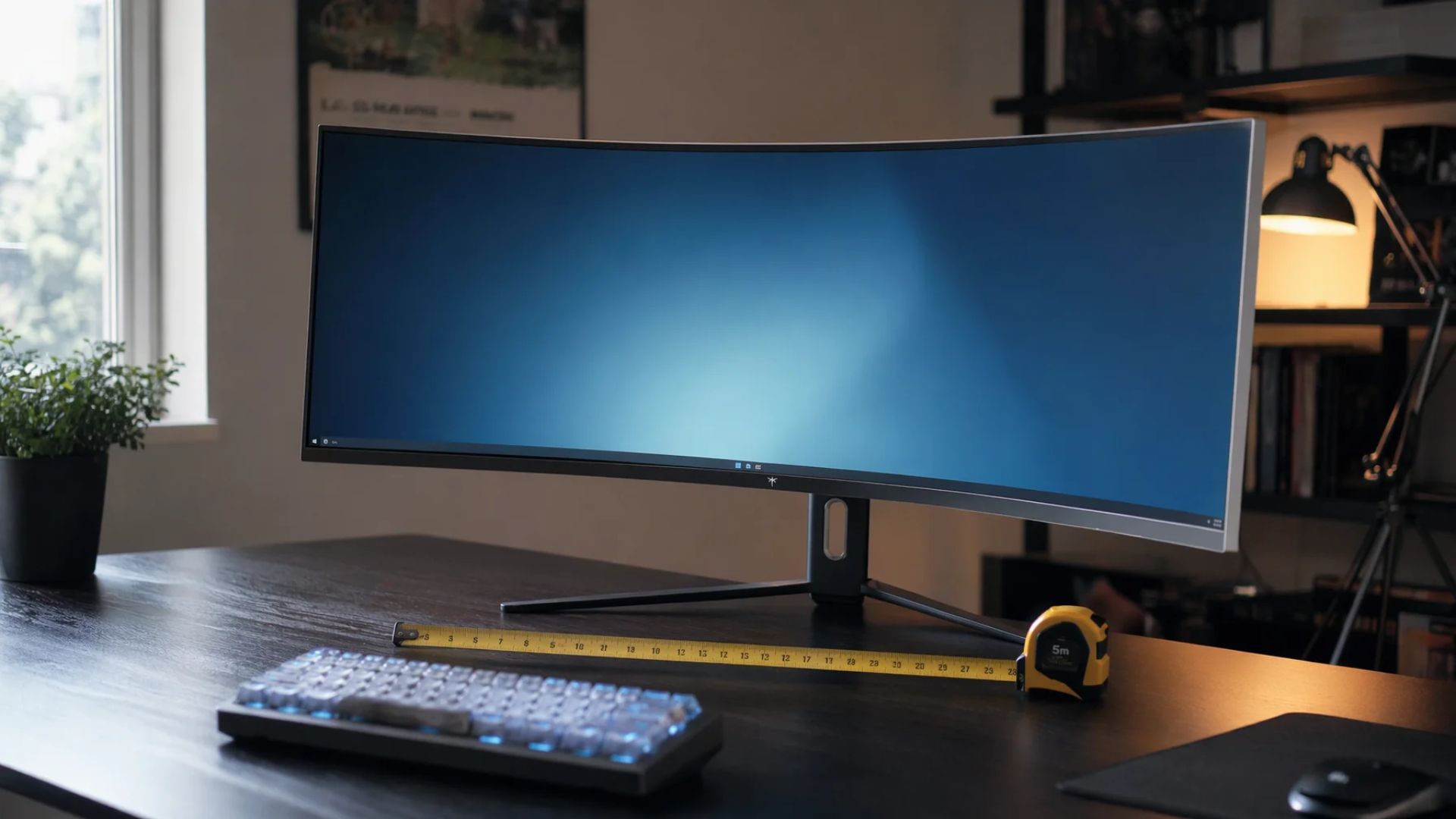
A 32-inch or ultrawide monitor may look appealing on a product page, but its size can become a problem if it is placed on a shallow desk. The closer a large screen sits to the face, the more difficult it can be to take in the entire display comfortably.
A useful ergonomic starting point is to keep the monitor roughly an arm's length away, often around 20 to 28 inches depending on the person, screen size, and setup.
Large displays need particular attention here. A 38-inch ultrawide or a 43-inch monitor placed on a shallow desk can dominate the field of view, requiring more eye and head movement than a smaller screen. A deeper desk gives the eyes more room to take in the display without constantly scanning from one side to the other.
The goal is not simply to find the biggest screen that fits on the desk. It is to find one that fits the desk and feels natural at the distance where it will actually be used.
Room lighting matters, too. A monitor that looks excellent in a dark showroom can behave very differently beside a bright window.
Matte finishes diffuse ambient light and can help reduce distracting reflections from windows and overhead fixtures.
Glossy finishes can produce a vivid image with strong perceived contrast, but reflections become much more noticeable in bright rooms.
If the desk faces a sunny window, panel coating may matter almost as much as resolution. There is little point in having an extremely sharp display if glare constantly competes with the image.

There is no perfect monitor specification for everyone. The better approach is to start with the main task, then work backward from the desk, viewing distance, and computer hardware.
For General Office Work and Writing: Focus on clear text and comfortable viewing. A 27-inch QHD (1440p) monitor at 60Hz to 75Hz offers a useful balance of workspace, sharpness, and hardware requirements.
For Productivity and Casual Gaming: A 27-inch or 32-inch QHD display with a 144Hz or higher refresh rate is a versatile option. It provides enough room for multiple windows while making scrolling, animation, and games feel much smoother.
For Professional Creative Work: When editing photos or video, color accuracy, panel technology such as IPS or OLED, and resolution usually deserve more attention than an extremely high refresh rate. A 4K display can also make it easier to inspect fine visual details at a normal desk distance.
Choosing a monitor becomes much simpler once the specifications stop being treated as isolated numbers. Screen size affects viewing distance. Resolution affects pixel density. Refresh rate affects motion. And the desk determines how all of it comes together in the real world.
The best monitor is not necessarily the one with the biggest screen, the highest resolution, or the fastest refresh rate. It is the one whose specifications make sense for the way the screen will actually be used.
U.S. General Services Administration (GSA): Office Ergonomics Guidelines and Computer Display Placement.
Occupational Safety and Health Administration (OSHA): Computer Workstations: Workstation Environment and Visual Display Terminal Guidelines.
International Organization for Standardization (ISO): ISO 9241-300 Series: Ergonomics of Human-System Interaction (Visual Display Requirements).
