When a computer starts stuttering, freezing, or taking noticeably longer to start programs, the first instinct is often to replace it. That can be an expensive mistake. A slow system is not necessarily an old system, and a new component will not automatically fix a problem caused by software, background processes, insufficient memory, overheating, or a nearly full storage drive.
A better approach is to find the bottleneck first. Modern operating systems already provide most of the tools needed to do that. By watching CPU, memory, storage, and graphics activity while the computer is actually struggling, it becomes much easier to decide whether an upgrade is worthwhile—or whether the problem lies somewhere else.

Windows Task Manager, macOS Activity Monitor, and similar Linux utilities can reveal what the computer is doing when performance drops. The important part is to observe the system during the slowdown rather than checking resource usage when the machine is sitting idle.
Storage activity is worth watching when applications take a long time to open, files become difficult to access, or the entire desktop seems to pause during disk-heavy operations. On an older computer that still uses a mechanical hard drive as its system disk, sustained disk activity can point toward a genuine storage bottleneck.
Memory requires a little more interpretation. High RAM usage by itself does not prove that the computer needs more memory because modern operating systems deliberately use available RAM for caching. A stronger warning sign is sustained memory pressure accompanied by paging or swapping, application slowdowns, and increased storage activity. If that pattern appears repeatedly during normal workloads, adding RAM may provide a much more noticeable improvement than replacing the processor.
CPU utilization should be interpreted in the same way. A processor reaching 100% during a demanding export or software compilation is not necessarily a problem; that simply means the workload is using the available processing capacity. The more useful question is whether the CPU remains heavily loaded during tasks that previously felt light, and whether the processes responsible are actually necessary.
This simple distinction—what is busy, and why?—can prevent a surprising amount of unnecessary spending.
Storage is one of the easiest places to see a dramatic improvement, particularly on older computers that still boot from a mechanical hard disk drive. HDDs rely on spinning magnetic platters and moving read/write heads, so retrieving many small files scattered across the disk involves physical movement as well as electronic processing.
Replacing that system drive with a SATA SSD removes most of that mechanical latency. Booting, launching applications, searching through files, and navigating the operating system can all feel substantially more responsive. The improvement is especially noticeable on older machines because the difference between an HDD and even a relatively modest SATA SSD is much larger in everyday use than the difference between two generations of high-end NVMe drives.
NVMe storage can deliver much higher sequential throughput when a computer supports a compatible PCIe interface. Modern NVMe drives can reach several thousand megabytes per second under suitable conditions, but benchmark numbers should not be mistaken for everyday responsiveness. Opening a web browser or editing a document rarely requires the kind of sustained transfer rate used to produce those headline figures.
That distinction matters when choosing an upgrade. If the current computer already has a healthy SSD and ordinary applications feel sluggish, replacing it with a faster SSD may accomplish very little. The bottleneck may instead be memory, CPU performance, thermal throttling, software, or simply an application that is consuming excessive resources.
RAM becomes important when the computer needs to keep more active data in memory than its physical capacity allows. Once available memory becomes insufficient, the operating system can move less-active data to storage and retrieve it later. Because storage is much slower than RAM, heavy paging can create the familiar experience of applications pausing while the system catches up.
For many everyday systems, 8GB can become restrictive when large numbers of browser tabs, office applications, communication tools, and background services are open simultaneously. A 16GB configuration gives many general-purpose computers considerably more breathing room, while heavier workloads such as software development, virtual machines, large creative projects, and professional media work can justify 32GB or more.
The important point is that RAM capacity should match the workload rather than an arbitrary target. Someone who routinely uses only a handful of applications will not necessarily benefit from doubling memory, while a developer running several virtual machines may notice a major difference.
Compatibility also needs to be checked before purchasing anything. Desktop systems may have open memory slots, but many thin laptops use soldered RAM that cannot be replaced. Even upgradeable systems have limits on supported capacity, memory type, and configuration, so the motherboard or manufacturer's specifications are worth checking first.
Processor upgrades are more complicated because CPUs are tied to motherboard platforms. Socket compatibility, chipset support, firmware, memory standards, and power requirements all matter. A newer processor is therefore not something that can simply be dropped into any older motherboard.
The first question is whether the CPU is genuinely limiting the workload. A processor running at high utilization during video encoding, 3D rendering, or code compilation may be doing exactly what it was designed to do. On the other hand, if routine applications repeatedly saturate the processor while memory and storage remain comfortable, the CPU may have become the limiting component.
Older desktops sometimes offer an attractive upgrade path because a faster compatible processor can extend the useful life of an existing platform. The economics become less appealing when the upgrade requires a new motherboard, new memory, and possibly a new cooling solution. At that point, comparing the total platform cost with a newer system makes more sense than looking at the processor price alone.
There is also another possibility worth checking before replacing hardware: heat. If a computer starts quickly but becomes noticeably slower after several minutes of demanding work, thermal throttling may be reducing processor performance. Cleaning accumulated dust, checking cooling airflow, or investigating fan behavior can sometimes solve a problem that initially looks like an underpowered CPU.
A GPU upgrade is useful only when the workload actually depends on graphics processing. Modern games, 3D applications, video effects, rendering software, and some AI or compute workloads can benefit enormously from additional GPU performance and graphics memory.
Normal web browsing, document editing, email, and file management are different. If those tasks feel slow, replacing the graphics card is unlikely to solve the underlying problem.
For graphics-heavy workloads, it is useful to monitor both GPU utilization and VRAM usage. A GPU that is consistently operating near full capacity during the workload may be limiting performance. Likewise, applications that exceed available VRAM can behave very differently from workloads that fit comfortably within it.
External GPU enclosures can provide another option for compatible laptops, but they are not equivalent to installing a desktop graphics card directly into a motherboard. The connection between the computer and the external enclosure introduces bandwidth constraints, and the benefit depends heavily on the application. They can make sense for some mobile workstations, but they should be evaluated as a complete system rather than treated as a universal graphics upgrade.
Hardware is only part of the diagnosis. A computer that was responsive six months ago but suddenly feels slow may not need new components at all.
Background applications, browser extensions, startup services, malware, corrupted software installations, operating-system processes, and poorly optimized applications can all consume resources. A computer can also become less responsive simply because its storage is nearly full or because a particular application has developed a problem.
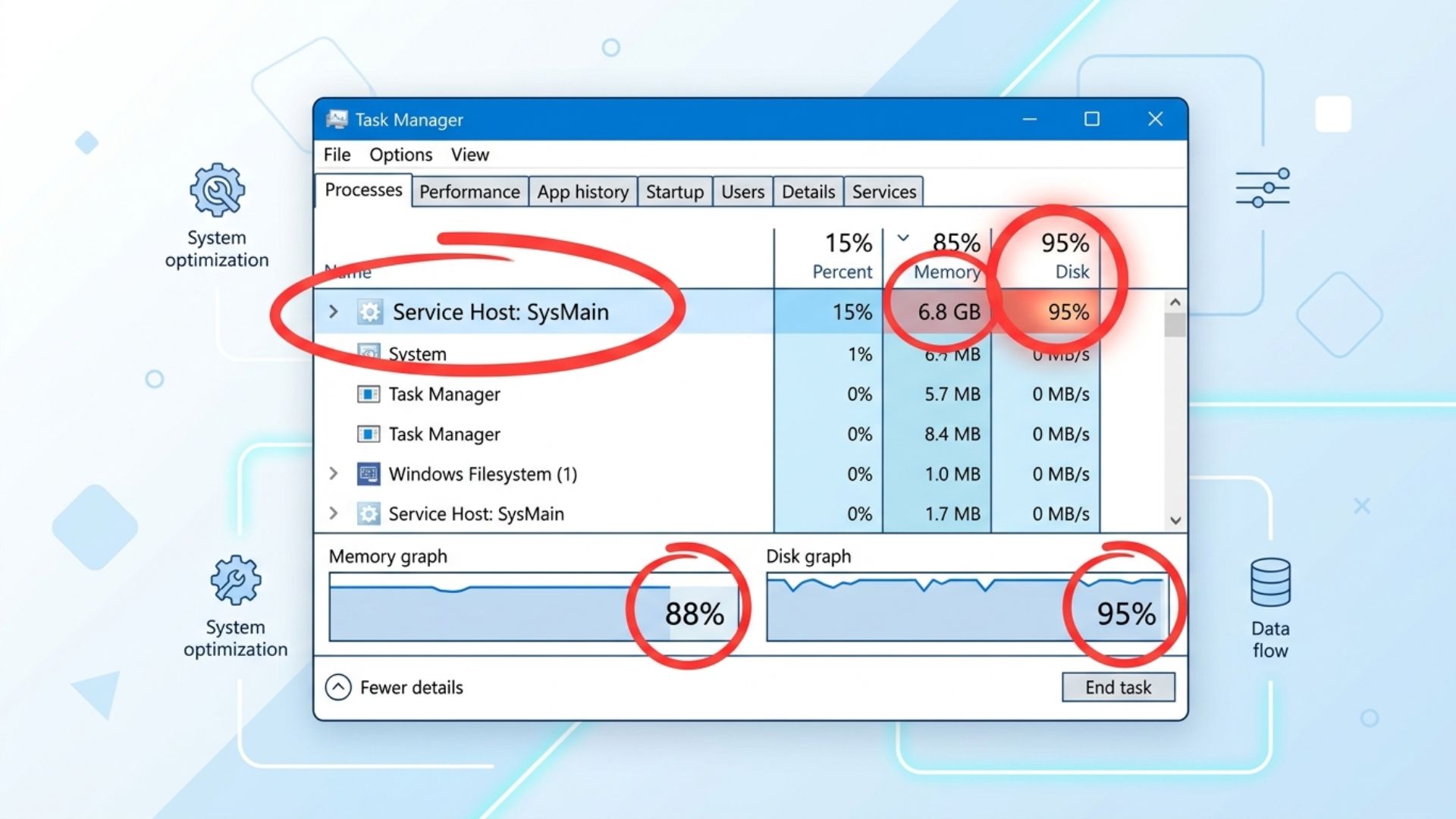
This is why checking Task Manager or Activity Monitor during the slowdown is so useful. If a single application is consuming most of the CPU, memory, or disk activity, replacing hardware may simply mask the real issue.
A clean comparison is also valuable. If the computer behaves normally immediately after startup but becomes sluggish later, background software becomes more suspicious. If it is slow from the moment the operating system loads, storage, memory, thermal behavior, or the underlying hardware deserves closer attention.
There is no universal upgrade sequence, but a sensible decision process usually starts with the easiest and most clearly measurable bottleneck.
For an older computer still running its operating system from an HDD, an SSD is often the first upgrade worth considering. If the system already has solid-state storage but regularly runs into memory pressure, additional RAM may provide more value. If demanding applications consistently saturate the CPU, investigate processor and platform options. Graphics-heavy workloads should be evaluated separately, because GPU limitations do not necessarily affect general desktop responsiveness.
The cost of the upgrade matters just as much as the technical improvement. A cheap component that removes a daily bottleneck can be a better investment than an expensive part that improves a benchmark but barely changes the way the computer feels.
It is also worth considering the computer's age and upgradeability. A desktop with accessible memory slots, standard storage interfaces, and a supported CPU upgrade path can remain useful for years. A thin laptop with soldered RAM, limited storage expansion, and an aging battery may have a much lower ceiling, even if one component can technically be replaced.
A slow computer is a symptom, not a diagnosis. The most useful upgrade is the one that addresses the resource consistently reaching its practical limit during the tasks that matter.
Start by observing CPU, memory, disk, and GPU activity while the problem is happening. Check for thermal throttling and unusually heavy background processes. Confirm the machine's hardware limitations before buying replacement components. Then compare the expected improvement with the total cost of the upgrade.
That approach may lead to an SSD, more RAM, a faster processor, or a better graphics card. It may also lead to a simpler conclusion: the hardware is fine, and the real problem is software or configuration.
Either way, measuring first turns an upgrade from a guess into a decision.
