Many computer users adjust their chair and monitor but overlook one of the most frequently used parts of the workstation: the keyboard and mouse area.
The problem is often not the devices themselves. It is the relationship between the devices and the available desk space. A keyboard placed too far away, a mouse positioned outside a natural reach area, or a desk surface that requires extended reaching can make a workstation feel less comfortable during extended use.
Keyboard and mouse positioning geometry focuses on how distance, height, angle, and workspace layout affect the way the hands, wrists, forearms, and shoulders interact with the desk. The objective is not to create a rigid posture that never changes. A practical setup should make normal movement easier while reducing unnecessary reaching and awkward positions.
The Occupational Safety and Health Administration (OSHA) recommends arranging computer workstations to support neutral body positioning and allowing users to adjust equipment according to individual needs. Cornell University’s ergonomics resources similarly emphasize that workstation design should be adapted to the user rather than based on one fixed arrangement.
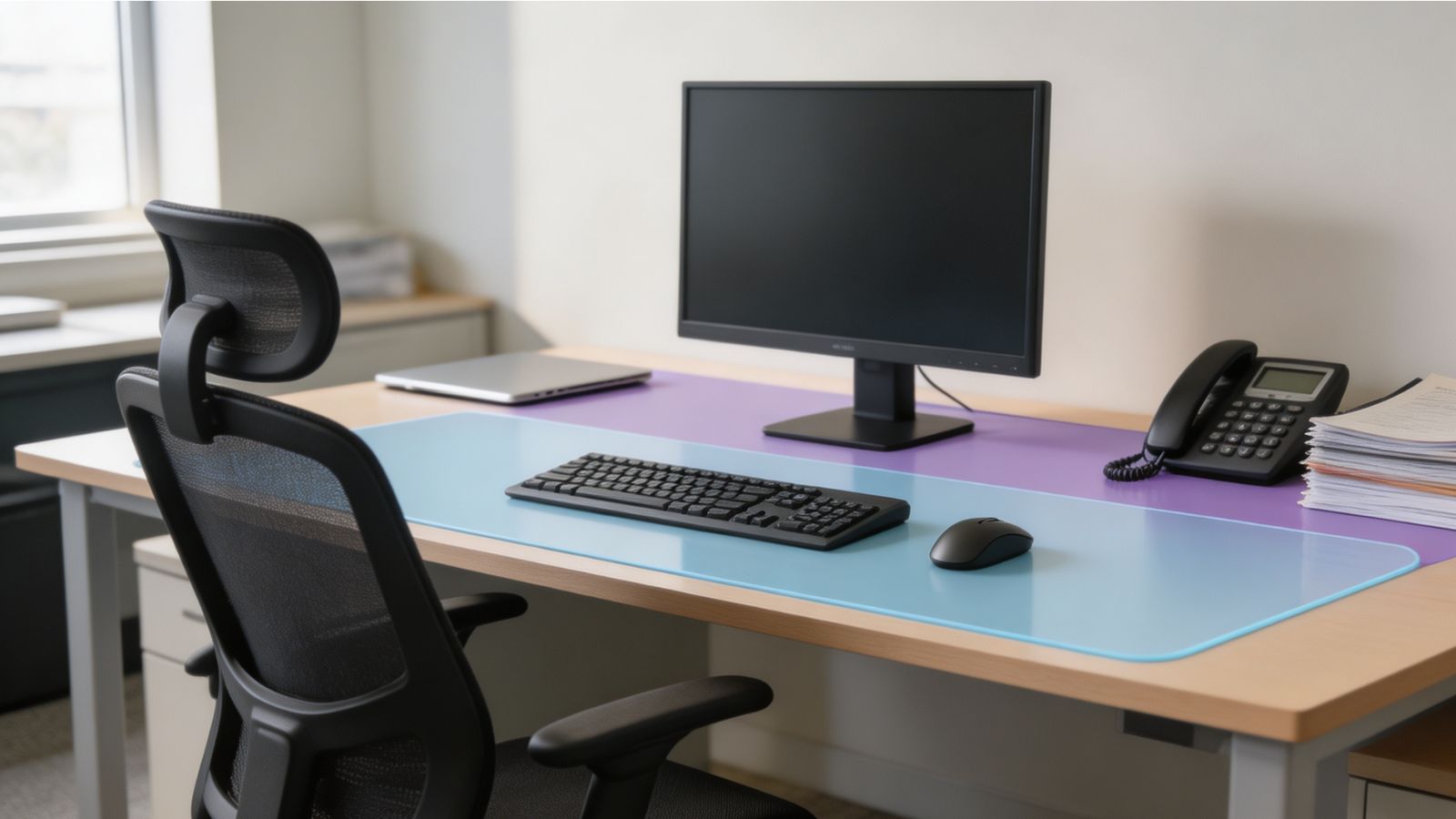
A computer workstation is a small movement system. The keyboard, mouse, monitor, chair, and desk all influence each other.
When the keyboard is positioned correctly, the user can type while keeping the shoulders relaxed and the elbows close to the body. When the mouse is within a comfortable reach area, the arm can move naturally without requiring repeated outward extension.
A useful way to think about desk layout is through reach zones.
The primary reach zone is the area where the hands can move comfortably with minimal shoulder movement. The keyboard and frequently used mouse position usually belong here.
The secondary reach zone includes items used less often, such as notebooks, phones, or reference materials. Keeping these items farther away can prevent the main working area from becoming crowded.
Many workstation problems occur because frequently used tools are placed in secondary areas. The user then repeats the same extended movement hundreds of times throughout the day.
Instead of copying another person’s setup, it is usually more effective to measure the relationship between your body and your desk.
Start with the seated working position you actually use. Sit back in the chair, relax the shoulders, and place your arms in a natural typing position.
For the keyboard, check whether:
Your elbows remain close to your sides
Your shoulders stay relaxed
You can reach the keys without leaning forward
For the mouse, check whether:
You can move it without stretching the arm outward
Your upper arm stays reasonably close to your body
You can switch between keyboard and mouse without large movements
The exact distance will vary because people have different arm lengths, desk depths, and working habits. A setup that works for one person may feel restrictive for another.
The more useful measurement is not a specific number of inches. It is whether the arrangement allows common tasks to be completed without repeated unnecessary reaching.
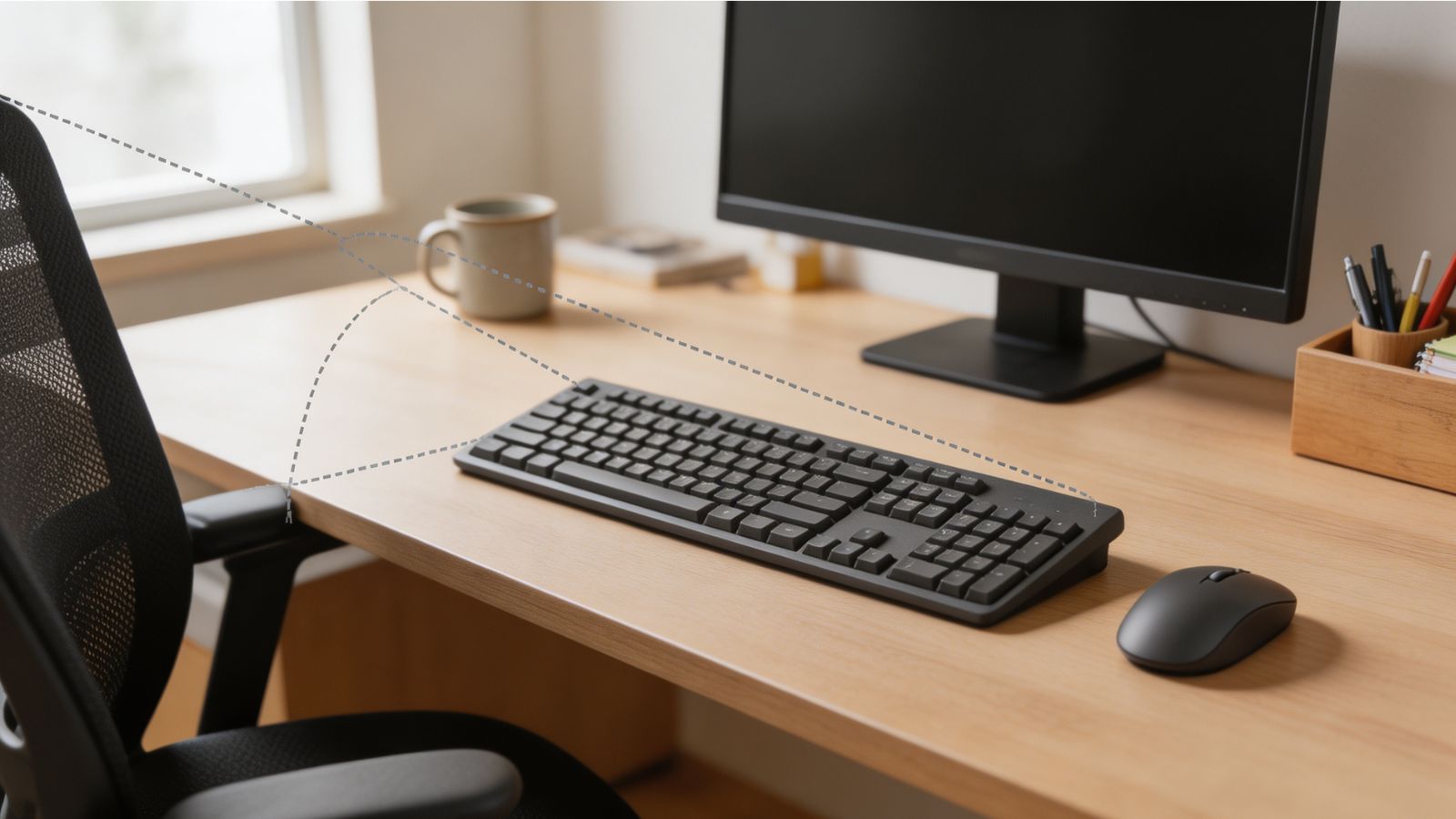
Mouse placement is one of the most common workstation issues because desk layouts often prioritize appearance rather than movement.
A large keyboard is one reason. Full-size keyboards with a number pad extend farther to the side, which can push the mouse farther away from the body. Some users then operate the mouse with the arm partially extended for hours.
Another issue is leaving too much empty space between the keyboard and the desk edge. People often push the keyboard backward to create room for writing materials or to make the desk look cleaner. However, this can increase the distance between the user and the main input area.
A practical adjustment is to place the keyboard and mouse based on frequency of use. Devices used every few seconds should receive the most convenient positions. Less frequently used objects can move farther away.
Keyboard placement is not identical for every computer user because different tasks require different types of hand movement.
People who spend most of the day typing may benefit from keeping the keyboard centered and close enough that the hands can move freely without shoulder tension. A slightly flatter keyboard position may also feel more comfortable for some users because it avoids excessive wrist extension.
Users who frequently switch between typing and mouse control may need a balanced arrangement. The keyboard should not be positioned so far to one side that reaching the mouse requires a large arm movement each time.
For designers, editors, and other users who rely heavily on pointing devices, mouse access may become more important. These users may benefit from reducing unnecessary keyboard width or reorganizing desk space so the mouse remains closer.
The best arrangement is usually the one that matches the actions performed most often during the workday.
Many traditional keyboards have small feet that raise the rear edge. This design has existed for years, but it does not automatically create a better hand position.
Raising the back of the keyboard can increase the angle between the hand and forearm for some users. Others may prefer this position depending on their typing style and keyboard design.
Low-profile keyboards, split keyboards, and other ergonomic designs change the relationship between the hands and the keyboard. These options may be useful for some people, but the main consideration remains whether the device allows comfortable positioning during actual use.
A more expensive keyboard is not necessarily a better choice if it does not fit the user’s working habits.
Mouse comfort depends on more than how close the device sits to the keyboard.
The direction of movement also matters. A mouse placed far to the side may require repeated outward movement of the upper arm. A mouse placed too close may feel cramped and limit natural movement.
The surface height should also match the keyboard area. Large height differences between the keyboard and mouse can create unnecessary adjustment between tasks.
Some users also rotate their forearm significantly when using a traditional mouse. Alternative designs, such as vertical mice or trackballs, change the hand position or movement pattern. These devices may be helpful for certain users, but they are not automatically better for everyone.
The important question is whether the device fits the user’s work and allows comfortable control.
One common mistake is designing the workstation around the desk rather than the person. A large desktop may encourage users to spread equipment across a wide area, even when the most frequently used devices are placed too far apart.
Another mistake is focusing on one device while ignoring the full system. A perfectly positioned mouse cannot compensate for a desk that is too high or a chair that places the user too far away from the keyboard.
Users also sometimes make large changes too quickly. Replacing every device at once makes it difficult to understand which change actually improved the setup. Small adjustments are usually easier to evaluate.
Before changing equipment or buying accessories, a quick review of the current desk layout can reveal many positioning issues.
Sit in your normal working position and check the relationship between your body and your devices:
Is the keyboard close enough that you can type without reaching forward?
Does the mouse allow your arm to move without your shoulder extending outward?
Do you frequently lean toward the screen or move closer to the desk during focused work?
Do frequently used items stay within easy reach while less-used items are placed farther away?
Another useful check is to observe your natural movement during a normal work session. If you repeatedly push the keyboard away, pull the mouse closer, or adjust your chair to reach the desk, the layout may not match your working position.
These small observations are often more useful than copying a setup from another person because workstation comfort depends on the relationship between the user and the available workspace.
A workstation should be evaluated during normal tasks, not only while sitting still.
During a typical morning session, pay attention to whether you naturally move toward the keyboard or mouse. If you frequently lean forward, pull your shoulders inward, or reach outward, the layout may need adjustment.
During focused work periods, notice which device you use most. A writer may spend most of the time on the keyboard, while a designer may move constantly between keyboard shortcuts and mouse controls.
After several hours, comfort can reveal problems that are not obvious at the beginning of the day. Small changes in device position may improve the overall experience more than adding new accessories.
A good keyboard and mouse arrangement is not about achieving one perfect measurement. It is about creating a workspace where common movements feel natural.
The most effective setup usually combines appropriate desk height, reasonable reach distances, and a layout that matches the user’s actual tasks. Keyboard and mouse positioning should support movement rather than restrict it.
Because people differ in body size, work habits, and equipment preferences, the best configuration is personal. A well-adjusted workstation simply makes comfortable choices easier throughout the workday.
