In the world of digital work, efficiency often depends on how quickly users can move between tasks. Repeated mouse movements, menu searches, and unnecessary clicks can interrupt workflow, especially for people who spend hours each day working with applications, documents, and digital tools.
Keyboard shortcuts and command launchers provide a faster way to interact with computers. They allow users to open applications, switch windows, edit text, search files, and access system functions without constantly moving between the keyboard and mouse.
Professionals across Windows, macOS, and Linux use these tools to simplify repetitive actions and create smoother workflows. While shortcuts handle specific commands, modern command launchers provide a searchable interface that brings many actions together in one place.
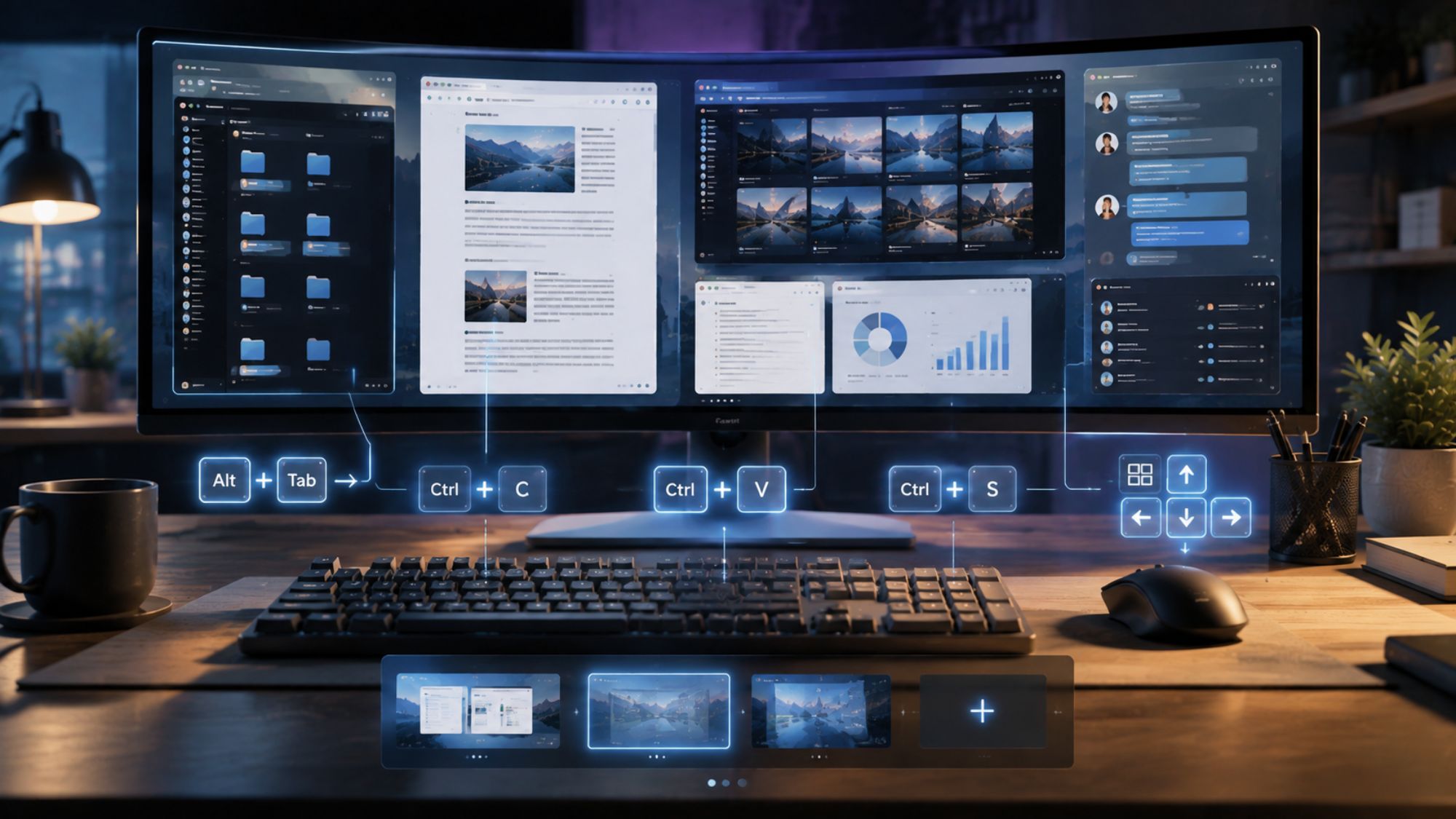
Keyboard shortcuts combine modifier keys such as Ctrl, Command, Alt, or the Windows key with another key to perform common actions. Their main advantage is reducing the need to navigate through menus or toolbars for frequently used commands.
Basic text editing shortcuts remain among the most useful:
Ctrl + C / Command + C: Copy selected content
Ctrl + X / Command + X: Cut selected content
Ctrl + V / Command + V: Paste content
Ctrl + Z / Command + Z: Undo the previous action
Ctrl + S / Command + S: Save the current document
Because these shortcuts work across many applications, learning a small number of common combinations can improve daily computer use without requiring extensive training.
Window and desktop management shortcuts are also valuable for multitasking.
On Windows:
Windows key + D: Show or hide the desktop
Windows key + Tab: Open Task View to view applications and virtual desktops
Windows key + Arrow keys: Snap and reposition windows
On macOS:
Command + Tab: Switch between applications
Control + Command + F: Toggle full-screen mode in supported applications
Command + Space: Open Spotlight search
Linux shortcuts vary depending on the desktop environment, but many systems provide similar keyboard-first controls for switching applications, opening launchers, and managing windows.
The key benefit of shortcuts is consistency. When frequently used actions become familiar, users spend less time searching for commands and more time completing tasks.
Keyboard shortcuts are excellent for known commands, but command launchers offer a broader approach. Instead of remembering a specific key combination, users can open a launcher, type what they need, and select the result.
Command launchers can be used to:
Open applications
Find files
Search settings
Run calculations
Access system tools
Launch workflows
This approach is especially useful when users know what they want to do but do not remember the exact location of the feature.
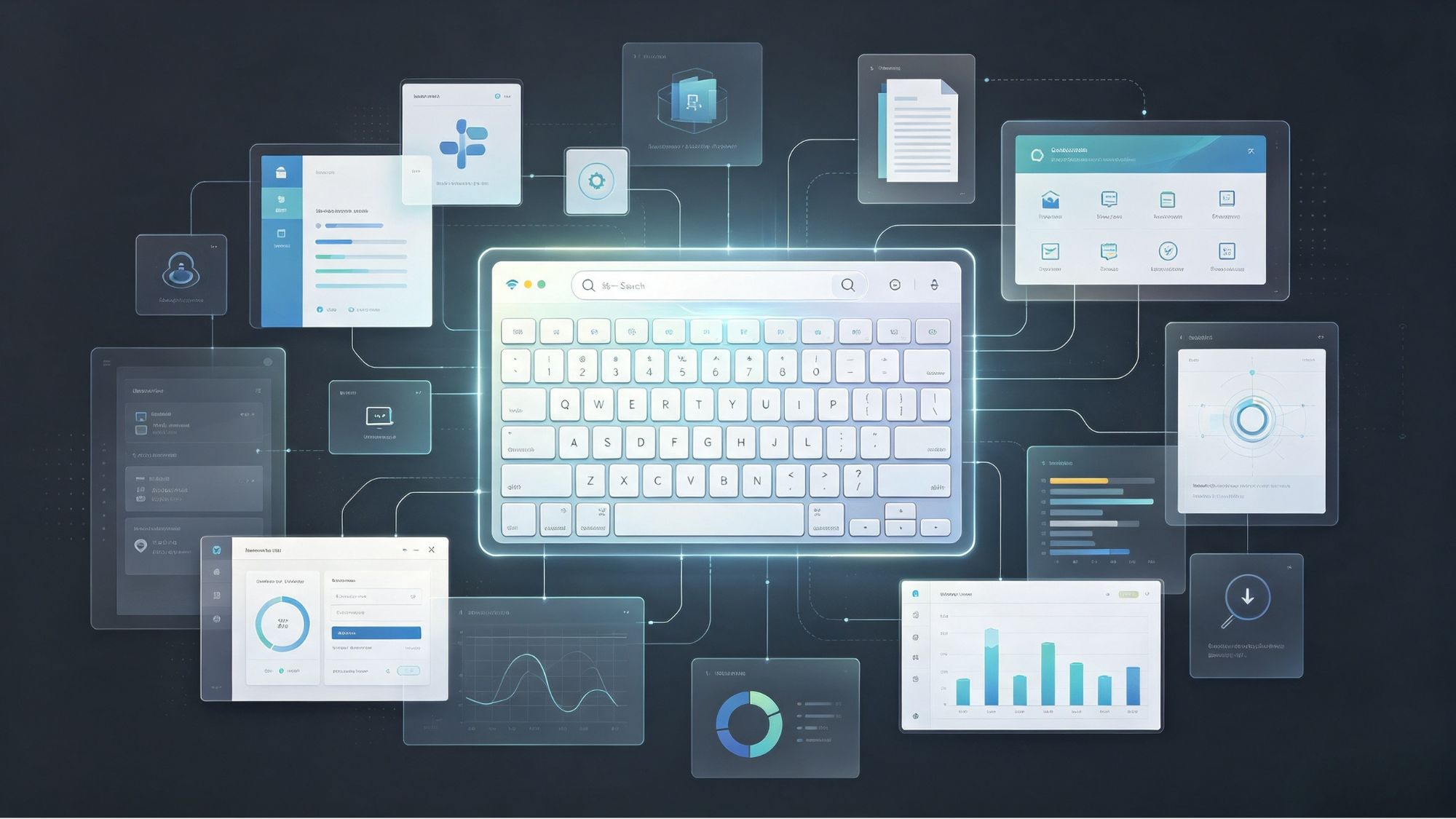
Windows users can access built-in search features through the Start menu, but advanced users often turn to tools such as Microsoft PowerToys Command Palette.
PowerToys Command Palette provides a keyboard-driven interface for finding applications, running commands, accessing settings, and extending Windows workflows. It is designed for users who prefer typing commands instead of navigating through multiple menus.
PowerToys also includes other productivity tools, such as Keyboard Manager, which allows users to remap keys and create customized shortcuts for their preferred workflows.
For many Windows users, combining built-in shortcuts with PowerToys features creates a flexible keyboard-focused workflow.
macOS includes Spotlight, which can be opened with Command + Space. Spotlight allows users to search for applications, files, contacts, settings, and other information.
Users who want more advanced workflows often explore third-party launchers such as Raycast or Alfred. These tools extend the basic launcher concept by adding features such as:
Clipboard management
Custom workflows
Quick calculations
Application actions
Productivity extensions
The advantage of these tools is that they create a single access point for many frequently used actions.
Linux environments offer several keyboard-focused launcher options depending on the desktop environment.
Examples include:
GNOME Run Dialog: Quick access to commands and applications
KRunner (KDE Plasma): Search and launch interface integrated into KDE
Rofi or dmenu: Lightweight launchers popular among advanced users
Ulauncher: An extensible launcher option with plugins
Because Linux offers many customization options, users can choose tools that match their preferred desktop environment and workflow style.
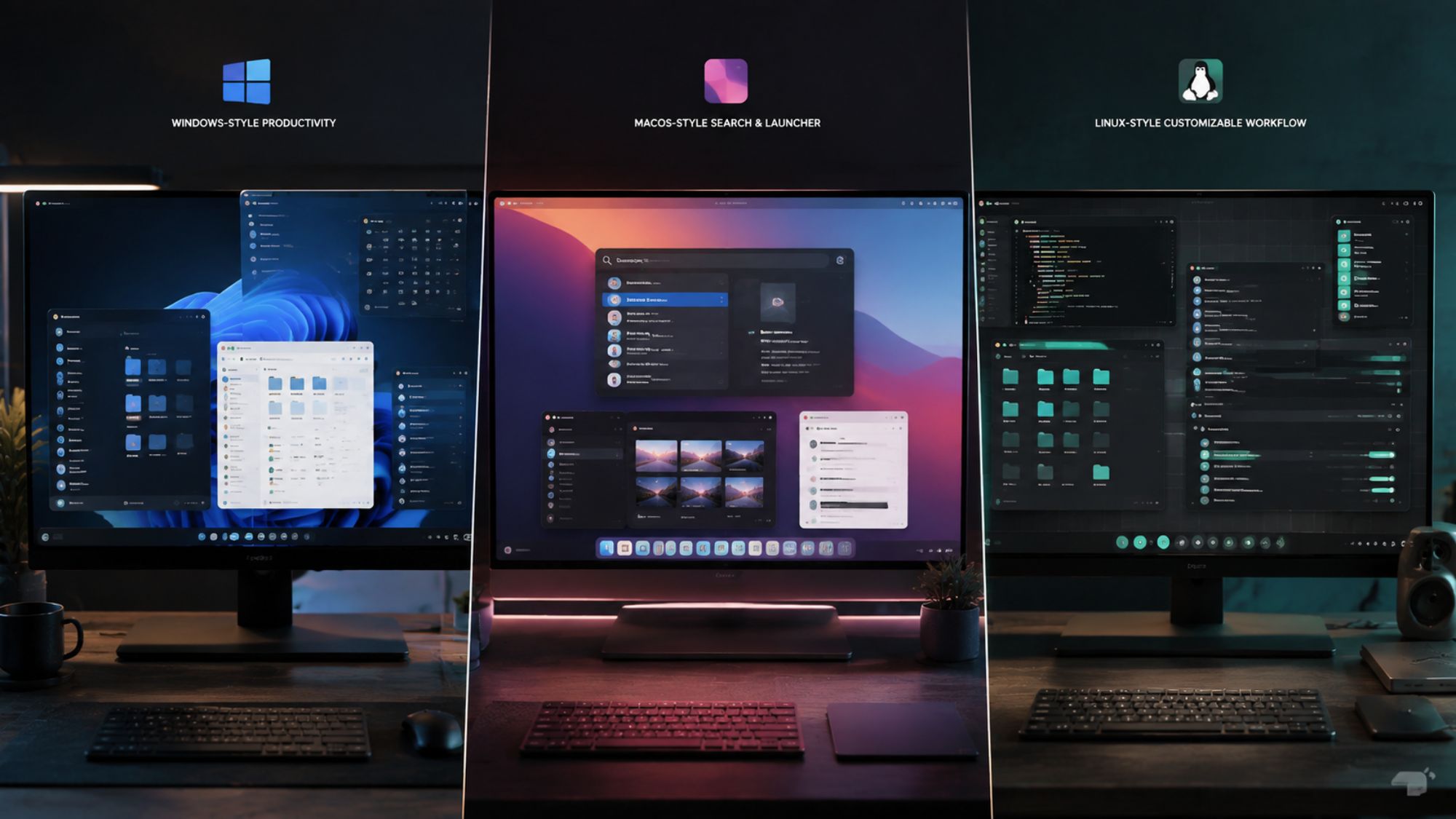
Traditional shortcuts are fast but require memorization. Users need to remember the correct key combination before they can use it.
Command launchers provide a different advantage: discoverability.
For example, a user may not remember the shortcut for a specific system action but may immediately find it by typing a related keyword into a launcher.
Launchers can also replace several mouse-based actions with a single keyboard interaction. Instead of opening folders manually or searching through application menus, users can often type a name and access the result immediately.
However, launchers are not a replacement for every shortcut. Frequently repeated actions, such as copying, pasting, saving, or switching applications, are usually faster with dedicated shortcuts.
The most efficient workflows often combine both approaches.
Built-in shortcuts cover many common actions, but customization allows users to create workflows that match their personal needs.
Windows users can customize keyboard behavior through tools such as:
Microsoft PowerToys Keyboard Manager: Remap keys and create custom shortcuts
AutoHotkey: Create advanced scripts and automation commands
These tools allow users to create shortcuts for repetitive actions, frequently used applications, or specific workflows.
macOS provides custom keyboard shortcuts through System Settings.
Users can create application-specific shortcuts for menu commands or use additional tools such as Keyboard Maestro or BetterTouchTool for more advanced automation.
Linux desktop environments commonly provide built-in shortcut settings. Advanced users can also customize configuration files to create highly specific keyboard-driven workflows.
Custom shortcuts are most useful when they solve a repeated problem. A shortcut that saves a few seconds once may not matter, but one used dozens of times each day can significantly simplify a workflow.
Consider a typical work session.
Instead of opening a browser through several menu steps, a user can launch a command palette, type the application name, and open it immediately.
Instead of searching through multiple windows with a mouse, the user can switch applications with Command + Tab, Alt + Tab, or similar shortcuts.
Instead of repeatedly navigating menus to save documents, formatting text, or manage files, familiar keyboard commands provide direct access.
These small improvements become more noticeable when repeated throughout a workday. The goal is not to eliminate the mouse completely but to reduce unnecessary movements and make common actions easier.
Some users assume keyboard shortcuts are difficult to learn or only useful for technical professionals. In reality, most people can begin with a small group of common shortcuts and expand gradually.
Another misconception is that installing a launcher automatically improves productivity. A launcher is only valuable when it matches the user's workflow. Too many extensions, custom commands, or unused features can make the system harder to maintain.
A practical approach is to start with:
Common editing shortcuts
Window switching shortcuts
A simple application launcher
Custom shortcuts for frequently repeated tasks
Over time, users can build a personalized system without needing to memorize every available command.

Keyboard shortcuts and command launchers provide a practical way to make everyday computer tasks smoother. Shortcuts are ideal for frequently repeated actions, while command launchers provide fast access to applications, files, and system functions.
The most effective approach is not choosing one tool over another. A balanced workflow combines familiar shortcuts with a launcher that fits the user's operating system and working style.
By gradually replacing unnecessary clicks with faster keyboard-based actions, users can create a more efficient digital workspace and spend less time searching for tools and more time focusing on their actual work.
