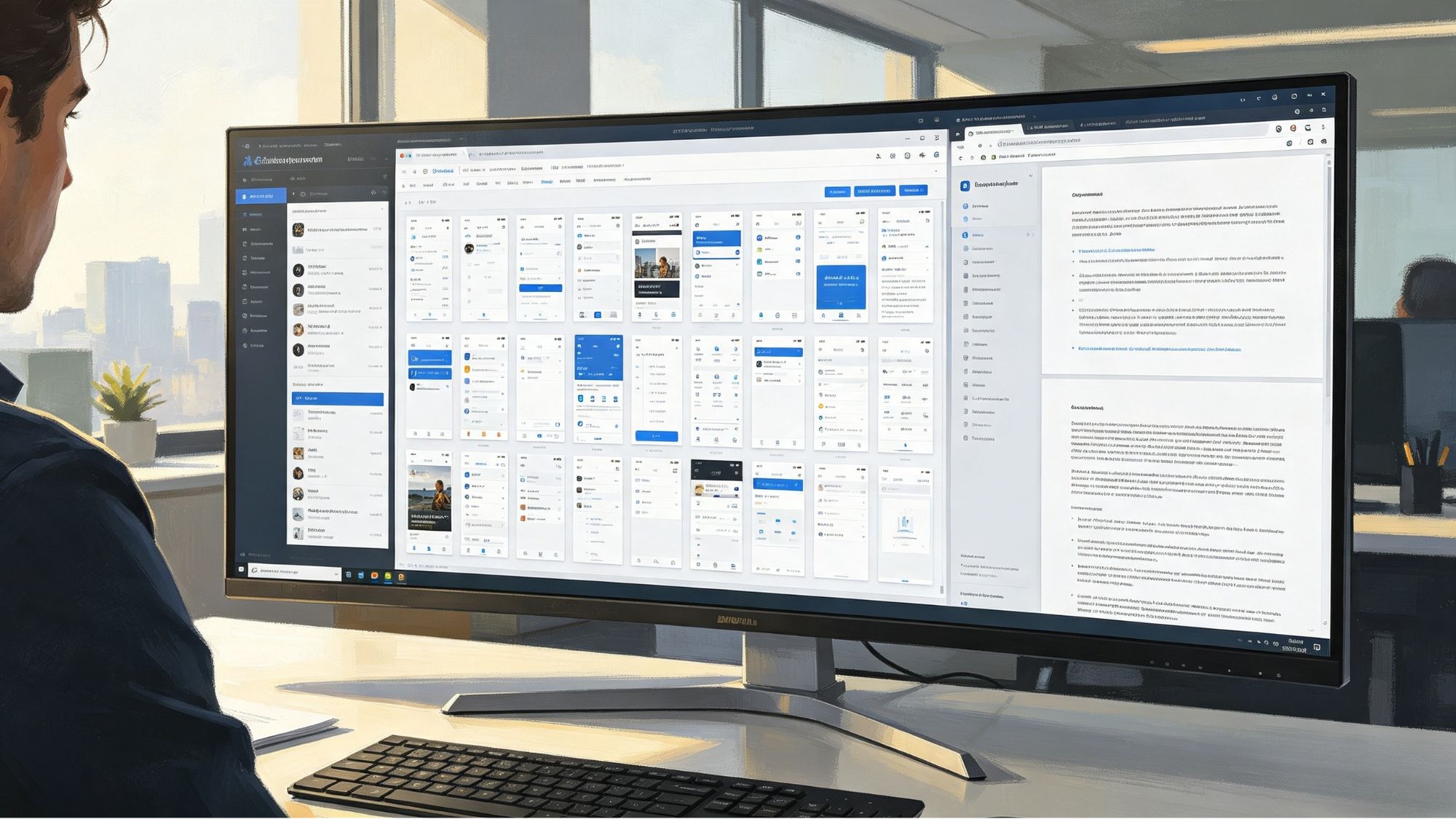
Modern knowledge work rarely happens inside a single application. A typical workday may involve switching between browsers, communication tools, documents, dashboards, coding environments, and virtual meetings. As digital workflows become more complex, managing multiple windows efficiently has become an important part of maintaining an organized workspace.
Window management is not only about keeping a desktop clean. A structured layout can make it easier to find important information, compare applications, and move between tasks without repeatedly searching through overlapping windows. Instead of treating the screen as a place where every application stays open randomly, effective users create a workspace that matches the way they work.
People naturally use spatial memory when navigating physical environments. A notebook placed beside a keyboard or frequently used tools stored in a familiar location can be accessed without much thought. Digital workspaces work in a similar way.
When applications always appear in predictable positions, users spend less time searching for windows and more time focusing on the actual task. This is especially useful for professionals who regularly handle multiple sources of information at the same time, such as researchers, developers, writers, analysts, and project managers.
The goal of window management is not to keep every application visible. It is to create a system where important tools are easy to access when needed.
A tiled workflow divides the screen into fixed areas so multiple applications can remain visible without overlapping.
Windows includes built-in Snap features that allow users to place applications side by side or arrange them into predefined layouts. Useful shortcuts include:
Windows key + Left/Right Arrow: move windows to different sides of the screen
Windows key + Z: open Snap Layout options
On macOS, users can also arrange windows through built-in window management features, including tiling options and Spaces for organizing different work areas.
For users who need more customization, tools such as Rectangle, Magnet, or PowerToys FancyZones can create personalized layouts.
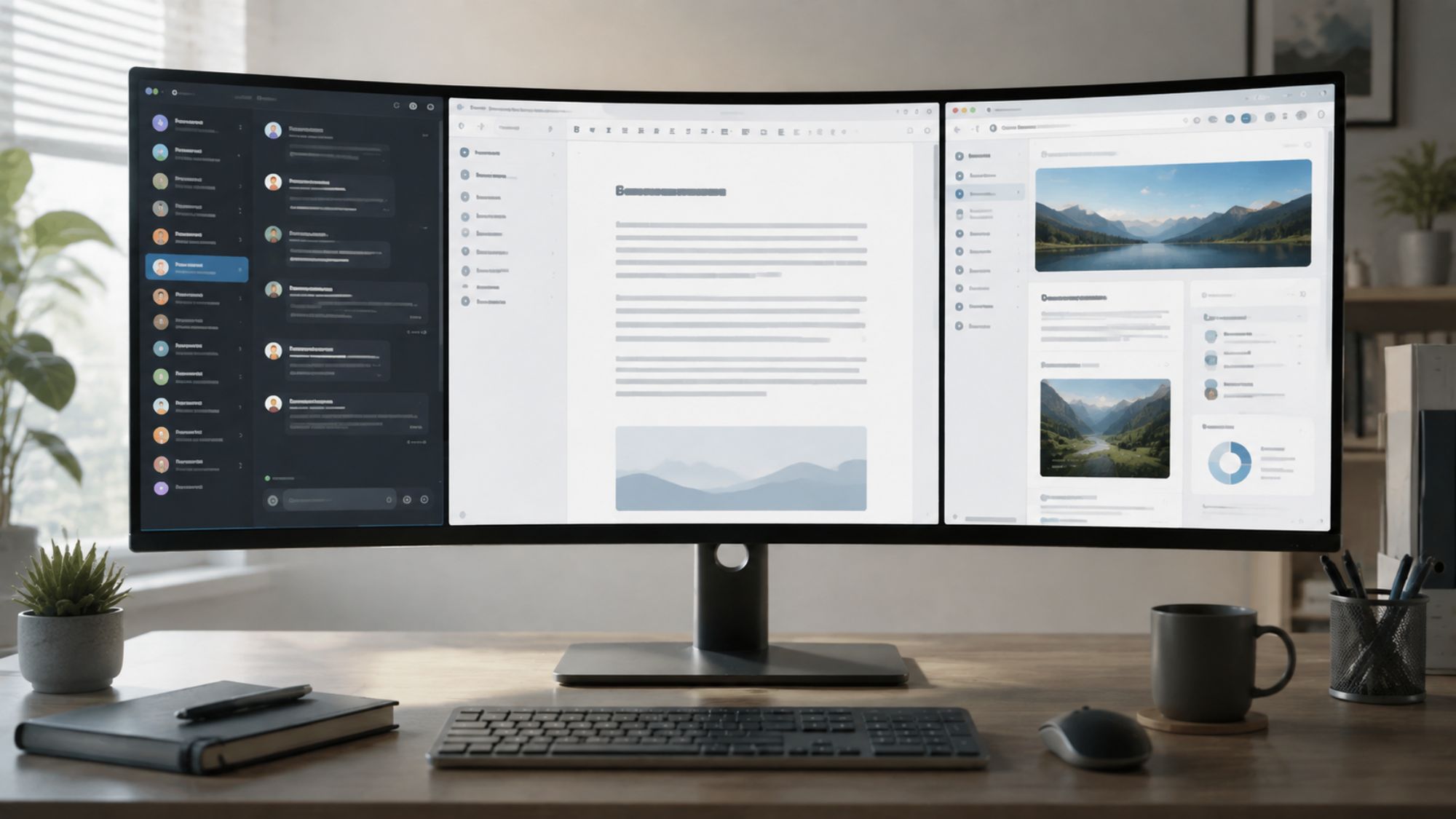
A common professional setup might include:
Left side: communication tools or monitoring dashboards
Center: main working application
Right side: documentation, browser references, or research materials
This approach works well for tasks that require constant comparison between applications.
Best suited for: writers, developers, researchers, and analysts.
Limitation: Small laptop screens may not provide enough space for multiple comfortable windows.
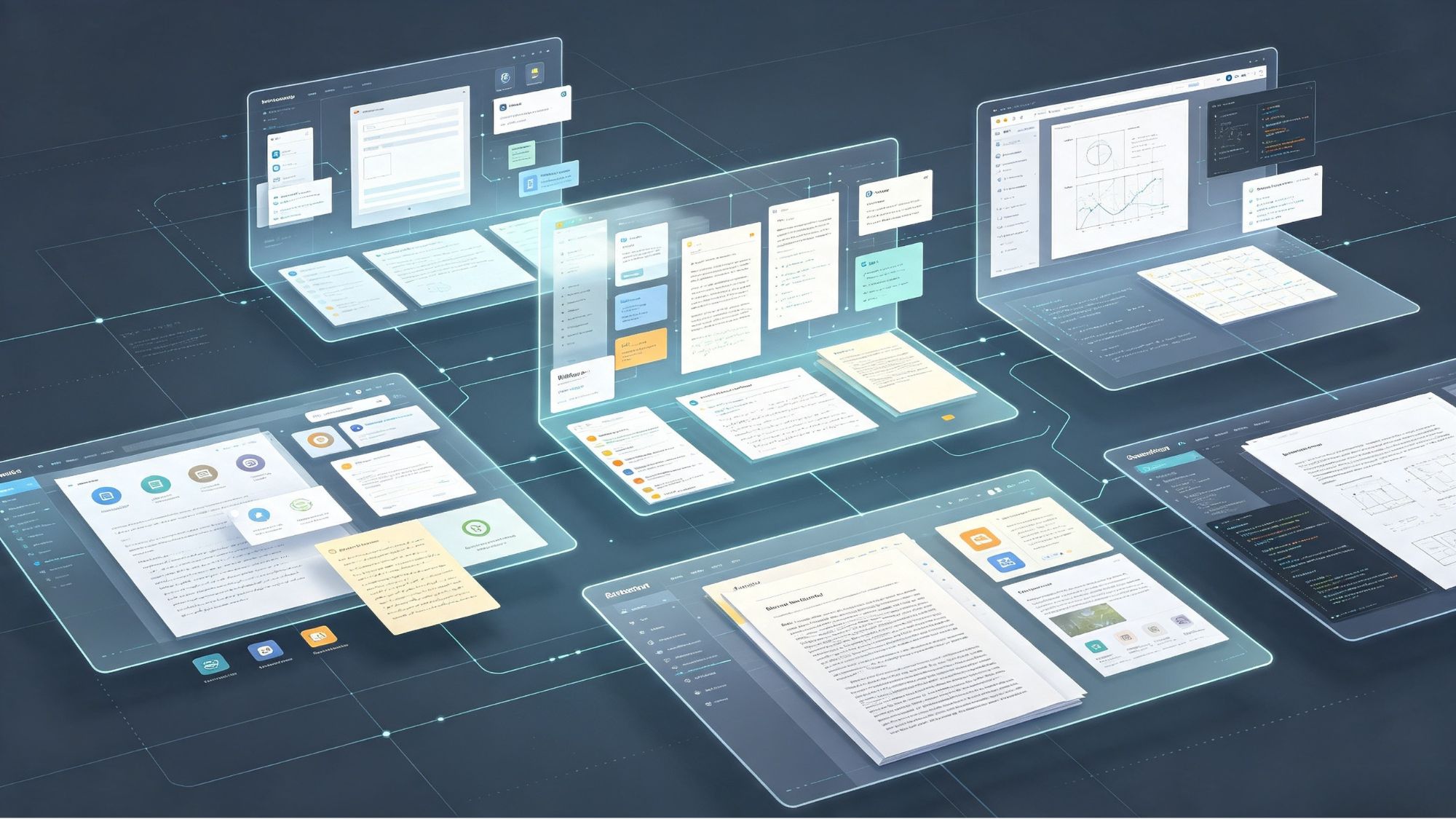
Virtual desktops allow users to separate different activities without creating a crowded single desktop.
For example:
Desktop 1: email, calendar, and communication
Desktop 2: writing or creative work
Desktop 3: research and browser resources
Desktop 4: development tools or project-specific applications
Windows provides multiple desktops through Task View, while macOS uses Spaces to create separate desktop environments.
This approach is useful for people who switch between unrelated tasks throughout the day. Instead of constantly minimizing and reopening applications, users can move directly into the workspace designed for a specific activity.
The key is keeping each workspace focused. Too many virtual desktops can create another layer of confusion.
Best suited for: professionals managing multiple projects or responsibilities.
Limitation: Requires consistent organization to remain effective.
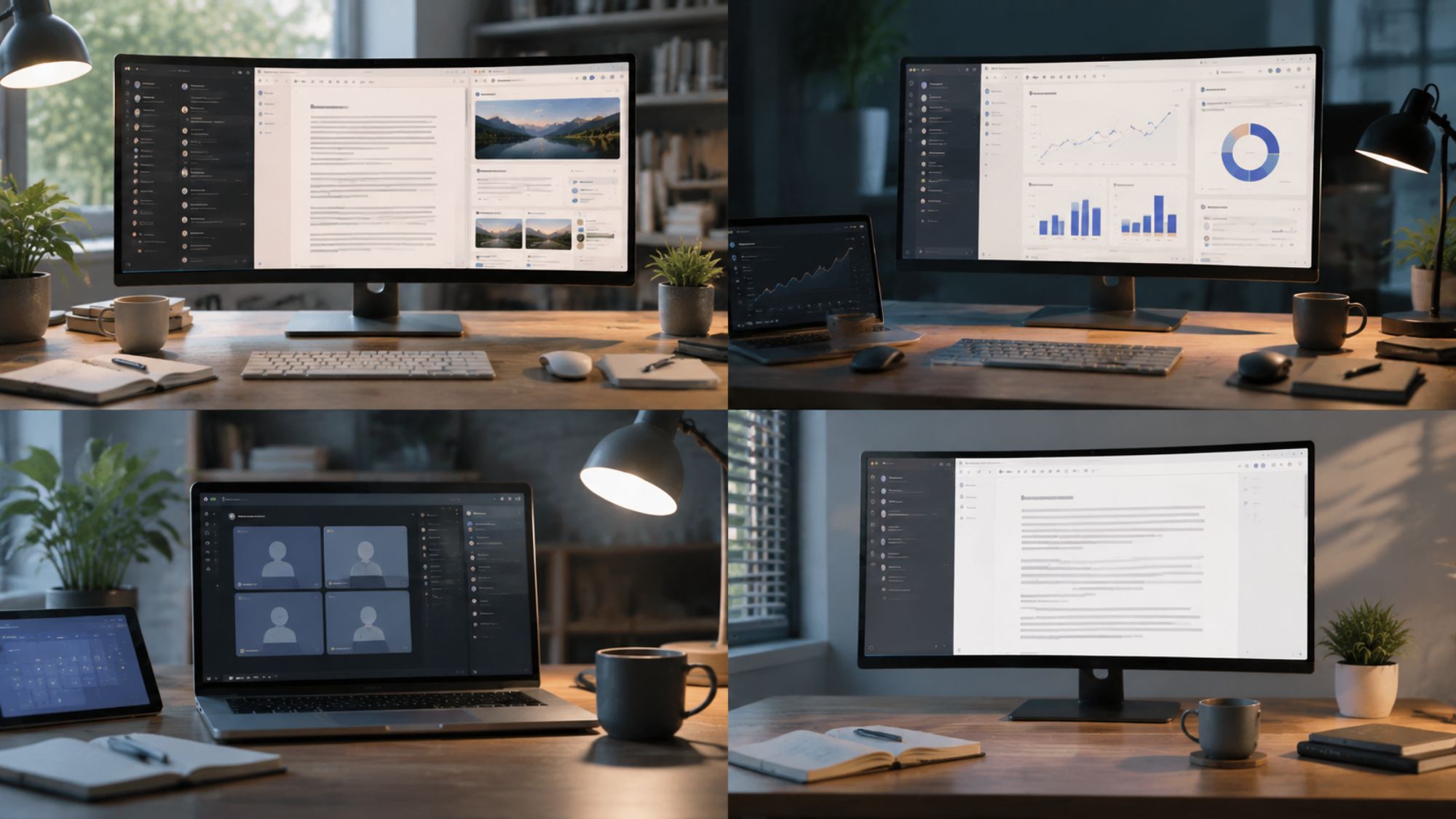
Not every activity benefits from having several windows visible. Writing long documents, reviewing contracts, coding, or studying complex material often requires deeper concentration.
The focused stack approach keeps one application maximized while using task-switching tools when another application is needed.
Common shortcuts include:
Windows Alt + Tab: switch between open applications
Windows key + Tab: view open windows and desktops
macOS Command + Tab: switch between applications
This method reduces unnecessary visual distractions and allows users to concentrate on the current task.
Best suited for: writing, programming, editing, and other concentration-heavy activities.
Limitation: Switching between multiple references can become slower.
A useful system should match personal workflow habits rather than copying another user's setup.
Using shortcuts instead of repeatedly dragging windows can make organization faster. Start with the commands used most often rather than trying to memorize every available shortcut.
Different activities require different arrangements.
For example:
Research sessions may need a browser, notes, and documents together.
Writing sessions may only need a document editor and reference materials.
Meetings may require communication tools and schedules.
Creating task-based layouts prevents unnecessary clutter.
Not every open application deserves equal attention. A useful system separates:
Active tools used for the current task
Reference materials needed occasionally
Background applications that can be minimized or closed
This keeps the workspace easier to navigate.
Virtual desktops are helpful when they represent meaningful categories. Creating a separate desktop for every application usually makes navigation harder.
More visible windows do not always mean higher productivity. If applications become too small to read, reducing the number of open windows may be more effective.
A visually perfect desktop is not necessarily efficient. The purpose of window management is to make common actions easier, not simply to create an attractive screen.
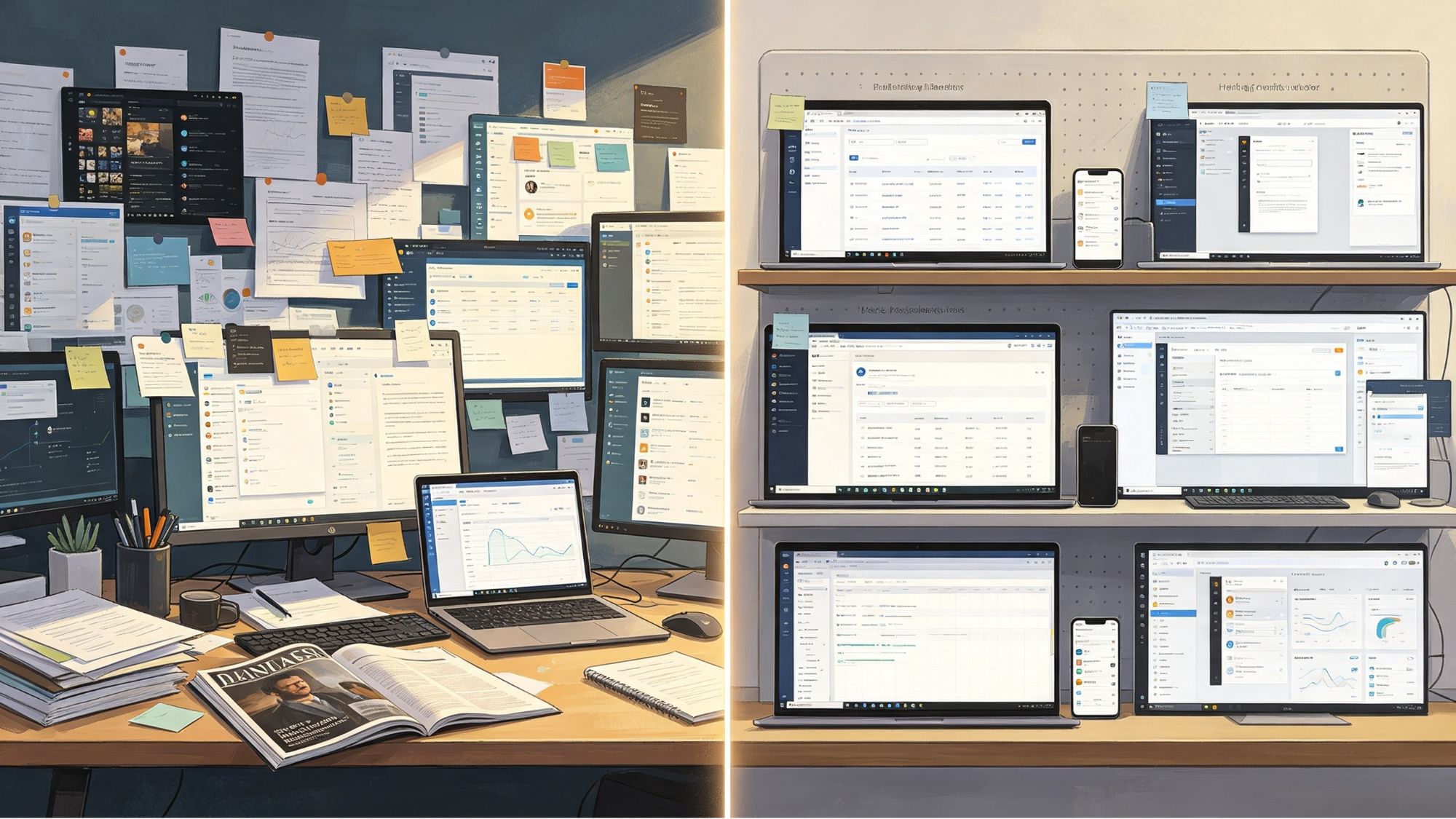
Effective window management helps users create a more organized digital environment. Tiled layouts are useful for comparing information, virtual desktops help separate different activities, and focused single-window sessions support tasks that require concentration.
The best system is not the most complicated one. It is the one that reduces unnecessary searching, keeps important applications accessible, and fits naturally into daily workflows. By creating predictable layouts and using available operating system tools, heavy multitaskers can make their digital workspace easier to manage.
