A keyboard can feel completely different from another keyboard even when both use the same QWERTY layout. One may feel smooth and almost effortless, while another gives a noticeable bump under every finger. A third might separate the left and right hands entirely.
Those differences come from several layers of design. The switch determines what happens when a key is pressed. The layout determines where letters and symbols are placed. The physical shape of the keyboard determines how far the fingers and wrists have to move.
For someone who spends several hours a day writing, programming, entering data, or gaming, those details are more than cosmetic. They affect sound, feedback, key travel, learning time, and the way the keyboard fits the user's hands.
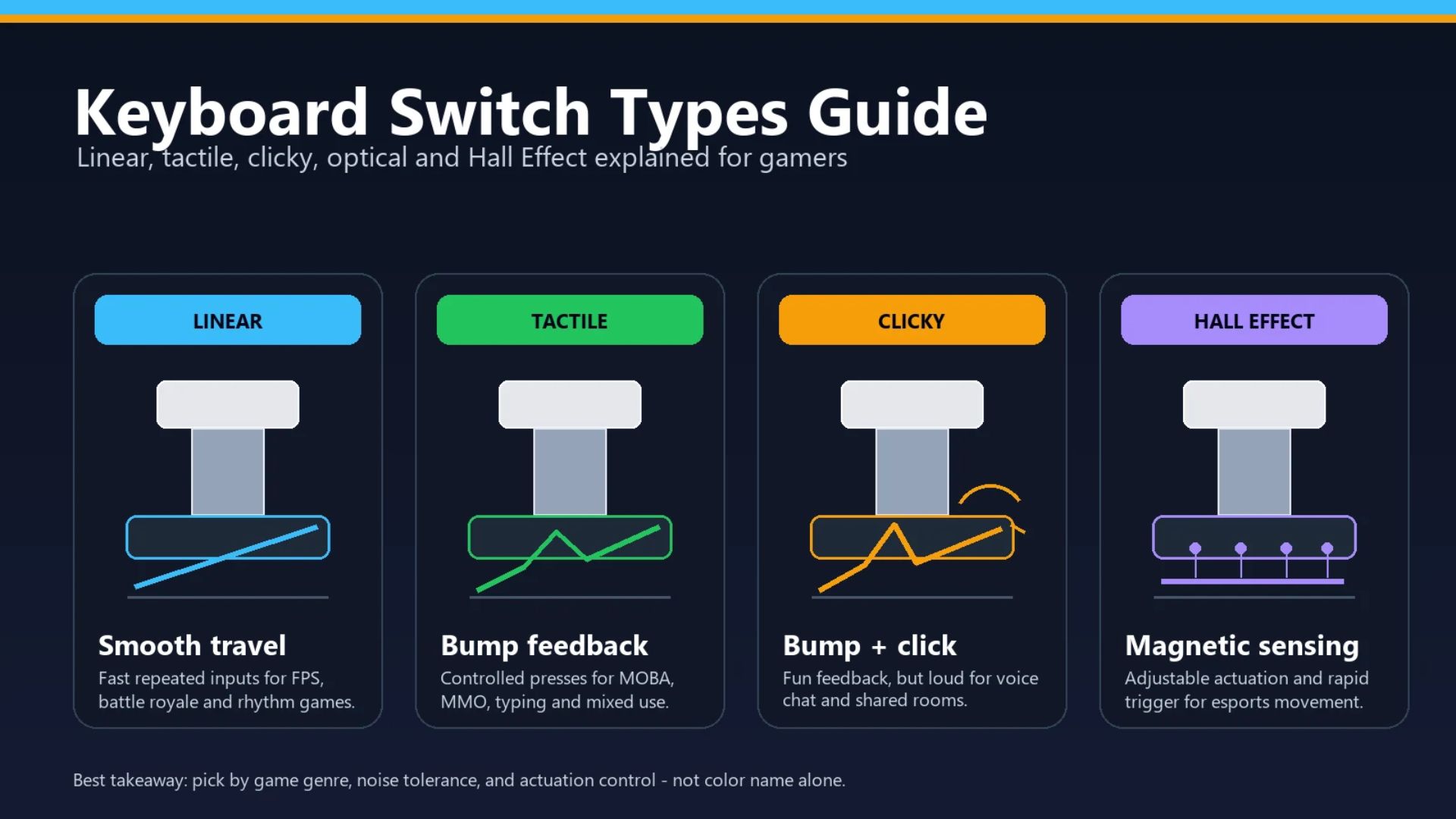
Mechanical keyboards use individual switches beneath the keycaps rather than the single rubber membrane found in many conventional keyboards. Switches come in many designs, but three broad categories are useful when comparing their basic feel: linear, tactile, and clicky.
Linear switches move smoothly from the top of the key travel to the bottom without a deliberate tactile bump. The resistance is generally consistent throughout the stroke, although the exact force curve varies between switch models.
That smooth movement is one reason linear switches are popular with gamers and fast typists. Repeated key presses can feel predictable, and there is no tactile bump interrupting the travel. Some people also prefer them for general use because they produce less switch-specific noise than clicky designs, although the sound of a keyboard depends on much more than the switch itself.
Linear does not automatically mean faster. Typing speed still depends heavily on technique, key travel, actuation force, and familiarity with the keyboard.
Tactile switches introduce a noticeable change in resistance during the key press. That bump provides physical feedback that tells the typist where the switch is actuating.
For people who spend much of the day writing or programming, that feedback can make individual keystrokes easier to distinguish. Some typists also find it easier to control how hard they press when the actuation point is clearly defined.
The feel varies substantially between tactile switches. A small, rounded bump can feel very different from a strong, sharp one, so the label "tactile" alone does not tell the whole story.
Clicky switches combine tactile feedback with a deliberate clicking mechanism that produces a distinct sound during the key press.
For a solo typist, that sound can be part of the appeal. The audible feedback makes each keystroke feel obvious and deliberate. In an office, library, or shared workspace, however, the same characteristic can become a problem.
It is also worth separating switch noise from overall keyboard noise. Keycaps, case materials, mounting methods, stabilizers, desk surfaces, and typing technique can all change the final sound.
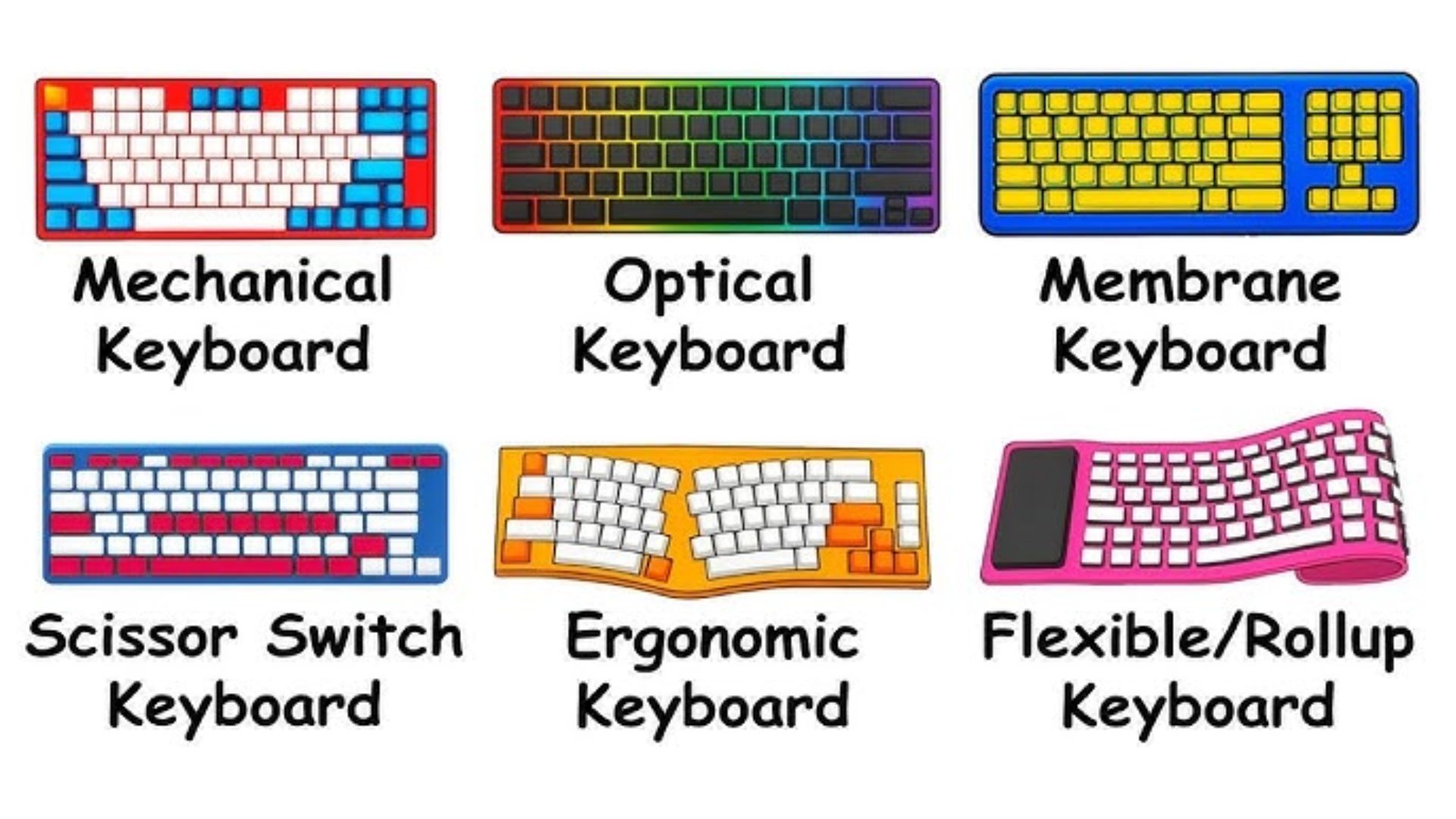
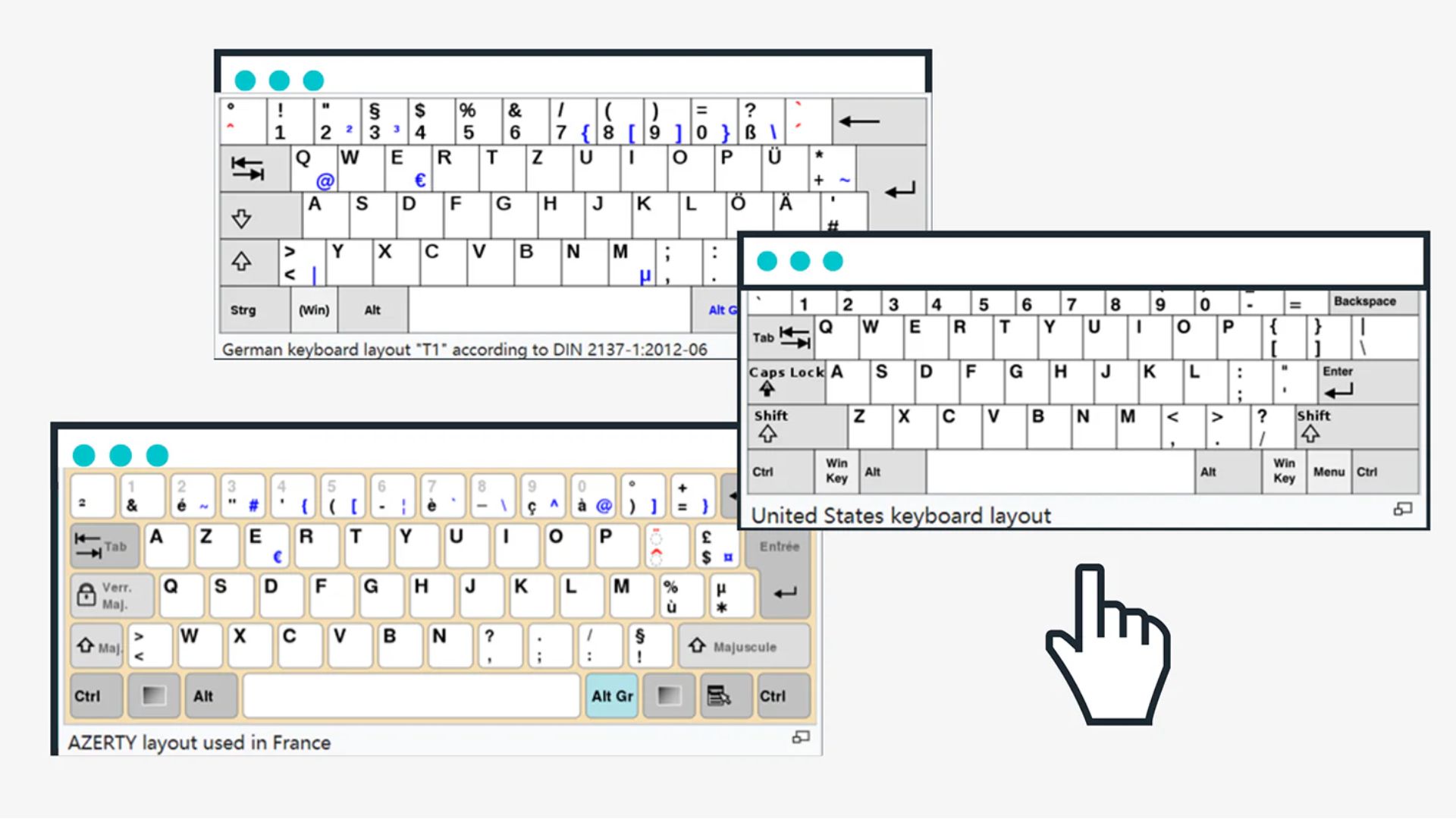
Switches determine how individual keys feel. Layouts determine where those keys are located.
QWERTY became established during the era of mechanical typewriters, and its position today is supported by decades of familiarity, existing hardware, software compatibility, and training. Its history is often summarized as an attempt to prevent mechanical typebars from colliding, but the development of the layout was more complicated than the simple claim that it was deliberately designed to make people type slowly.
For modern computer users, the more practical question is what happens when an alternative layout changes the location of frequently used letters.
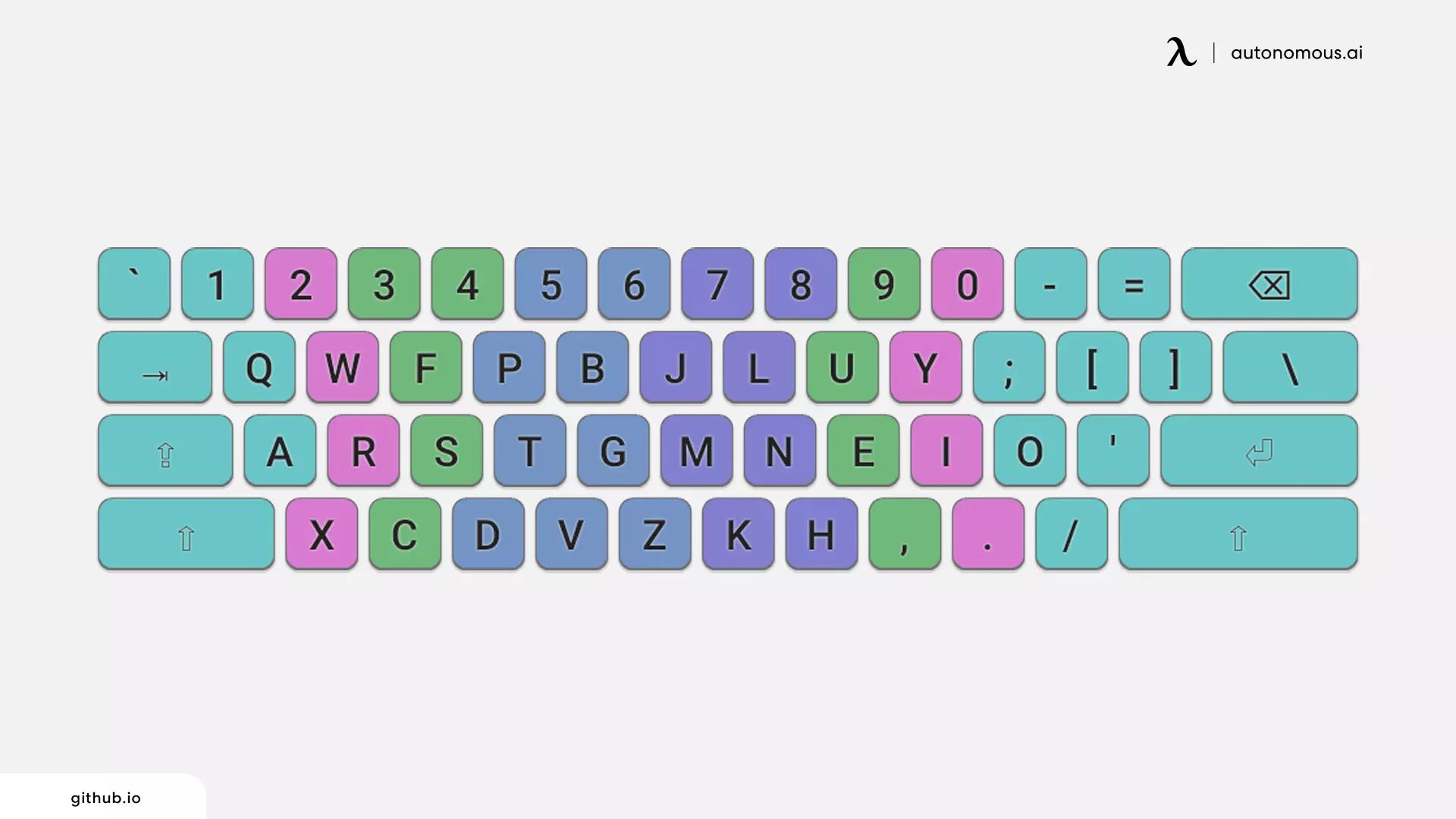
The Dvorak Simplified Keyboard was developed in the 1930s with an emphasis on placing frequently used letters in positions intended to reduce unnecessary movement and encourage particular patterns of hand use.
That can make Dvorak interesting for people who are willing to relearn their typing habits from the ground up. The downside is obvious: someone who has spent years using QWERTY has already built strong muscle memory around those key positions.
Switching layouts therefore comes with a real productivity cost during the learning period. A layout that looks more efficient on paper may not feel more efficient for months while the user is still learning it.
Colemak takes a less disruptive approach. It changes the placement of a smaller group of keys while retaining several familiar positions, including commonly used shortcut keys such as Z, X, C, and V.
The design places substantial emphasis on home-row usage and avoiding patterns such as excessive same-finger typing. Keyboard-layout analysis commonly evaluates layouts using measures such as finger travel, hand alternation, home-row usage, and same-finger bigrams. Colemak's own design documentation discusses these metrics as part of its layout philosophy.
That does not mean Colemak will automatically make every typist faster or more comfortable. The transition itself can temporarily reduce speed and accuracy, and the benefits depend on language, typing technique, software habits, and how much time someone is willing to spend relearning the layout. Even Colemak's own FAQ acknowledges the initial learning cost for experienced QWERTY users.
Letter placement is only one part of the physical experience.
Most conventional keyboards use a staggered arrangement inherited from traditional keyboard design. Ergonomic and enthusiast keyboards have experimented with other arrangements, including ortholinear and columnar layouts.
In an ortholinear design, keys are arranged in straight rows and columns rather than the familiar staggered pattern. Columnar designs go further by adjusting the columns to account for the different lengths and positions of the fingers.
The idea is straightforward: instead of forcing every finger to reach toward the same rectangular grid, the keyboard can be shaped around the hands.
A split keyboard takes another approach by physically separating the left and right sides. This gives the user more freedom to adjust the distance and angle between the hands. For some people, that makes it easier to maintain a more neutral wrist position.
It is important not to turn this into a medical promise. An ergonomic keyboard does not automatically prevent repetitive strain injuries or eliminate discomfort. Desk height, chair position, typing technique, breaks, workload, and individual anatomy all matter. A keyboard can make a particular posture easier to maintain, but it cannot compensate for every aspect of a poorly configured workstation.
Some ergonomic keyboards also move frequently used functions to thumb-operated keys.
Traditional keyboards ask the little fingers to handle several important modifiers and commands, while the thumbs often do little more than press the spacebar. Ergonomic layouts can redistribute functions such as Backspace, Enter, Shift, or layer controls to dedicated thumb keys.
That can be useful for users who spend a lot of time programming or navigating complex shortcuts. It also introduces another learning curve. A thumb cluster that looks efficient on a keyboard diagram can feel awkward until the hands learn the new positions.
This is one of the recurring themes of keyboard design: a change that reduces one type of movement usually requires the user to learn a new movement.
There is no universal combination of switch, layout, and keyboard shape that works best for everyone.
A long-form writer may appreciate a tactile switch because the physical bump provides clear feedback during repeated typing. Someone who prefers smooth key travel may be happier with a linear switch. A competitive gamer may favor a linear design because the uninterrupted travel feels predictable during rapid repeated inputs.
Programmers have another consideration: symbols and shortcuts can matter almost as much as letters. A layout that looks excellent when measured against ordinary English prose may be less convenient for someone who constantly uses brackets, punctuation, modifier combinations, or command-line shortcuts.
For someone interested primarily in reducing hand movement, an alternative layout or ergonomic keyboard may be worth exploring. But switching both the layout and physical geometry at the same time can make the learning process difficult to diagnose. If typing suddenly feels awkward, it becomes harder to tell whether the problem comes from the new letter arrangement or the new physical keyboard.
Changing one major variable at a time is often the easier approach.
Keyboard discussions often revolve around one question: which setup is fastest?
That is not necessarily the most useful question.
A typist who already writes comfortably and accurately on QWERTY may gain little from switching to another layout. The theoretical reduction in finger travel may not compensate for weeks or months of retraining.
Likewise, a mechanical switch with a particular force curve may feel wonderful to one person and tiring to another. Hand size, typing technique, key spacing, actuation force, and even the amount of time spent typing all change the experience.
Comfort is also difficult to measure from specifications alone. A keyboard can have an impressive list of ergonomic features and still feel wrong for a particular user.
The best setup is often the one that makes the required movements feel natural without forcing the user to think about every keystroke.
Instead of replacing an entire keyboard setup at once, start with the part that causes the most friction.
If the main complaint is the feel of the keys, experimenting with linear, tactile, or clicky switches may be enough.
If the problem is excessive finger travel, an alternative layout could be worth testing. Software-based layout switching makes it possible to experiment without buying a completely new keyboard.
If the hands or wrists feel constrained by the physical shape of a conventional board, a split or ergonomic design may be the more relevant change.
And if the main issue is noise, switch choice is only part of the answer. Keycap material, case construction, stabilizers, desk surface, and typing force all contribute to the final sound.
Alternative layouts and ergonomic keyboards can be appealing because they promise a cleaner relationship between the hands and the keys. But every major change has a cost: muscle memory has to be rebuilt.
That cost is easy to underestimate.
A person who types quickly on QWERTY may temporarily become much slower after switching to Dvorak or Colemak. The same thing can happen when moving to an unfamiliar split keyboard with a new thumb cluster. The hardware may eventually feel natural, but reaching that point takes practice.
For that reason, the right question is not simply, "Which keyboard is technically better?"
A better question is:
Which change solves a real problem without creating a larger learning burden?
That framing leads to more practical decisions. If QWERTY is comfortable, there may be no compelling reason to replace it. If typing involves repetitive awkward reaches, experimenting with another layout or keyboard geometry may be worthwhile.
Keyboard design is a collection of trade-offs rather than a race toward one perfect configuration.
Switches change the feel and feedback of each keystroke. Layouts change how far and how often the fingers move. Physical geometry changes how the hands approach the keys. None of these factors exists in isolation.
For a gamer, a smooth linear switch may feel ideal. A writer may prefer tactile feedback. A programmer may care more about shortcut and symbol placement. Someone looking for a different physical posture may benefit more from a split keyboard than from changing the letter layout.
The most useful setup is therefore not the one with the most exotic specifications. It is the one that fits the user's typing habits, workload, physical preferences, and willingness to learn something new.
