When a computer becomes part of the workday for six, eight, or even more hours, the pointing device starts to matter. A mouse that feels perfectly ordinary for 30 minutes can feel very different after several hours of repeated movement. The same is true of trackballs and trackpads. None is automatically better than the others; each changes how the hand, wrist, forearm, and shoulder interact with the desk.
The useful question is therefore not simply which device is most popular. It is which design fits the way a particular person works. Cursor precision, desk space, hand position, reach distance, gestures, and the amount of repetitive movement all play a role.
Pointing devices differ in several physical ways, but four factors are especially useful when comparing them.
Forearm pronation describes the rotation that turns the palm toward the desk. A conventional mouse generally keeps the hand in a palm-down position, while angled and vertical mice rotate the hand toward a more upright grip.
Wrist extension and deviation describe different types of wrist movement. Extension occurs when the hand bends upward relative to the forearm, while ulnar and radial deviation describe movement toward the little-finger and thumb sides of the hand.
Shoulder movement becomes relevant when a pointing device sits far away from the body. A mouse placed well to the side of a large keyboard may require more reaching than a centrally positioned device.
Static muscle load refers to holding a body part in a relatively fixed position for an extended period. A pointing device that requires a constant grip or keeps fingers poised over controls can create a different physical workload from one that allows the hand to relax.
These factors do not determine whether a device is comfortable on their own. Desk height, keyboard size, pointer sensitivity, grip style, hand size, and individual preference all matter.
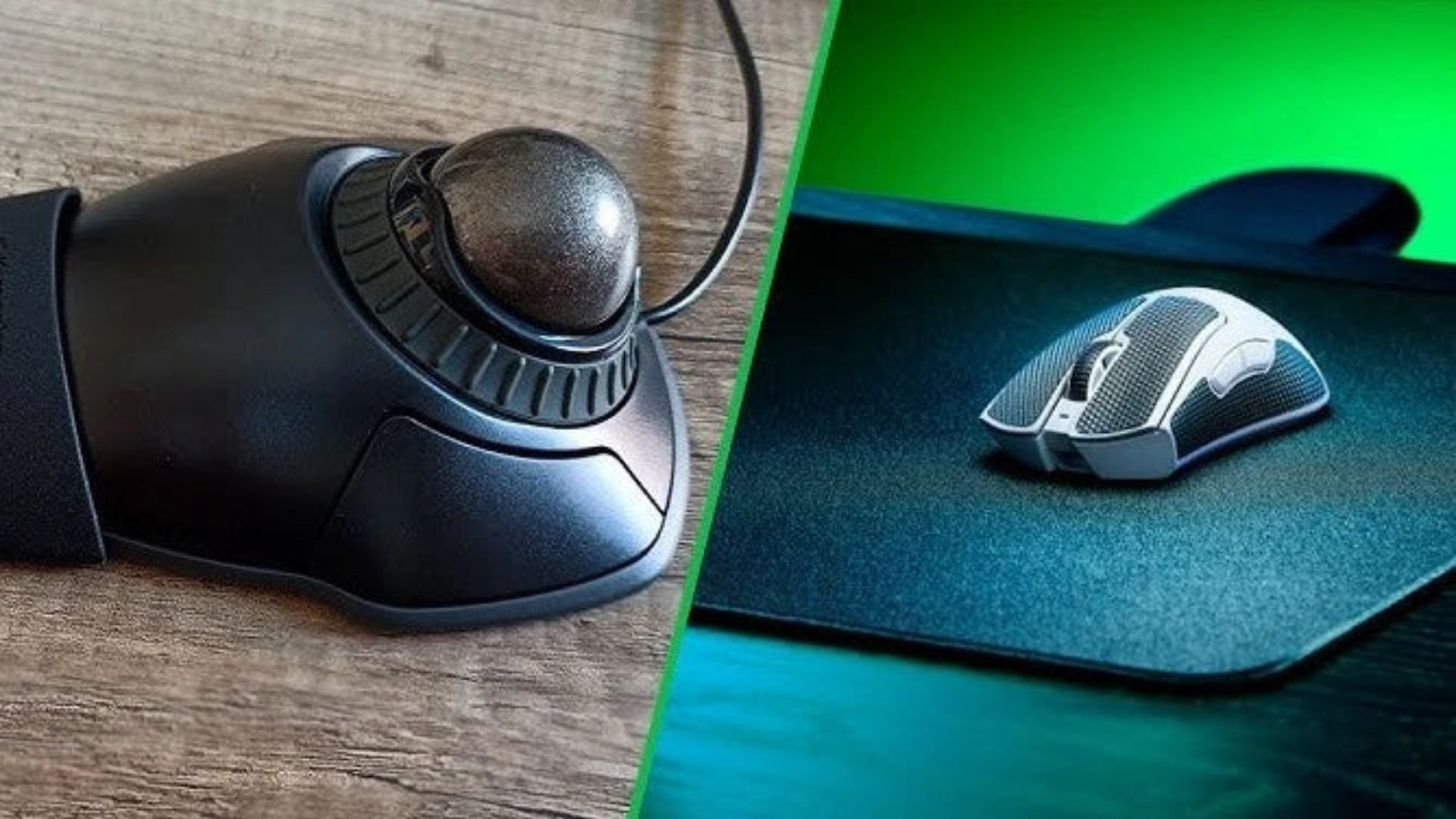
The conventional mouse remains the familiar choice for a reason. It offers precise cursor control, requires little training, and works well for tasks ranging from spreadsheets to photo editing. Moving the entire device also gives the user a large amount of control over cursor speed and direction.
The trade-off is the hand position. A traditional mouse generally places the palm downward, creating more forearm pronation than an angled or vertical design. If the mouse is positioned too far from the keyboard, the user may also reach outward repeatedly. OSHA recommends keeping pointing devices close to the keyboard and arranging the workstation so the wrist can remain in a straight, neutral position.
Vertical and angled mice change the grip rather than simply changing the sensor or button layout. The hand rotates toward a handshake-like position, which can reduce forearm pronation.
Research comparing flat, angled, and vertical mouse designs has found that these alternative shapes can reduce forearm pronation compared with conventional mice. The results are not identical across every design, though. One study found that a fully vertical design reduced pronation but produced poorer pointing performance than the traditional mouse, while another angled design provided a different balance between posture, performance, and perceived fatigue.
That trade-off is important. A vertical mouse may feel better for one user but less precise for another, particularly during tasks that demand very small cursor movements. There is also usually an adjustment period because the hand and arm are learning a different way to steer the pointer.
A trackball takes the opposite approach. Instead of moving the entire pointing device across the desk, the user keeps the housing stationary and rolls a ball to move the cursor.
That can be particularly useful when desk space is limited. A trackball also reduces the amount of arm travel required to reposition the pointer because the device itself does not have to move across a mousepad.
OSHA lists trackballs alongside conventional mice and touchpads as alternative pointing devices and notes that a device that fits the hand well and requires minimal force may be less fatiguing for certain tasks.
The catch is that cursor movement shifts to the fingers or thumb.
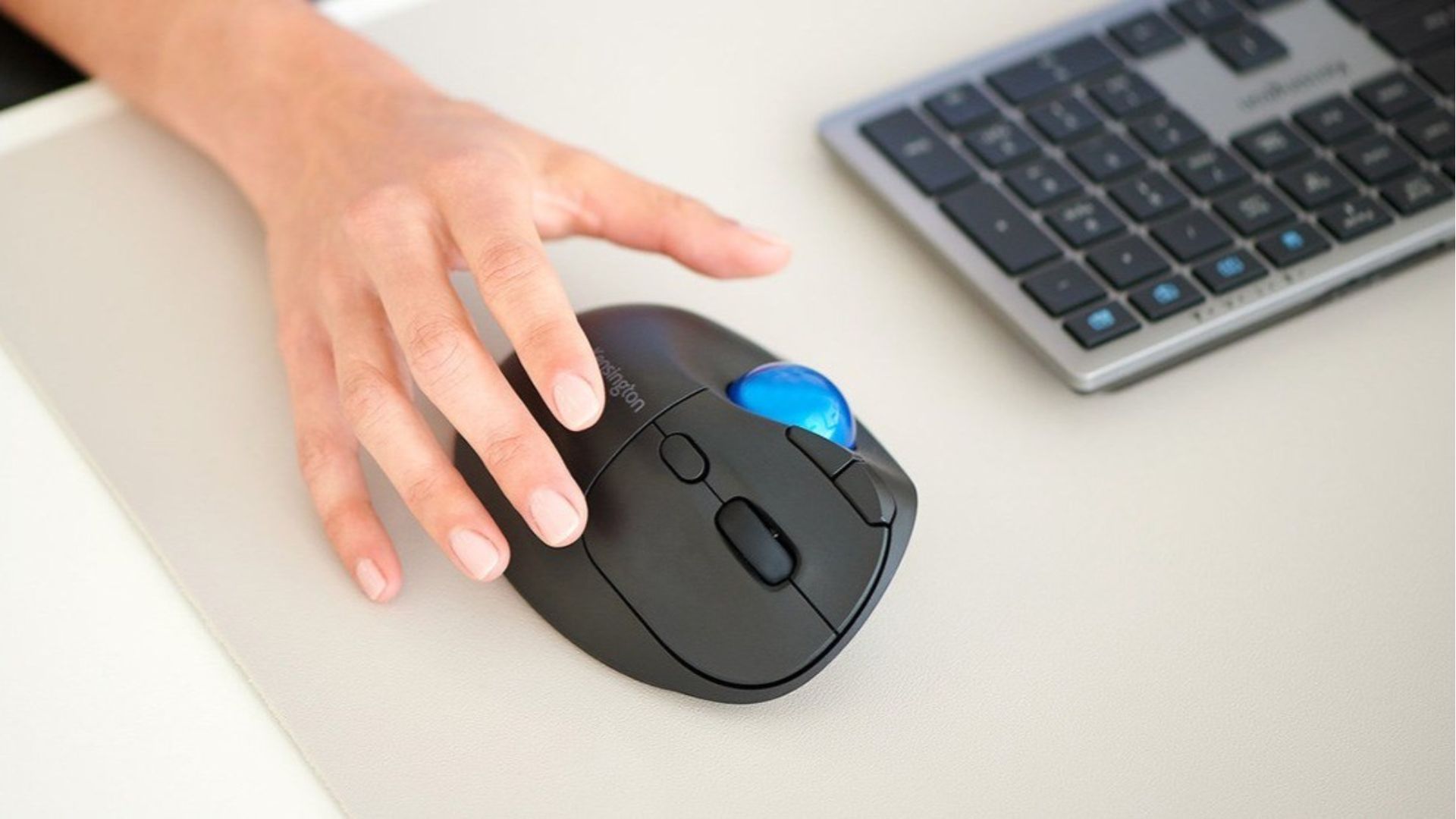
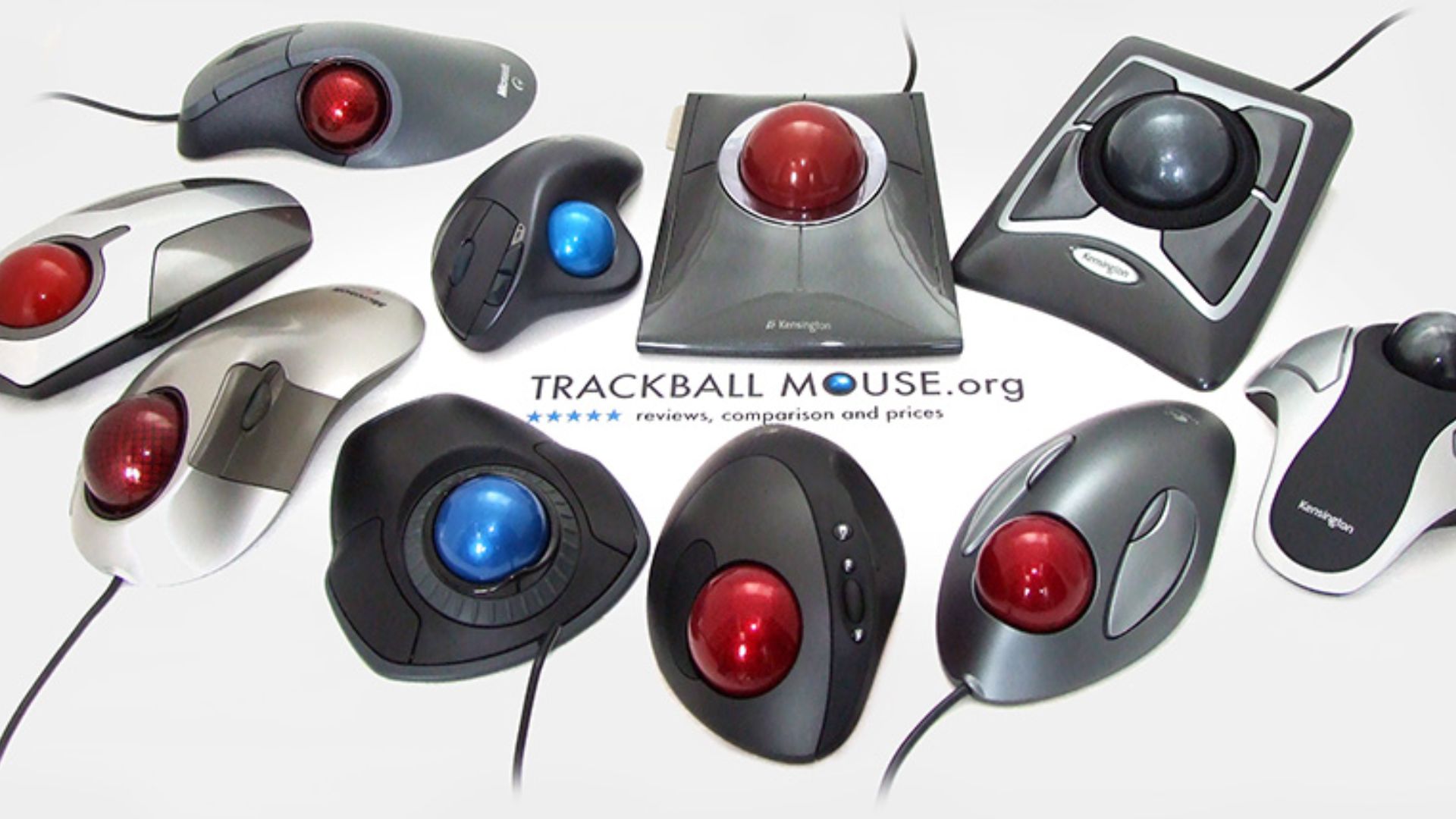
Thumb-operated trackballs resemble a conventional mouse, but the ball sits under the thumb. The other fingers handle the buttons and scroll wheel.
This arrangement can feel immediately familiar because the overall hand position resembles a mouse. The main difference is that cursor movement comes primarily from the thumb.
For some users, that is a comfortable arrangement. Others may notice localized thumb fatigue during long sessions, especially when the task involves frequent cursor adjustments. The amount of thumb movement depends heavily on the size of the ball, pointer sensitivity, and the user's technique.
Center-mounted trackballs place a larger ball beneath the fingers or palm. Instead of assigning cursor movement primarily to the thumb, the user can roll the ball with several fingers.
This can distribute the movement differently across the hand and can also make the device easier to use with either hand. Some models are symmetrical enough to support left- and right-handed operation, which provides another option for users who prefer to alternate input hands.
The adjustment period can be longer than with a thumb trackball. Precise cursor control takes practice, especially for users accustomed to moving a conventional mouse.
Trackballs also have a practical maintenance issue: the exposed ball and surrounding surfaces can collect dust, skin oils, and debris. Periodic cleaning helps maintain smooth tracking.
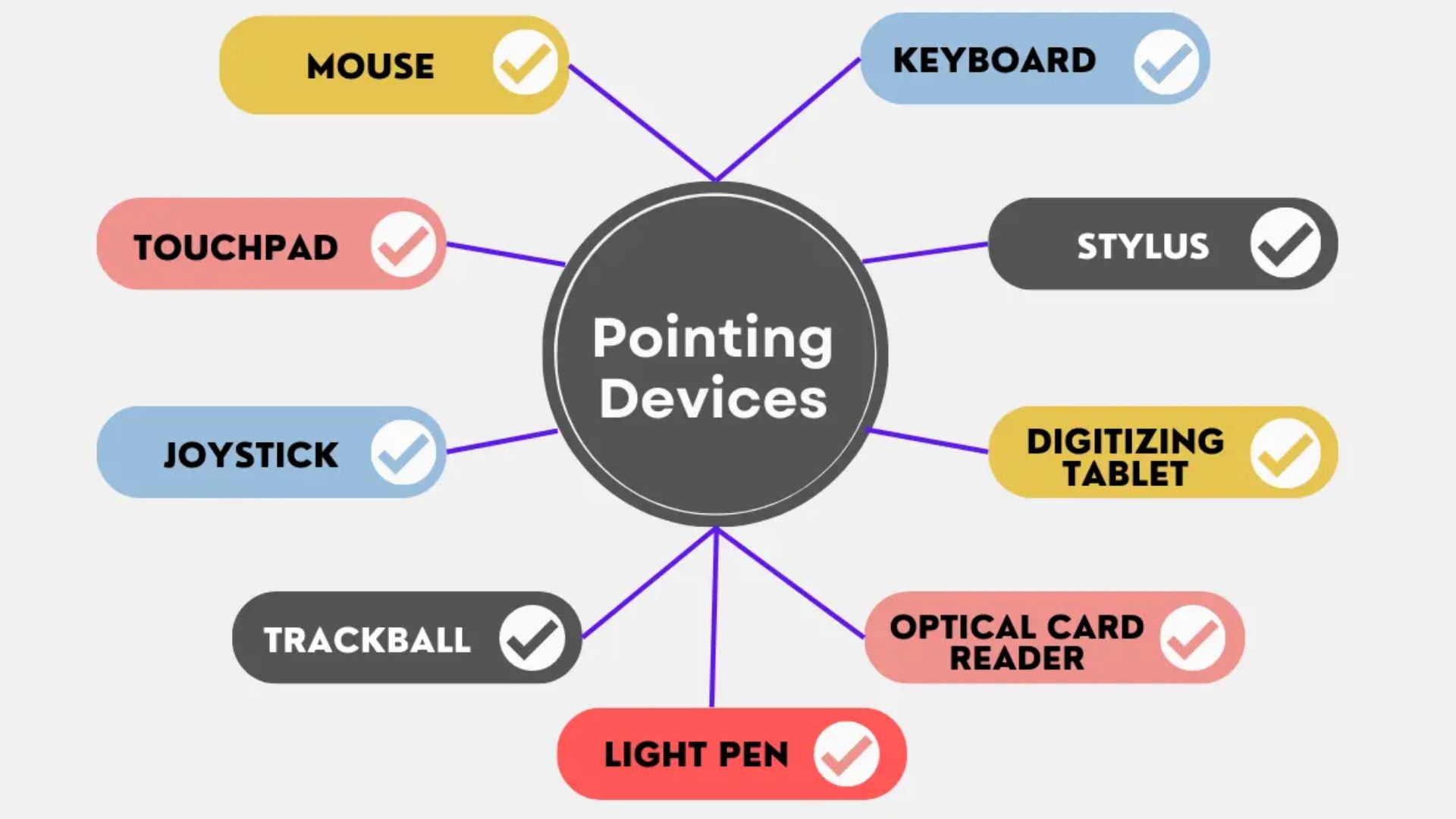
Trackpads work differently again. Instead of moving a physical device or rolling a ball, the user slides one or more fingers across a touch-sensitive surface.
Their strongest advantage is gesture support. Scrolling, zooming, switching between windows, and navigating long documents can all be handled without moving the hand across the desk.
A standalone trackpad can also be placed directly in front of the user. That is useful in workstations where a conventional mouse would otherwise sit far to the right or left of a large keyboard.
The central position does not automatically make a trackpad more ergonomic, though. The device still needs to be positioned at a comfortable height and distance, and prolonged precision work can create its own repetitive finger movements.
Laptop trackpads introduce another consideration: limited space. Because the surface is relatively small, users may need to repeat finger movements more frequently than they would with a larger external pointing device.
For browsing, scrolling, document navigation, and gesture-heavy workflows, that may be a worthwhile trade-off. For tasks requiring continuous pixel-level cursor control, a mouse or trackball may feel more natural.
It is easy to focus on whether a mouse is flat or vertical while overlooking a simpler issue: where the device sits.
A large keyboard with a dedicated numeric keypad can push a conventional mouse farther away from the body's midline. Over several hours, repeatedly reaching toward the side may become more noticeable than the differences between two mouse shapes.
OSHA specifically recommends keeping the pointing device close to the keyboard and notes that a tenkeyless keyboard can create additional room for a mouse. A centrally positioned touchpad or another pointing device can also reduce the distance required to reach the pointer.
That makes keyboard size part of the pointing-device decision. Someone who rarely uses a numeric keypad may find that a smaller keyboard changes the workstation more effectively than buying a specialized mouse.
Pointer sensitivity is another overlooked variable.
If sensitivity is too low, the user may have to move the mouse repeatedly to cover the screen. If it is too high, precise control can become difficult and may encourage a tighter grip or repeated corrections.
OSHA recommends adjusting pointer sensitivity so that the cursor can cover the screen while the wrist remains in a relatively neutral position and the device can be controlled with a light touch.
This is one reason a new pointing device should not be judged entirely by its shape. Software settings can substantially change how much physical movement the device requires.
There is no requirement to use the same pointing device for every task.
A graphic designer might prefer a conventional or angled mouse when detailed cursor control matters. The same person could use a trackball for routine document work, especially when desk space is limited. A trackpad may be more convenient for browsing and gesture-heavy navigation.
Alternating between devices or tasks also changes the physical demands placed on the hands and arms. For some users, that variety may feel more comfortable than relying on one device throughout an entire workday.
The important distinction is that device rotation is not a guaranteed way to prevent repetitive strain. It is simply another workstation strategy that can change movement patterns and distribute computer tasks differently.
Short pauses and task changes can matter just as much. OSHA recommends reducing long periods of uninterrupted computer activity and incorporating brief pauses where possible.
The best pointing device depends heavily on what the user actually does.
For precision work: A conventional or angled mouse is usually the easiest place to start. Tasks such as photo editing, illustration, CAD work, and detailed cursor positioning benefit from familiar, precise pointer control.
For limited desk space: A trackball is worth considering because the device remains stationary while the cursor moves.
For gesture-heavy workflows: A trackpad makes scrolling, zooming, and multi-finger navigation particularly convenient.
For users who dislike a palm-down grip: An angled or vertical mouse can provide a different forearm and hand position without requiring the complete change in technique associated with a trackball.
For large keyboards: Moving to a smaller keyboard can sometimes create more useful mouse space than changing the mouse itself. A tenkeyless layout is one common solution.
For mixed workloads: Keeping two different pointing devices available may make sense when different tasks place different demands on cursor control and hand movement.
Whatever device is selected, positioning should come before fine-tuning.
The hands, wrists, and forearms should be arranged as comfortably and neutrally as practical. OSHA recommends keeping the hands, wrists, and forearms straight and roughly parallel to the floor, with the elbows close to the body and generally bent between 90 and 120 degrees.
The pointing device should be close enough that the user does not have to repeatedly reach outward. The keyboard and mouse should also sit at a similar working height, rather than forcing the hand to bend upward or sideways to operate one of them.
It is worth testing a device before committing to long-term use. Shape, size, button position, sensitivity, and grip requirements can feel very different in practice from what specifications suggest. OSHA likewise recommends trying a pointing device before selecting it for long-term use.
There is no universally ergonomic pointing device.
A conventional mouse offers familiarity and precise control but keeps the hand in a palm-down orientation. A vertical mouse changes that hand position but may require an adjustment period. A trackball removes the need to move the device across the desk but shifts cursor control toward the thumb or fingers. A trackpad provides excellent gesture control and can sit directly in front of the user, but it is not necessarily the best choice for every precision task.
The most useful approach is to identify the actual problem first.
If the mouse feels too far away, change the workstation layout. If the palm-down grip is uncomfortable, test an angled or vertical mouse. If desk space is the problem, consider a trackball. If gestures and central placement matter most, a trackpad may be the better fit.
In other words, choosing a pointing device is less about finding a winner and more about matching the hardware to the movements a particular workflow demands.
