A monitor can be fully functional and still be poorly positioned for long periods of computer work.
A screen that is too high may encourage an extended-neck viewing posture. A screen that is too low may require prolonged downward viewing. A display placed too far away can make text harder to read and may encourage leaning forward. A monitor positioned far to one side may require frequent head turning during the workday.
There is no single monitor height, distance, or arrangement that works for every person. A comfortable workstation depends on factors such as monitor size, viewing habits, vision needs, desk space, and the type of work being performed.
The Occupational Safety and Health Administration (OSHA) describes computer workstation design as an adjustment process that helps users create a setup suited to their individual needs rather than requiring one fixed posture or measurement for everyone.
The practical objective is:
Position the monitor so you can view your work clearly while keeping your head, neck, shoulders, and torso comfortable. Adjust the setup according to your equipment, visual needs, and daily tasks.
For a conventional desktop setup, OSHA recommends placing the top of the monitor at or slightly below eye level. OSHA also describes the center of the screen as commonly being viewed approximately 15 to 20 degrees below horizontal eye level. These values are reference points for workstation adjustment rather than strict requirements that every user must reproduce exactly.
Sit in the chair you usually use, support your back, relax your shoulders, and look straight ahead naturally. Avoid forcing an exaggerated upright posture during setup because the workstation should support the way you actually work.
The top edge of the monitor should generally be around eye level or slightly below.
If you regularly lift your chin or tilt your head backward to view the screen, the monitor may be too high.
If you frequently lower your head to see the main working area, the monitor may be too low.
Monitor size also changes how these recommendations apply. A large display extends farther below and to the sides of your normal viewing area. OSHA notes that very large monitors can increase the downward viewing angle because more of the display sits below the usual line of sight.
For larger displays, the top edge of the monitor should not be the only consideration. The location of frequently used content, text size, viewing distance, and window arrangement all influence comfort.
Many workstation problems are caused not by one incorrect measurement, but by several small mismatches: a large monitor placed too close, small text forcing users to lean forward, or a primary display positioned away from the user’s normal viewing direction. In practice, these small issues often interact and make an otherwise reasonable setup feel uncomfortable after several hours of work.
For example, an employee working in financial analysis may use a 34-inch ultrawide monitor to view spreadsheets, dashboards, and reports at the same time. The monitor height may appear appropriate, but if important information is placed near the far edge of the screen, the user may repeatedly turn the head or lean closer to read details. In this situation, adjusting window placement, increasing text size, and changing viewing distance may improve comfort more effectively than simply raising or lowering the monitor.
A 32-inch monitor or 34-inch ultrawide display may therefore require different adjustments from a smaller office monitor. Increasing display scaling, changing application layouts, or moving frequently used windows closer to the center may improve comfort without changing monitor height significantly.
OSHA describes a preferred monitor viewing distance of approximately 20 to 40 inches (50 to 100 cm) from the eyes to the front surface of the screen. OSHA workstation evaluation materials also use approximately arm’s length, around 18 to 20 inches, as a practical reference when assessing workstation placement.
These figures are starting points rather than universal rules. A monitor should be positioned at a distance that allows comfortable reading without requiring users to lean forward or repeatedly adjust their posture.
If text feels too small, moving the monitor closer is not always the best first adjustment. Increasing operating-system scaling, browser zoom, application text size, or editor font size may improve readability while maintaining a more comfortable viewing distance.
A monitor that is too close may cause users to move backward repeatedly or struggle to view the entire display. A monitor that is too far away may encourage leaning toward the screen.
With one primary monitor, place it directly in front of you. OSHA recommends this arrangement because it allows the user to face the display with the head, neck, and torso aligned forward.
A monitor placed toward one side of the desk may only require a small amount of rotation initially. However, maintaining that position during long work sessions can become less comfortable than keeping the primary display centered.
Some ergonomic references discuss approximately 35 degrees as a practical upper reference for reducing excessive side viewing. This should not be interpreted as an OSHA regulation or a required working angle. Instead, it can be understood as a general ergonomic reference point. For a primary monitor, placing the screen directly in front of the user remains the preferred arrangement.
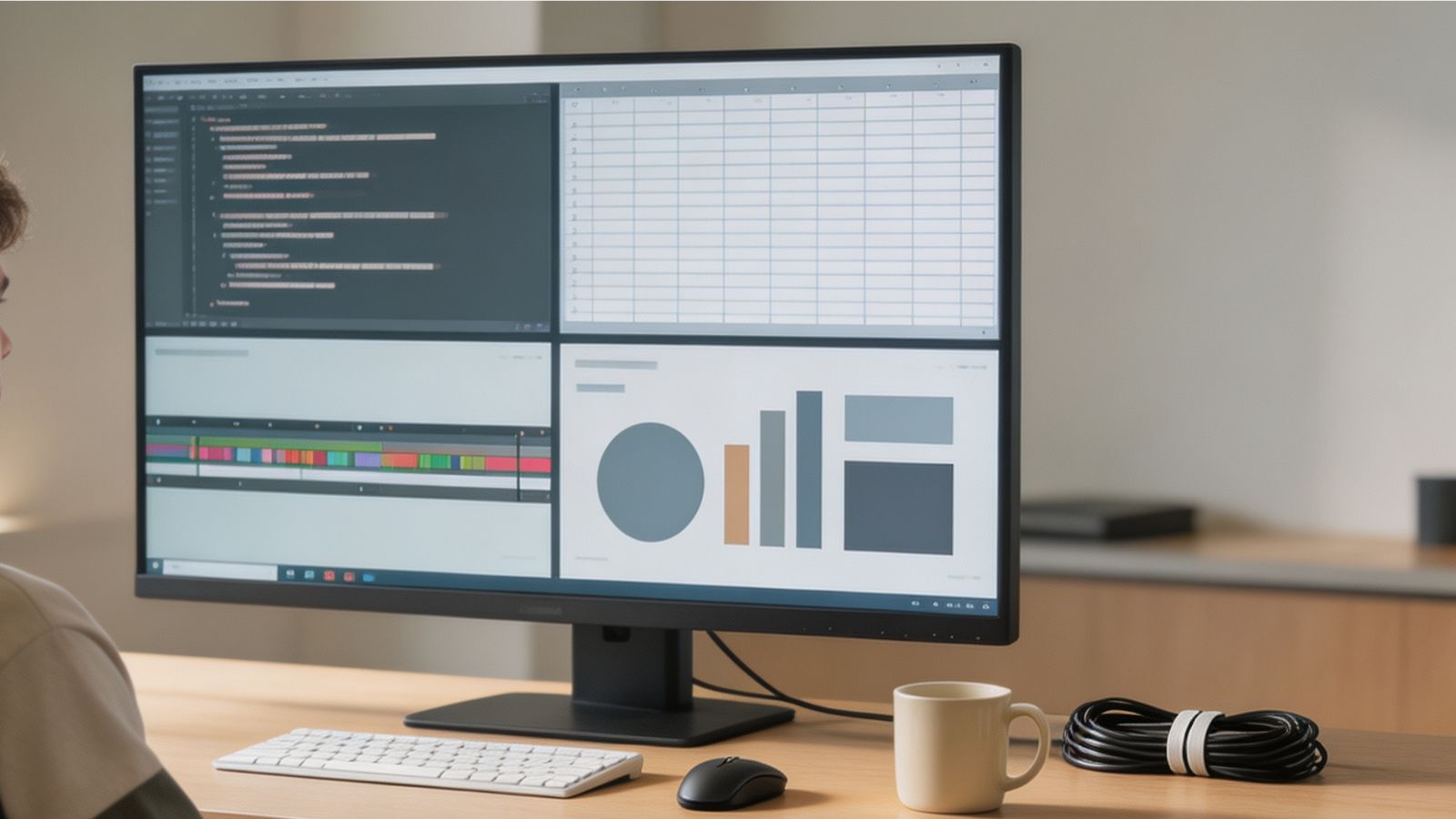
The best monitor arrangement depends on how you actually use your workspace.
For a large single monitor, the goal is not to make every part of the screen equally convenient. Instead, focus on the areas you view most frequently.
Someone working with spreadsheets, programming tools, video timelines, dashboards, or research materials may spend most of the day looking at specific sections of the display. In these situations, application layout, text scaling, and window placement can be as important as the physical position of the monitor.
A larger display does not automatically need to be placed much farther away. Viewing distance, text size, scaling, and monitor height should be considered together.
If one monitor is used most of the time, place the primary monitor directly in front of you and position the secondary monitor beside it.
If both monitors are used equally, placing them side by side within a comfortable viewing range may be more practical. The goal is to avoid arrangements that require frequent large head movements.
The seam between two monitors does not necessarily need to be centered directly in front of your face. The more important factor is where your attention is concentrated during normal work.
Some eye and head movement is expected. A comfortable workstation does not eliminate movement completely; it reduces the need for prolonged awkward positions.
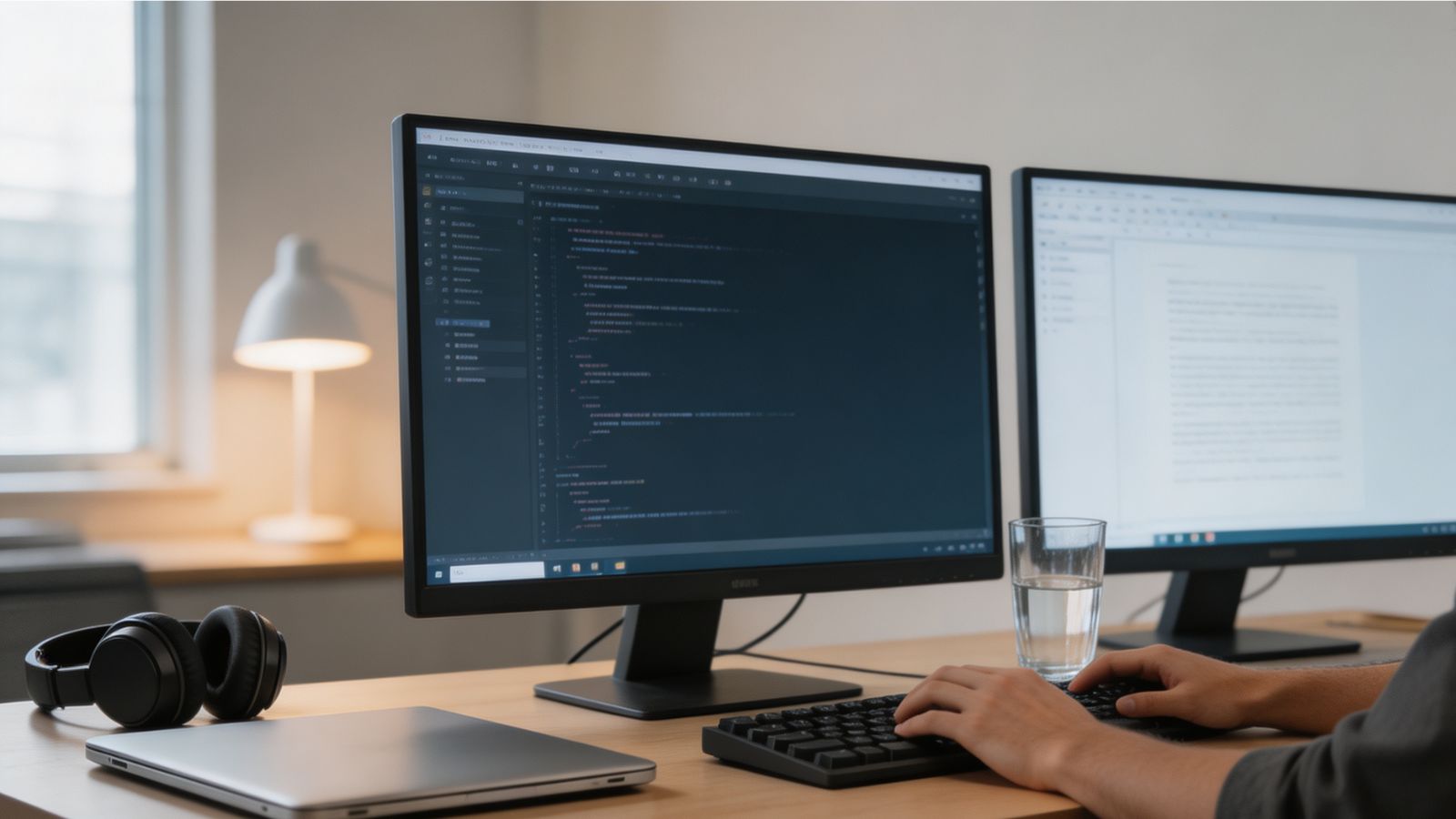
If the laptop screen is raised to a more comfortable viewing height, the keyboard usually becomes too high for comfortable typing. If the keyboard is placed at a comfortable typing position, the screen often remains lower than ideal.
For extended laptop use, separating the components is usually more practical. An external keyboard, external mouse or pointing device, and a raised laptop screen or external monitor allow the display and typing position to be adjusted independently.
OSHA’s workstation purchasing guidance recognizes that laptop users may need docking stations or additional components to create a more adjustable setup.
For occasional laptop use, a compromise position may be acceptable. For several hours of daily computer work, independent adjustment provides more flexibility.
The common recommendation of placing the top of the monitor at or slightly below eye level is a useful starting point, but individual visual needs may require adjustments.
People who use bifocal or multifocal lenses may experience difficulty with a standard monitor position. OSHA notes that bifocal users may tilt their heads backward when viewing a monitor through the lower portion of their lenses.
Lowering the monitor may help some users view the screen without extending the neck backward. Some users may also benefit from computer-specific lenses designed for their typical viewing distance.
Progressive lenses can create similar practical challenges because the clearest viewing area depends on the lens design, working distance, and screen position.
If you frequently raise your chin, tilt your head backward, or search for a clearer area of your lenses while working, both workstation arrangement and vision correction may need to be considered.
Different tasks may also require different adjustments.
For reading-heavy work, increasing document size or font size is often more useful than moving the monitor unnecessarily closer.
For programming, a large display does not automatically need to be placed farther away. The important factors include editor font size, window arrangement, viewing distance, and the location of the main coding area.
For wide-format tasks such as video editing, financial monitoring, or analytics work, some eye and head movement is unavoidable. A practical approach is to keep frequently used controls and information within a comfortable viewing area rather than placing essential content permanently at the far edge of the screen.
Monitor placement is only one part of digital eye comfort.
The American Optometric Association (AOA) notes that digital eye strain may be influenced by several factors, including prolonged screen use, viewing distance, glare, lighting conditions, posture, and uncorrected vision problems.
A properly positioned monitor may still feel uncomfortable if reflections or lighting make the screen difficult to view.
Common contributors include reflections from windows, bright overhead lighting, large differences between screen brightness and room lighting, and outdated vision correction.
OSHA recommends reducing glare and reflections by positioning monitors appropriately relative to windows and light sources. Placing a monitor perpendicular to windows when possible can help reduce direct reflections.
The AOA recommends the 20-20-20 rule:
Every 20 minutes, look at something approximately 20 feet away for 20 seconds.
The purpose is to interrupt continuous near-focus activity and allow the eyes to change focus regularly.
Research has also examined whether reminders can help users maintain this habit. A study by Talens-Estarelles and colleagues, published in Contact Lens and Anterior Eye in 2023, evaluated a 20-20-20 reminder intervention among computer users experiencing digital eye strain symptoms.
The study reported improvements in self-reported symptoms during the intervention period. However, these improvements were not maintained after reminders stopped, and not every objective eye measurement improved.
Regular visual breaks may help some users feel more comfortable, but they should be considered part of healthy screen habits rather than a treatment for an eye condition.
Blinking also matters. People often blink less while concentrating on digital displays. OSHA recommends periodically looking away from the screen and blinking during extended computer use.
Instead of searching for one perfect measurement, evaluate the workstation as a complete system.
Ask:
Is the top of the monitor at or slightly below eye level?
Can I read important content without leaning forward?
Is my primary monitor directly in front of me?
Is the viewing distance comfortable rather than based only on one number?
Does the monitor size make certain areas difficult to view?
Does my multi-monitor arrangement match how I actually work?
Can I view the screen through my glasses without repeatedly tilting my head backward?
Are glare and lighting affecting readability?
Do I regularly look away and blink?
A comfortable workstation should also allow movement.
The goal is not maintaining one rigid posture throughout the day. A better setup reduces prolonged awkward positions while allowing normal changes in posture, viewing distance, and movement.
Persistent symptoms such as significant pain, numbness, weakness, severe headaches, or continuing changes in vision should not automatically be attributed to monitor placement. Workstation adjustments may improve comfort, but other causes may require evaluation by an appropriate healthcare professional.
This article was prepared by the editorial team and reviewed using publicly available workplace ergonomics guidance and published research.
The content focuses on general workstation setup principles, including monitor placement, viewing distance, screen positioning, and digital eye comfort practices.
This article provides general information about computer workstation ergonomics and is not a substitute for professional medical advice, diagnosis, or treatment.
