
Knowledge work often involves a surprising amount of repetitive digital maintenance. Every week, many professionals spend time renaming groups of downloaded invoices, organizing project assets, converting file formats, or moving attachments into designated folders. These individual actions may only take a few seconds, but repeated frequently, they can gradually consume valuable attention and working time.
Although computers are designed to simplify digital tasks, many users still perform the same manual routines again and again. Desktop automation provides a way to reduce these repetitive steps by allowing software tools to handle predictable actions based on predefined rules.
Modern operating systems and automation utilities make this process more accessible than ever. Users do not always need advanced programming knowledge to create useful workflows. Simple automation features can help transform repeated clicks and file management tasks into more organized processes.
Managing files manually often requires a series of repeated actions: opening folders, renaming files, checking information, moving items, and confirming destinations.
When these tasks appear frequently throughout the day, they can interrupt workflow and make digital organization more time-consuming. Manual processes can also introduce opportunities for mistakes, such as placing files in incorrect folders, using inconsistent naming patterns, or overlooking important documents.
Automation helps by applying predefined rules to repetitive tasks. When a workflow is properly designed and tested, it can perform the same sequence of actions consistently while reducing the amount of manual effort required.
However, automation still requires maintenance. Changes in file structures, software updates, or unexpected input formats can affect how a workflow operates, which is why testing and regular review remain important.
Before installing additional software or creating complex scripts, users can explore automation features already available in modern operating systems.
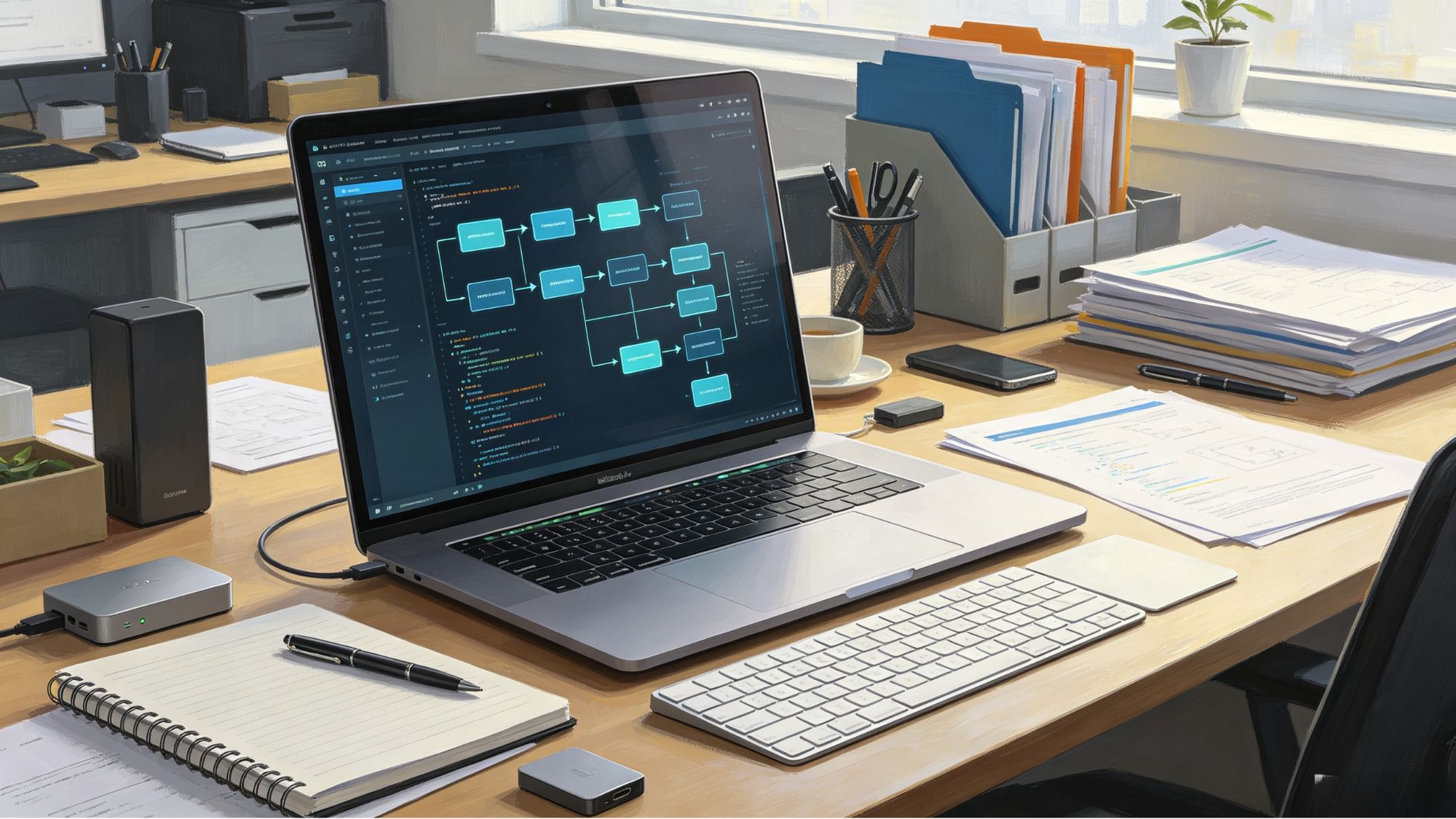
Apple provides several built-in automation options for macOS users.
Automator allows users to create visual workflows by connecting different actions together. For example, a user can build a workflow that takes selected image files, resizes them, converts formats, and saves the results into a specific folder.
Apple also introduced the Shortcuts app as a newer automation option across its platforms. Shortcuts provides a more modern interface for creating workflows that can connect different system actions. Users can create shortcuts that organize files, compress folders, or perform repeated actions through keyboard shortcuts, menus, or other triggers.
Existing Automator workflows may continue to be useful for users who already rely on them, while newer workflows can often be created through Shortcuts.
Windows users can access automation features through tools such as Microsoft PowerToys, which provides utilities designed to improve everyday workflows.
Within PowerToys, PowerRename helps users rename large groups of files using advanced replacement rules and preview changes before applying them. This is useful for organizing photographs, project files, documents, or other collections where consistent naming is important.
For more advanced automation, Windows users can use PowerShell and Task Scheduler. These tools can automate tasks such as monitoring folders, moving files based on names or extensions, and running scheduled maintenance actions.
For example, a PowerShell workflow could monitor a downloads folder and automatically move files with specific extensions into designated folders according to user-defined rules.
Trying to automate every part of a workflow at once often creates unnecessary complexity. A more practical approach is to begin with small, repetitive tasks that follow clear rules.
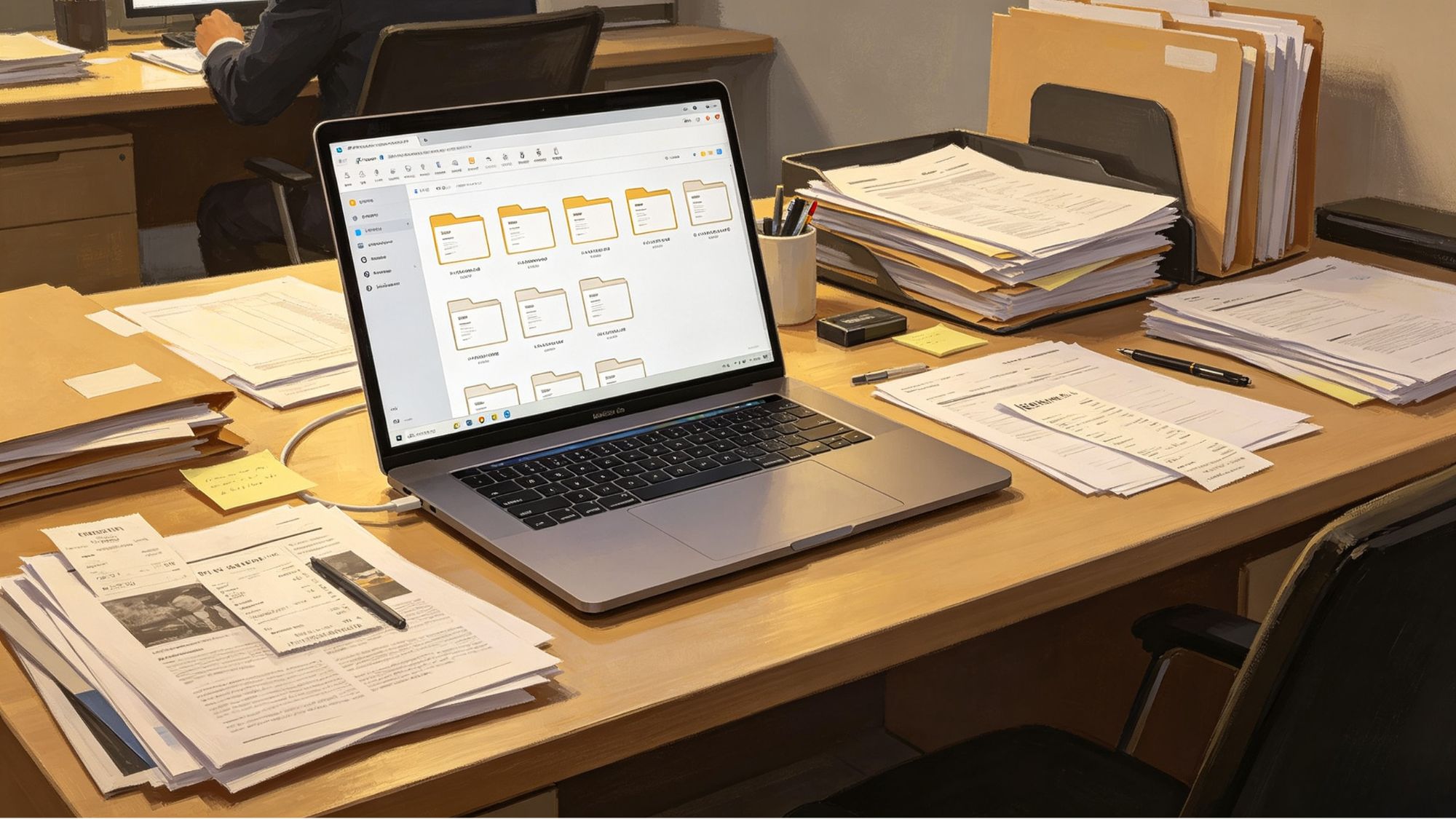
The best automation candidates are usually tasks performed regularly with predictable steps.
Examples include:
Renaming files using consistent patterns
Sorting documents by file type
Moving completed projects into archive folders
Creating repeated folder structures
Tasks that require human judgment, creativity, or interpretation are usually harder to automate effectively.
For example, moving files based on their extension can follow simple rules, while deciding whether a document requires further review may still need human involvement.
A useful automation pattern is the use of monitored folders, sometimes called hot folders.
Instead of manually starting a process each time new files appear, a folder watcher can monitor a specific location and trigger an action when new files are detected.
Common examples include:
Moving downloaded files into organized folders
Converting image formats automatically
Processing documents placed into a shared directory
The exact behavior depends on the automation tool being used, but the concept helps reduce repeated manual file handling.
Automation follows programmed instructions, which means mistakes in rules or settings can affect many files at once.
Before applying a new automation workflow to important data:
Test it with duplicate files
Review the results carefully
Keep backups of important folders
Add safeguards when possible
A small testing step can help prevent larger problems later.
While desktop automation can simplify repetitive tasks, it is not suitable for every situation.
Creating a complicated script for a task that only takes a few seconds manually may create unnecessary maintenance work.
Automation should solve a repeated problem rather than introduce additional complexity.
Some automation tools work by controlling application interfaces, such as recorded mouse movements or button clicks.
These workflows can become unreliable if an application changes its layout or interface design.
Whenever possible, file-based automation, built-in commands, or supported integrations are usually more stable than interface recordings.
Modern operating systems limit access to certain files and folders for security reasons.
Automation tools may require specific permissions to access protected locations or modify certain types of data. Users should review permission requests carefully and only grant access when necessary.
Desktop automation provides a practical way to reduce repetitive digital tasks and create more organized workflows.
By using built-in tools such as macOS Shortcuts, Automator, and Windows PowerToys, or by creating carefully tested scripts for specific needs, users can simplify routine file operations without relying on complicated systems.
The most effective automation strategies focus on predictable tasks, maintain clear rules, and include regular testing. When implemented thoughtfully, automation can reduce manual effort and help users spend more time on meaningful work instead of repetitive digital maintenance.
