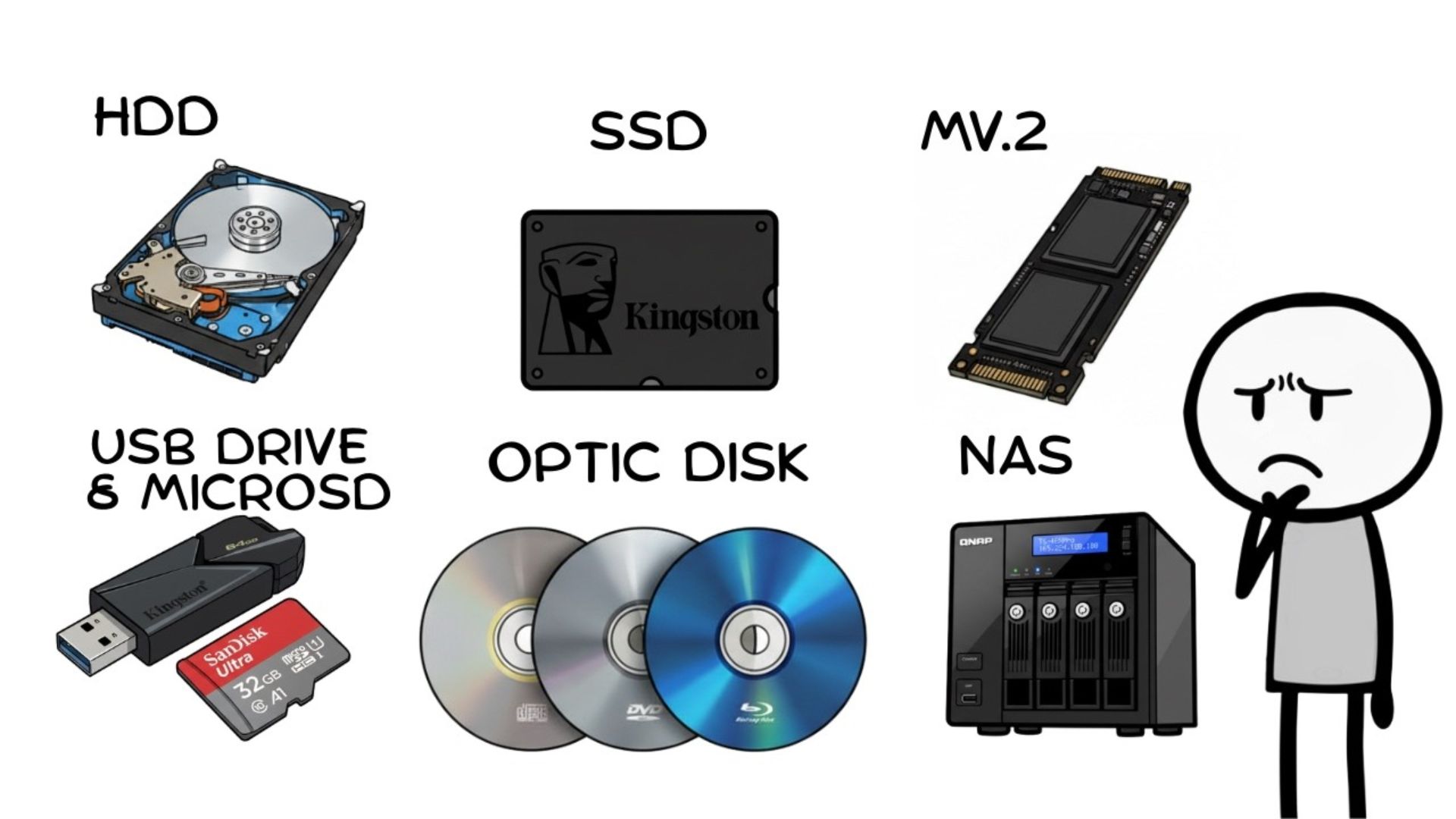
Digital storage tends to fill up without anyone noticing. A few years of phone photos, downloaded files, work documents, game libraries, video projects, and automatic backups can turn a comfortable laptop drive into a constant space-management problem. At that point, buying another drive seems like the obvious answer. But which kind? A portable SSD, a large external hard drive, a NAS, or cloud storage?
There is no single winner. Each option solves a different part of the storage problem. An SSD is excellent for speed and portability. An HDD can store huge amounts of data at a relatively low cost per terabyte. A NAS provides centralized storage for several devices, while cloud storage puts an off-site copy beyond the physical location of the computer. The more useful question is not which technology is best, but which combination makes sense for the way the data is actually used.
Before comparing hardware, it helps to divide data into a few practical categories.
Some files are used constantly. Active video projects, large software libraries, frequently edited documents, and current work files benefit from fast storage. Other data is rarely opened but still needs to be kept, such as old photographs, completed projects, and historical documents. A third category consists of data that would be difficult or impossible to recreate. Family photographs, business records, and important documents fall into this group.
Those categories do not necessarily belong on the same device.
A fast SSD may be the right place for active projects. A large HDD can hold older material at a lower cost per terabyte. A NAS can provide a central location for several computers. Cloud storage can provide an off-site copy if something happens to the physical hardware.
Thinking in those terms makes the SSD-versus-HDD debate much less confusing.
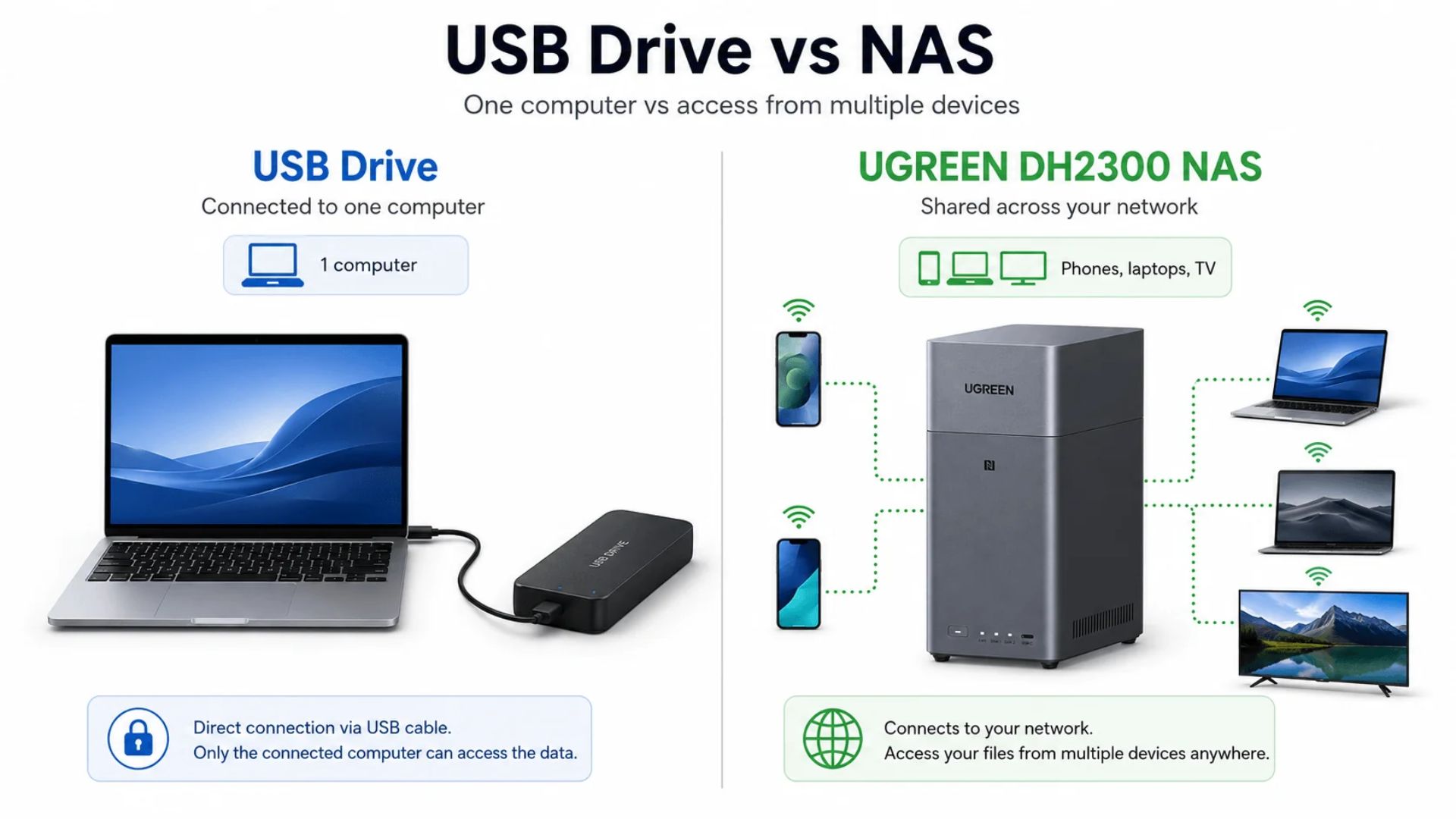
External solid-state drives are usually the most convenient choice when files need to move quickly between computers or applications need fast access to a large collection of data. Unlike mechanical hard drives, SSDs have no spinning platters or moving read/write heads. Their flash-based design provides low access latency and can deliver high sequential transfer rates when the drive, interface, and host system are all capable of supporting them.
The actual speed of an external SSD depends on the complete connection. A SATA-based external SSD will behave differently from an NVMe SSD connected through a high-speed USB or Thunderbolt interface. The advertised speed of the SSD itself also does not guarantee that a computer will reach that figure. The host port, cable, controller, file system, and workload all influence real-world performance.
That makes portable SSDs particularly useful for active projects. A photographer can keep a large image library on an external drive, and a video editor may be able to work directly from an appropriately fast SSD rather than copying an entire project to internal storage first. Whether that works comfortably depends on the footage, codec, bitrate, number of simultaneous streams, and the performance of the computer and connection.
Portability is another advantage. An SSD is generally less sensitive to the bumps and vibration that can damage a mechanical drive while it is operating. That does not make an SSD indestructible, though. The connector, enclosure, controller, and flash memory can all fail, which is why an SSD should never be treated as the only copy of important files.
The main drawback is usually capacity economics. Large SSDs can be excellent for performance, but storing many terabytes exclusively on flash can become expensive compared with using high-capacity HDDs.
Mechanical hard drives have been around for decades, yet they remain useful because storage capacity and cost matter just as much as speed.
An external desktop HDD is often a sensible choice for large media collections, completed projects, local backups, and other files that do not need SSD-level responsiveness. Mechanical drives use magnetic platters and moving heads, so they have higher latency and lower transfer performance than modern SSDs. They are also more vulnerable to physical shock while operating.
What they give back is capacity.
For someone storing many terabytes of photographs, video footage, system images, or other large files, an HDD can provide substantially more storage capacity for the same general budget than a comparable high-capacity SSD. That makes HDDs especially useful as part of a backup or archival strategy where files are written periodically and accessed less often.
The trade-off is that large transfers take longer. An HDD can be perfectly adequate for storing a completed video library, but it is less attractive when an application needs to repeatedly read and write large files during an intensive editing session.
For a desktop environment, that trade-off is often easy to accept. Keep the drive in a stable location, connect it when needed, and use it for data that does not require constant high-speed access.
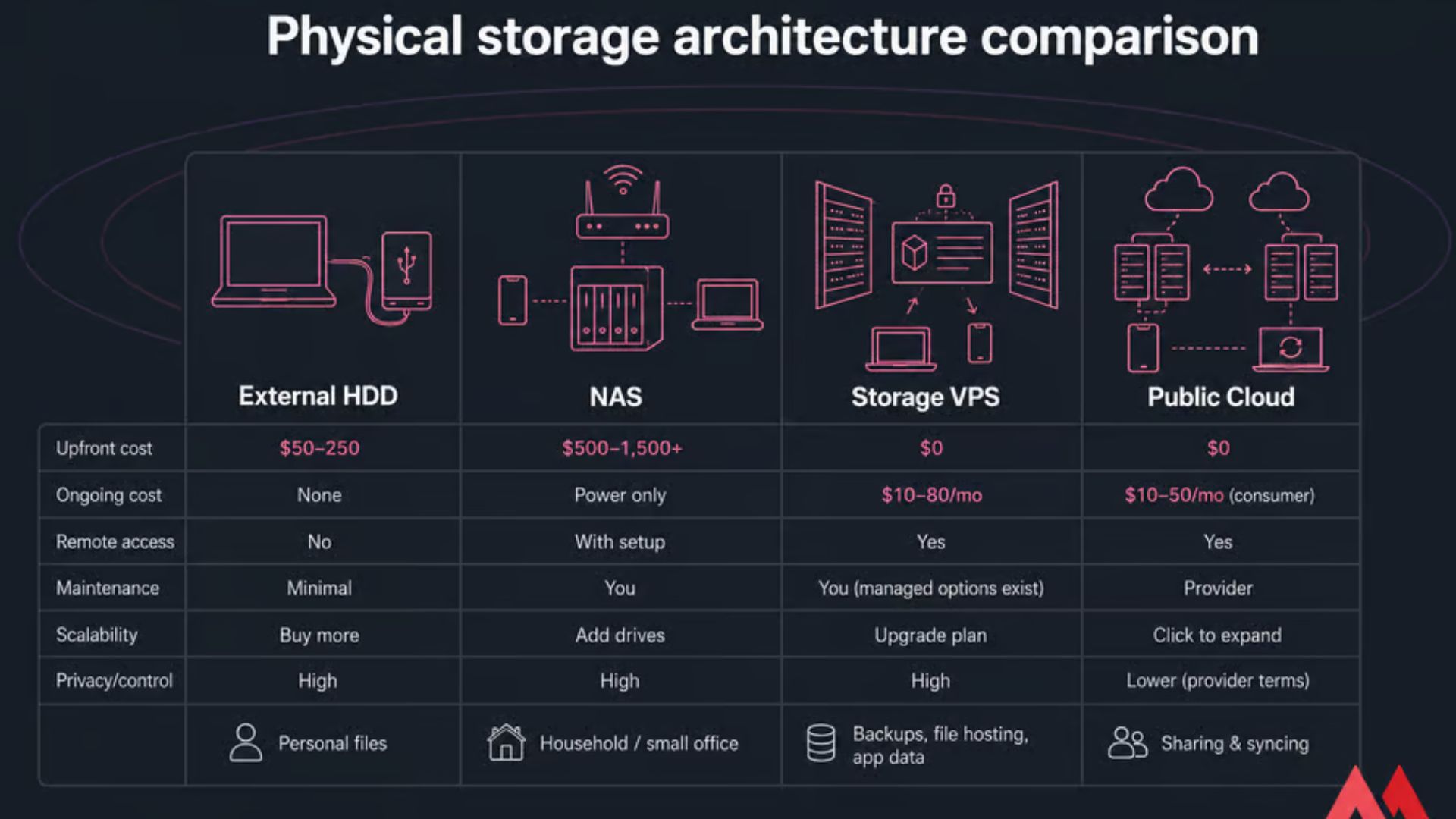
A network-attached storage system changes the way storage is accessed. Instead of plugging an external drive into one computer, the storage system connects to the local network and provides files to multiple clients.
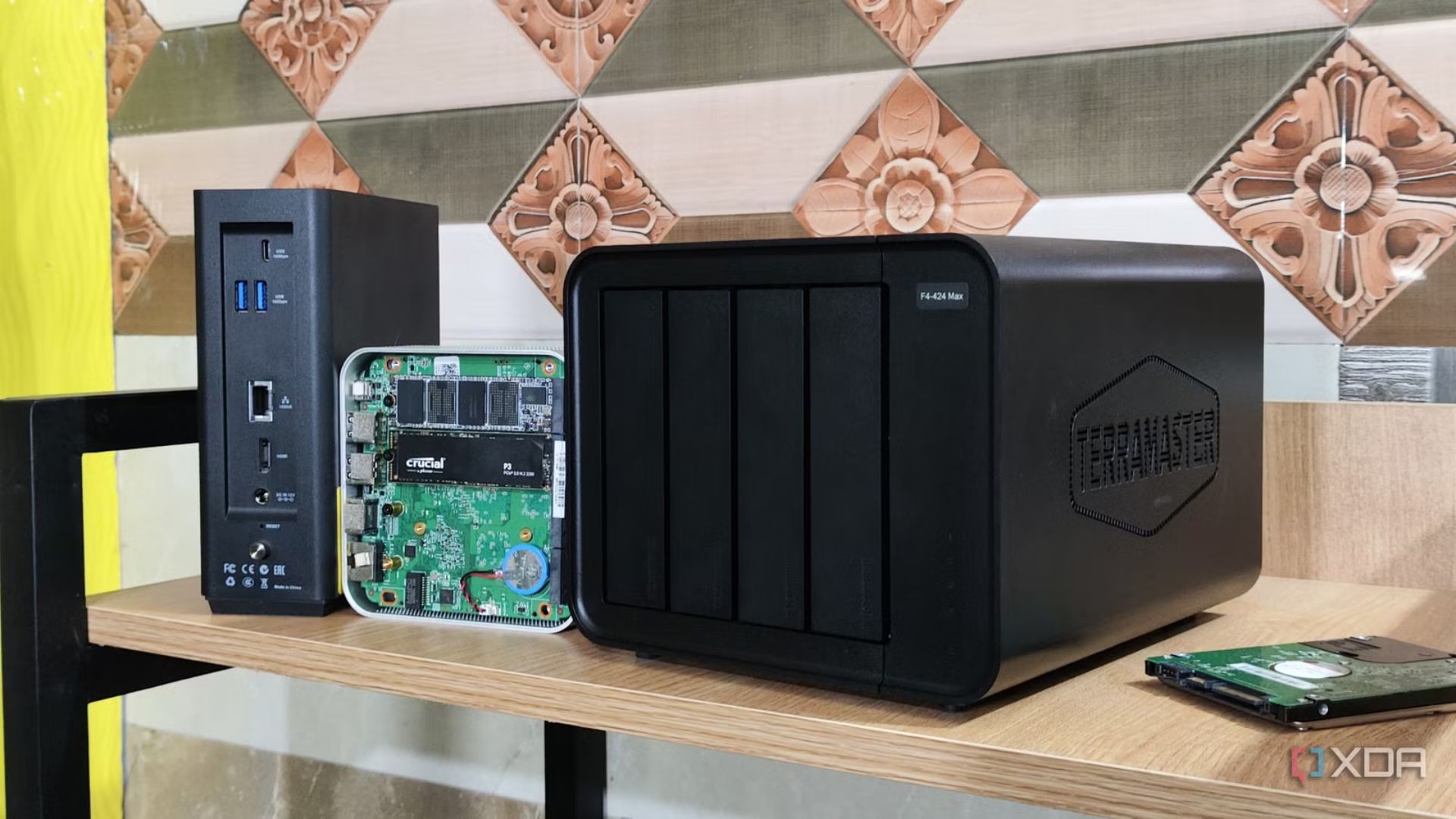
A NAS can be a dedicated appliance, typically with one or more drive bays, or a more customized system built around standard computer hardware. The exact capabilities vary considerably between models. Some focus mainly on file sharing and backup, while others provide media servers, synchronization tools, virtual machines, surveillance features, or other network services.
This makes NAS particularly useful in households and small offices with several computers. A laptop, desktop, and other devices can access a central storage pool without repeatedly moving a physical drive from one machine to another.
Multi-drive NAS systems also commonly support RAID configurations. But RAID needs to be understood correctly.
In a mirrored configuration such as RAID 1, the same data is stored on multiple drives, allowing the array to continue operating if one drive fails. Parity-based configurations such as RAID 5 and RAID 6 use calculated parity information to provide a different form of redundancy.
Most importantly, RAID is not a backup.
If someone accidentally deletes a file, ransomware encrypts the data, or the NAS itself is damaged by theft, fire, or another major event, RAID does not automatically provide a separate historical copy. A resilient NAS strategy therefore needs backups beyond the NAS itself.
That is also where the complexity of NAS becomes apparent. Users may need to configure accounts, permissions, network access, drive replacement procedures, updates, security settings, and external backups. A NAS can be extremely capable, but it is closer to managing a small server than plugging in a portable drive.
Cloud storage takes a different approach. Instead of maintaining the physical storage hardware, users store their data on infrastructure operated by a third-party provider.
The biggest practical benefit is location. A cloud copy is physically separated from the computer or storage device at home or in an office. If local equipment is destroyed by a fire, flood, theft, or other disaster, an off-site copy may remain available.
Cloud storage also makes synchronization simple. A photo taken on a phone can appear on another device, documents can be shared with colleagues, and multiple computers can maintain access to the same collection without a dedicated local server.
There are trade-offs, though.
Large initial uploads can take a long time, especially when the available upload bandwidth is limited. Restoring several terabytes can be equally challenging if the only practical route is an internet connection.
There are also privacy and account-security considerations. Encryption at rest and in transit is useful, but encryption does not mean every cloud service provides the same privacy model. Some services manage the encryption keys themselves, while others may offer stronger client-side or end-to-end encryption for particular types of data. Account security, recovery options, synchronization behavior, and the provider's retention policies all deserve attention.
And unlike a one-time hardware purchase, many cloud services involve recurring fees. Over several years, the total cost can become significant, particularly when storing many terabytes.
The most important storage decision is often not choosing between four technologies. It is deciding how many independent copies of important data should exist.
Consider a photographer with several terabytes of family photographs and current projects. A portable SSD could hold the active projects because fast access matters. A larger HDD could store a second local copy. A cloud service or another off-site system could protect the irreplaceable photographs if the entire home were affected by a disaster.
A small business might take a different approach. A NAS could provide centralized access for employees and automated local backups, while a separate off-site backup protects against a major incident affecting the office.
The exact arrangement depends on the data, budget, internet connection, technical skills, and recovery requirements. The principle is more universal: important data should not depend on a single physical device.
Storage typeMain strengthMain limitationGood fitExternal SSDSpeed and portabilityHigher cost at large capacitiesActive projects, travel, fast file transfersExternal HDDLarge capacity and lower cost per TBSlower and mechanically sensitiveBackups, archives, media librariesNASCentralized multi-device accessMore setup and maintenanceHomes, studios, small officesCloud storageOff-site access and automationRecurring cost and internet dependenceSynchronization, off-site copies, collaboration
The table is useful, but real-world setups often combine several of these categories rather than choosing only one.
A useful rule is to think about how often the data needs to be accessed.
Frequently used data benefits from fast storage. An external NVMe SSD can make sense for active creative projects, large application libraries, or other workloads where waiting for storage affects productivity.
Occasionally accessed data can usually live comfortably on an HDD. If a collection is opened only a few times each month, paying a premium for SSD performance may not provide much practical benefit.
Data shared by several computers is a natural candidate for NAS. Instead of maintaining separate copies on every machine, a centralized system can simplify access and local backup management.
Data that must survive a local disaster needs an off-site copy. Cloud storage is one option, but another physical location or a professionally managed backup service can serve the same basic purpose.
This approach avoids the common mistake of spending heavily on performance where capacity or redundancy is actually the more important requirement.
Storage and backup are related, but they are not interchangeable.
A storage device answers the question:
Where does the data live?
A backup strategy answers:
How can the data be recovered if something goes wrong?
That distinction matters because a second drive sitting beside the computer may still be vulnerable to the same fire, theft, power event, or user mistake. Likewise, a synchronized cloud folder may reproduce an accidental deletion across devices rather than preserving an independent historical copy.
For valuable data, a stronger approach is to maintain multiple copies and keep at least one copy separated from the primary location. The exact backup schedule depends on how frequently the data changes and how much loss can realistically be tolerated.
There is no magic storage medium that eliminates every risk.
External SSDs, HDDs, NAS systems, and cloud storage are not really competing technologies. They occupy different positions in a broader storage strategy.
An SSD makes the most sense when speed and portability come first. An HDD remains attractive when capacity and cost per terabyte matter more than fast access. A NAS becomes useful when several devices need centralized storage and management. Cloud storage adds convenient synchronization and, importantly, geographic separation from local hardware.
For many users, the best solution is a combination: fast storage for active work, inexpensive high-capacity storage for local backups, and a separate off-site copy for important data.
The goal is not to own the fastest drive or the largest storage system. It is to make sure the right data is stored in the right place, with enough independent copies to recover when something inevitably goes wrong.
National Institute of Standards and Technology (NIST), Guidelines for Media Sanitization, SP 800-88 Rev. 2.
Storage Networking Industry Association (SNIA), technical resources covering storage technologies and data management.
Vendor technical documentation for external SSD, HDD, NAS, and cloud-storage capabilities should be consulted for product-specific performance, compatibility, and retention details.
