
Running low on drive space is a common problem for computer users. Operating systems may display storage warnings, applications may have less room for temporary files, and system responsiveness can be affected in some situations when available space becomes limited.
The first reaction is often to search for large files and delete anything that appears unnecessary. However, rushed cleanup decisions can create new problems, such as removing important documents, application data, or files that are still needed for ongoing projects.
Effective disk space management is not about deleting as much as possible. It is about identifying which data can be removed safely and which files should remain untouched. Modern operating systems store information across user folders, application data locations, caches, and system-managed areas. Understanding these categories helps users recover storage space while reducing the risk of accidental data loss.
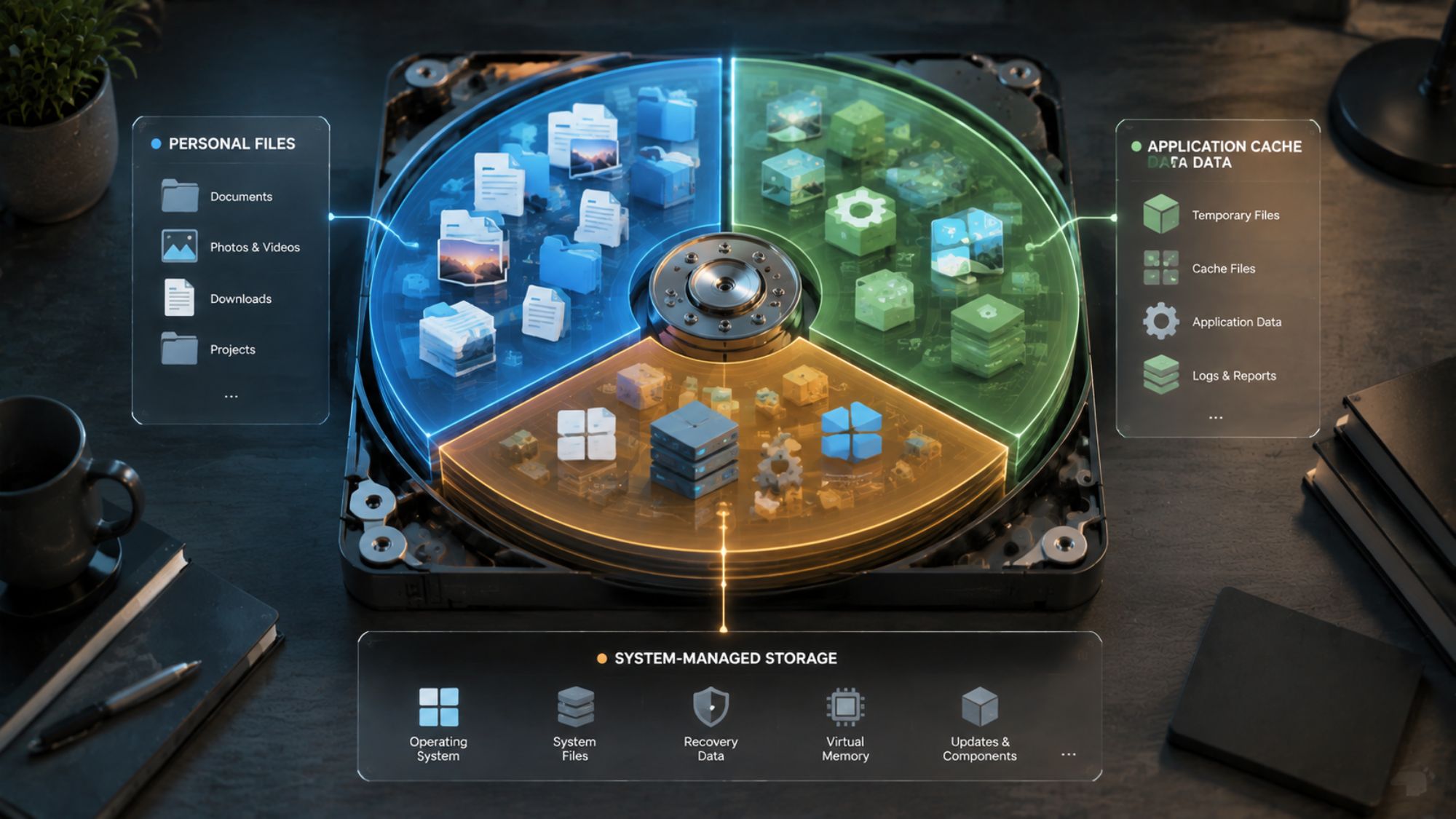
Before removing files, it is important to understand what is consuming storage space. Drives rarely become full because of one single category of data. Instead, storage usage usually comes from a combination of personal files, application-related data, and operating system resources.
The most visible storage users are usually found in folders such as Documents, Downloads, and Desktop.
The Downloads folder often collects software installers, compressed archives, temporary documents, and files that were downloaded for one-time use. Reviewing these files by size and date can help identify items that are no longer needed.
Personal documents, photos, videos, and project files require more attention because they may contain important information. Large files should always be reviewed before deletion rather than removed simply because they consume space.
Applications create temporary files to improve performance and support ongoing work.
Web browsers store cached images and website resources to load pages more efficiently. Video editors, design software, and productivity applications may create preview files, temporary exports, or backup data during normal use.
These files are often suitable cleanup targets because applications can usually recreate them when necessary. However, users should confirm the purpose of a folder before removing large amounts of application-related data.
Operating systems reserve storage for functions such as virtual memory, system recovery features, updates, and temporary system files.
Although these areas may occupy significant space, manually deleting files from system-managed locations can create unexpected problems. System cleanup tools are generally a safer option because they understand which categories can be removed without affecting normal operation.
A careful cleanup strategy starts with low-risk categories. These areas often contain unnecessary files while avoiding important personal or system data.
Review downloaded files based on:
File size
Download date
Whether the file is still needed
Installation packages such as .dmg, .exe, or .msi files that are no longer required after successful installation can often be removed.
However, keep files that may still be useful, such as offline installers, drivers, backups, or older software versions needed for specific situations.
Modern operating systems include tools designed to help users identify removable data.
Examples include:
Windows Storage Sense
macOS Storage Management recommendations
These tools can help locate categories such as temporary files, unused data, and other storage areas that may be suitable for cleanup. Using built-in tools reduces the chance of accidentally removing important system components.
Browser cache files can grow over time, especially on computers used frequently for web browsing.
Clearing browser cache through the browser’s own settings can recover storage space while keeping important information such as bookmarks and saved account settings intact.

Some storage categories may appear unnecessary but are closely connected to system or application functionality.
Locations such as:
C:\Windows
macOS system folders
contain files required by the operating system and installed applications.
Removing files from these areas manually can cause system components, applications, or drivers to malfunction. Users should rely on official cleanup methods rather than directly deleting unknown system files.
Folders such as:
AppData on Windows
Library on macOS
store application preferences, local databases, configuration files, and other supporting information.
Deleting application-related folders may remove settings, stored data, or information required by the software. Before removing anything from these locations, users should confirm what the data is used for.
Recovery points, backup snapshots, and similar system features may consume considerable storage space.
Removing them through official system tools is safer than manually deleting related files because these features may be needed when recovering from software issues or system changes.
Disk management works best as a regular maintenance process rather than an emergency cleanup session.
Instead of guessing where space is being used, storage visualization tools can provide a clearer overview of large files and folders.
Applications such as WizTree and GrandPerspective display storage usage through graphical views, helping users identify large files and review directories more efficiently.
These tools are most useful when combined with careful file review rather than automatic deletion.

Not every large file needs to be deleted.
Older photos, completed projects, archives, and infrequently used files can often be moved to:
External drives
Network storage
Cloud storage solutions
Cloud services with on-demand access can reduce local storage usage while keeping files available when needed.
When unsure about a large folder or archive, consider moving it to a separate backup location first.
Keeping uncertain files temporarily separated allows users to confirm whether they are still needed before permanent removal.
This approach reduces the chance of deleting important information accidentally.
Good disk management depends on consistent habits.
Before deleting large amounts of data:
Check file names and locations.
Confirm whether the files are connected to active projects.
Create backups for important information.
Use system cleanup tools whenever possible.
Storage optimization should focus on improving organization, not simply reducing the number of files.

Managing disk space safely requires a balance between recovering storage and protecting important data.
The most effective approach is to begin with low-risk cleanup areas such as unnecessary downloads, temporary files, and removable application caches. At the same time, system folders, application data locations, and recovery files should be handled carefully.
By understanding where storage is used and applying a structured cleanup process, users can maintain a healthier computer environment without risking valuable files. A thoughtful approach makes storage management more reliable, predictable, and easier to maintain over time.
