A USB-C port can look deceptively simple. The same small, reversible connector might charge a phone, connect a basic USB device, drive an external display, attach a fast SSD, or serve as the single cable between a laptop and an entire desktop setup. Yet two computers with identical-looking USB-C ports can behave very differently when the same cable or dock is connected.
That is because USB-C describes the connector, not everything happening behind it. The actual experience depends on the protocols supported by the computer, the dock or peripheral, the cable, and the power-delivery capabilities of the system.
For anyone building a workstation or trying to understand why a monitor, SSD, or dock is not performing as expected, separating these layers makes the whole subject much easier to follow.
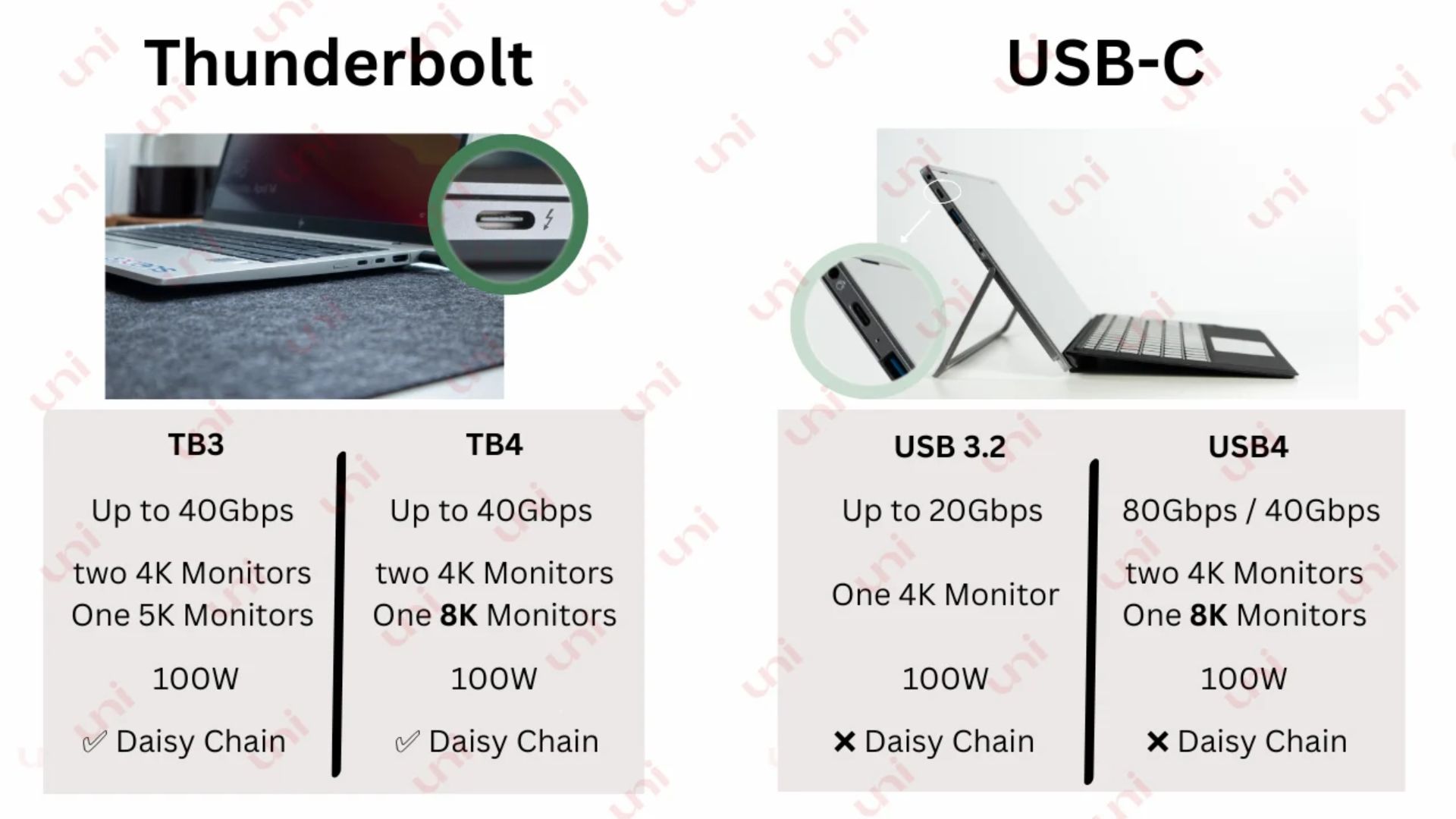
The first distinction is also the most important one: USB-C is a physical connector and cable interface specification. It does not, by itself, tell a user whether a port supports USB 2.0, faster USB data rates, USB4, DisplayPort output, Thunderbolt, or high-power USB Power Delivery.
That is why the familiar oval connector can create so much confusion. A basic USB-C port may handle ordinary USB data and charging, while another USB-C port on a different computer may support USB4, external displays, PCIe tunneling, and high-power charging. The connector looks the same, but the electronics and protocols behind it are different.
The practical lesson is simple: do not judge a USB-C port by its shape alone. The computer's technical specifications, port markings, and documentation are much more useful indicators of what that connection can actually do.
USB4 is a data and connectivity architecture built around USB Type-C. One of its important features is protocol tunneling, which allows different types of traffic to share a high-speed connection. Depending on the implementation, that can include USB data, DisplayPort traffic, and PCIe-related communication.
The original USB4 ecosystem introduced 20Gbps and 40Gbps performance levels. Newer USB4 specifications have expanded the architecture further, with USB4 Version 2.0 supporting USB 80Gbps operation and additional capabilities for demanding display workloads. USB-IF documentation also makes an important point that is easy to miss in product marketing: the exact performance level needs to be identified for the particular product rather than inferred from the USB-C connector itself.
That distinction matters when comparing laptops and docks. Two products can both advertise USB4 while offering different levels of performance or different combinations of display, storage, and peripheral support. The connection ultimately operates according to the capabilities shared by the host, cable, and connected device.
USB4 therefore should not be treated as a guarantee of one universal performance level. The specification provides the framework; the individual product determines which parts of that framework are implemented.
Thunderbolt also uses the USB-C connector, but Thunderbolt certification establishes a defined set of minimum capabilities for compliant products. Intel develops and maintains the Thunderbolt technology and validates products carrying the Thunderbolt brand.
Thunderbolt 4, for example, specifies a 40Gbps minimum connection rate and requires a stronger baseline of capabilities than a generic USB-C connection. These requirements include PCIe data performance and support for multiple high-resolution displays, although the exact display configuration can still depend on the computer and display hardware.
This is one reason the Thunderbolt logo can be useful when choosing a dock or laptop. A USB-C logo tells very little about performance by itself. A certified Thunderbolt product, by contrast, has to meet the requirements associated with that generation of the technology.
Thunderbolt 5 raises the bandwidth ceiling again. It provides up to 80Gbps of bidirectional bandwidth and can use Bandwidth Boost to provide up to 120Gbps of bandwidth in the outbound direction for demanding video workloads. That 120Gbps figure should not be interpreted as ordinary 120Gbps two-way data transfer; it is a feature intended to give high-volume display traffic additional bandwidth when the workload calls for it.
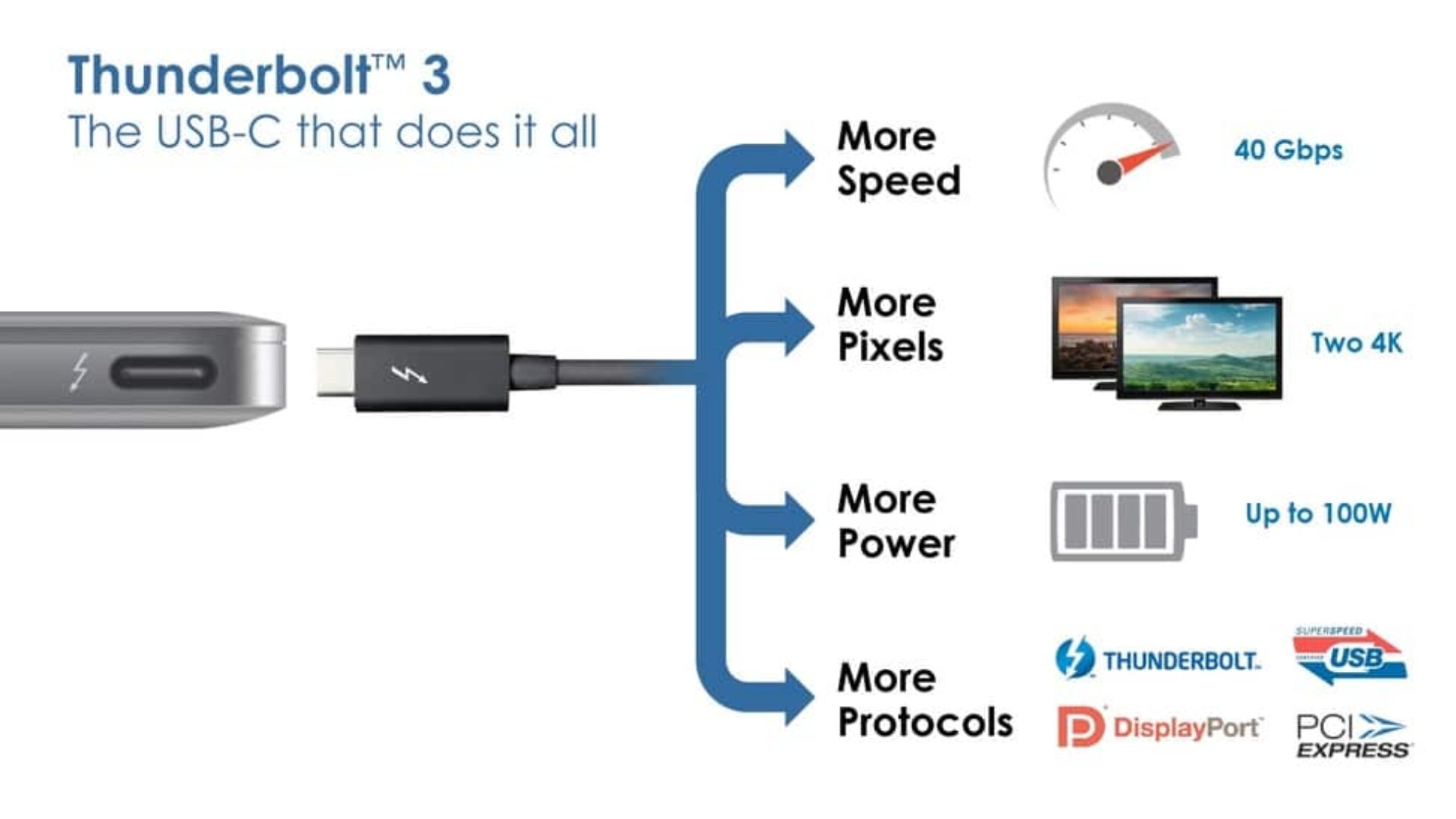
The relationship between USB4 and Thunderbolt is easier to understand when viewed historically. USB4 incorporated technology derived from the Thunderbolt 3 protocol, and the two ecosystems share several underlying concepts, including high-speed transport and protocol tunneling.
That does not make every USB4 product equivalent to Thunderbolt.
USB4 gives manufacturers more flexibility in how they implement the technology and what performance tier they provide. Thunderbolt, meanwhile, combines a defined technology specification with mandatory certification for products carrying the Thunderbolt brand.
For buyers, this creates a useful rule of thumb: USB4 requires closer attention to the product specification, while Thunderbolt certification provides a more predictable baseline of capabilities.
Neither label eliminates the need to check the rest of the system. A display still has its own requirements, a dock has its own port configuration, and a cable has its own bandwidth and power limits.
A docking station takes a connection from the host computer and turns it into a collection of additional interfaces. A single cable may carry traffic for monitors, USB peripherals, Ethernet, storage, audio devices, and power.
The important question is how the dock handles that traffic.
A Thunderbolt or capable USB4 dock can use native protocol tunneling to carry display and data traffic through the high-speed connection. This approach is particularly useful when a workstation needs fast external storage, multiple displays, or several high-bandwidth peripherals at the same time.
Another category uses technologies such as DisplayLink to provide additional displays through USB-based data transport. These solutions can be extremely useful when compatibility and multi-display expansion matter more than having a completely native graphics path. They rely on software and system resources to process display information, so their behavior can differ from a native DisplayPort or Thunderbolt display connection.
That difference becomes more noticeable in workloads where display latency, graphics performance, or high refresh rates are especially important. For ordinary office work, however, the distinction may be much less significant.
A dock should therefore be selected according to the workload rather than simply by counting the number of ports on the box.
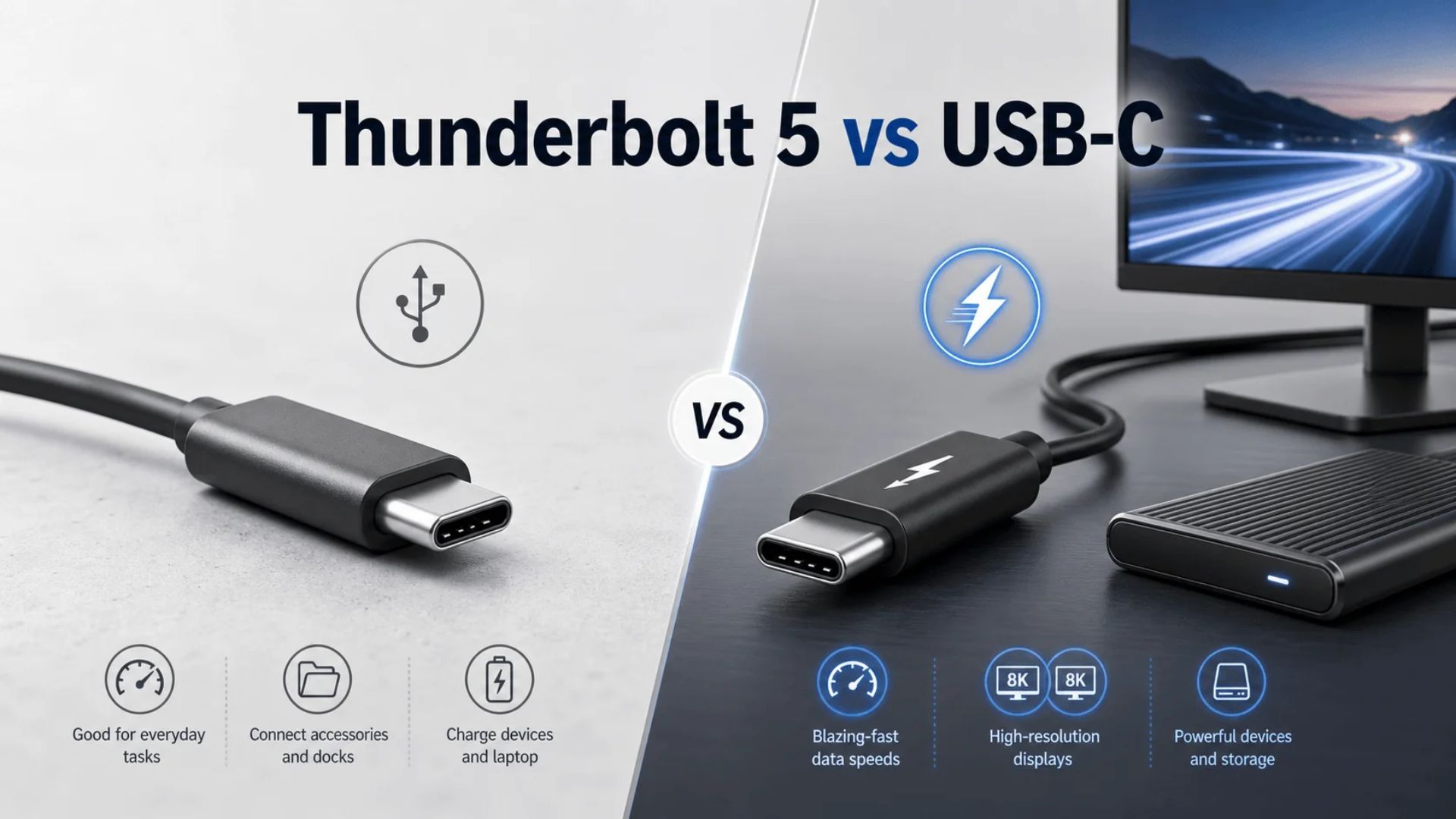
Data is only half of the modern USB-C story. USB Power Delivery allows compatible systems to negotiate power over the same connection used for data.
USB PD 3.1 expanded the power range substantially. With Extended Power Range, the specification supports power levels up to 240W, using higher fixed-voltage levels than earlier USB PD implementations. That makes USB-C suitable for a wider range of computers and other demanding devices.
But a 240W-capable standard does not mean every USB-C port, charger, dock, or cable can deliver 240W. The power level is negotiated between compatible components, and the actual system may support considerably less.
This is another reason to avoid treating USB-C as a single performance category. A port may have the same connector while offering very different combinations of charging, data, and display functionality.
A fast laptop and a capable dock can still produce a disappointing setup if the cable between them cannot handle the required bandwidth or power.
USB-C cables are not interchangeable in terms of performance. Some are designed for basic USB data and charging, while others support higher-speed USB4 or Thunderbolt connections and higher power levels. Electronically marked cables can communicate important capability information to the connected system, helping devices determine what the cable is designed to support.
Length can matter as well. High-speed signaling becomes more difficult as cable length increases, which is why some of the highest-performance connections rely on carefully designed cables and, in certain cases, active electronics.
Thunderbolt 5 provides a good example. Intel specifies support for relevant high-performance operation with passive cables at short lengths, while longer runs can require active cable designs. The broader lesson is more useful than memorizing one particular length: the cable should be rated for the same class of performance required by the rest of the connection.
If a high-speed setup suddenly falls back to a slower connection, loses a display, or behaves inconsistently, the cable is one of the first components worth checking.
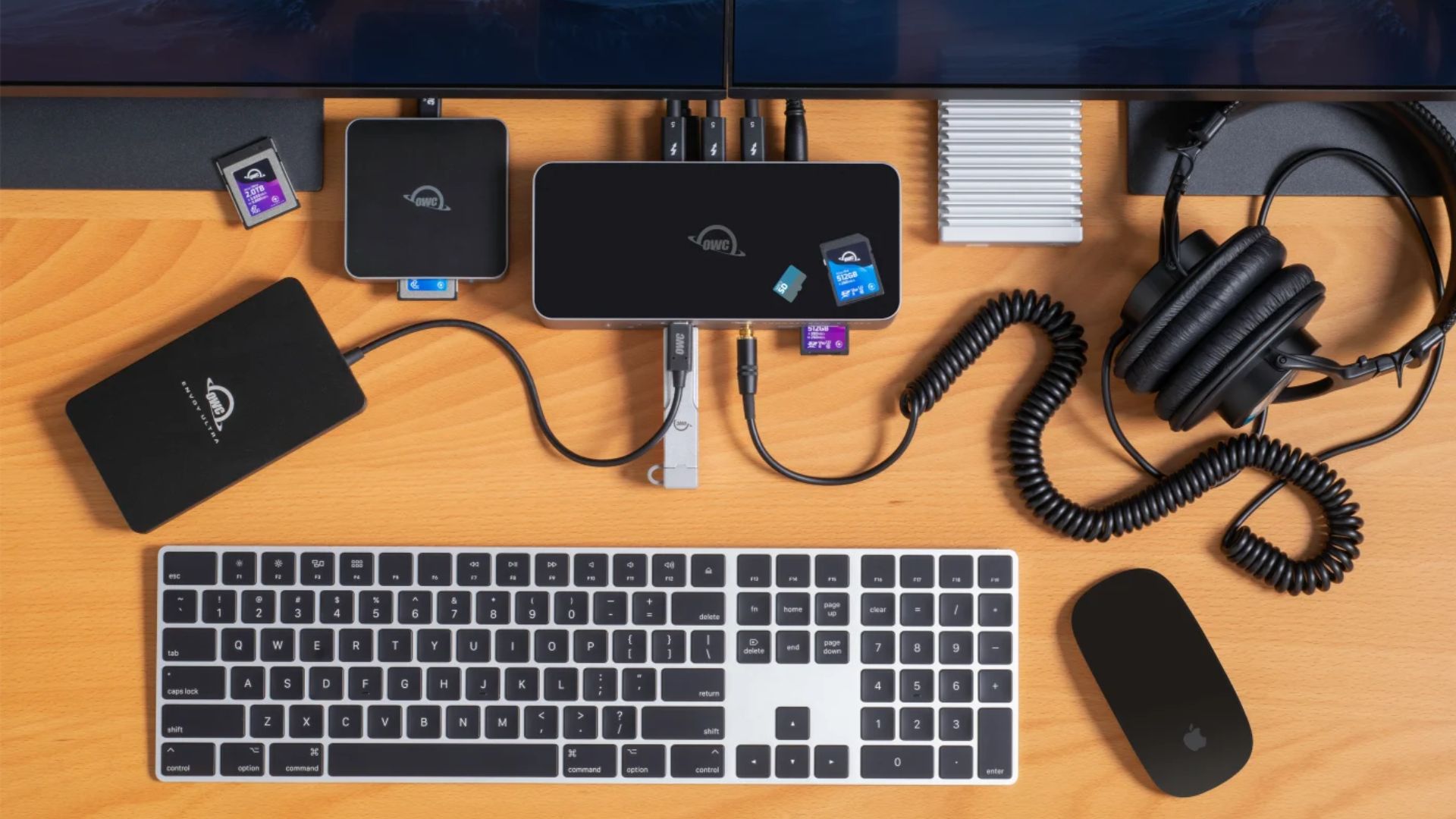
The easiest way to avoid connectivity problems is to work from the computer outward instead of starting with the dock.
First, check the exact capabilities of the host port. Does it support USB4? Thunderbolt? DisplayPort output? USB Power Delivery? What data rate is specified?
Next, look at the dock. A dock with several USB ports and multiple display connectors may appear powerful, but the host connection still determines how much traffic can pass between the computer and the dock.
Then check the displays. Resolution and refresh rate affect bandwidth requirements, and different systems can have different limits on how many displays they can drive simultaneously.
Finally, check the cable and power supply. A high-performance dock paired with an under-rated cable or inadequate power adapter can prevent the entire setup from working as expected.
This approach also helps avoid overspending. A basic office setup with one or two conventional displays may not need Thunderbolt 5. A workstation moving large files to external NVMe storage while driving several high-resolution displays has a stronger reason to consider higher-bandwidth connectivity.
The connector should be the starting point, not the final answer.
For basic peripherals, a standard USB-C connection may be all that is necessary. USB4 becomes more interesting when fast data transfer, external displays, or a versatile high-bandwidth dock are part of the workflow. Thunderbolt is particularly useful when a predictable minimum feature set, high-speed storage, multiple displays, or a sophisticated single-cable workstation is important.
The key is to evaluate the entire connection rather than one logo.
Host port + protocol + dock + cable + display/peripheral + power supply = the actual capability of the setup.
Once those pieces are considered together, USB-C becomes much less mysterious. The connector is only the physical doorway. What happens behind it depends on the standards and hardware connected to that doorway.
USB Implementers Forum (USB-IF), USB4 Specification and USB4 Version 2.0 documentation.
USB Implementers Forum (USB-IF), USB Type-C Cable and Connector Specification.
USB Implementers Forum (USB-IF), USB Power Delivery documentation.
Intel, Thunderbolt Technology documentation and Thunderbolt 5 technical materials.
